Why Microsoft Purview Sensitivity Labels Are Not Appearing for Users
Troubleshoot missing Microsoft Purview sensitivity labels by separating publication, targeting, policy distribution, licensing, client support, cache, and SharePoint prerequisites.
Diagnose Missing Labels as a Delivery-Chain Failure
When Microsoft Purview sensitivity labels are not appearing for users, do not begin by repeatedly recreating the label. A label reaches a user through several independent gates: the definition must be enabled for the relevant content type, a label policy must publish it, the affected identity must be in scope, policy distribution must succeed, the user must be licensed, and the client must support and retrieve built-in labeling policy.
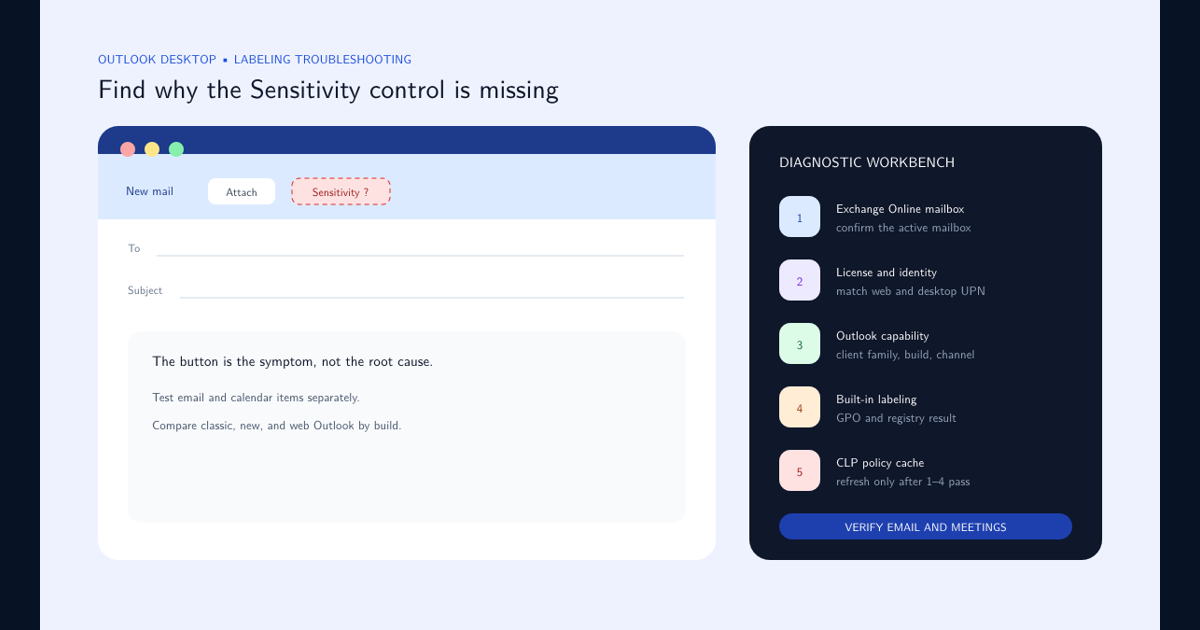
Start with one affected user, one expected label, one application, one file type, and an exact observation time. Confirm whether the Sensitivity button is absent, the button is present but a label is missing, or the label is visible but cannot be applied. Those symptoms point to different layers.
Use a known-good user and device as a comparison. Change one variable at a time. Broad statements such as “Purview is still propagating” are not diagnostic evidence; distribution state, effective scope, network retrieval, and client behavior are.
Verify Publication, Scope, and Distribution Before Touching the Client
A label definition is not automatically available to users. Open the publishing policy and confirm that it includes the expected label and targets the affected user either directly or through the intended group. Check exclusions and policy priority. When multiple label policies apply, Microsoft documents that the higher order number wins for conflicting policy settings.
In Security & Compliance PowerShell, inspect the label and label policy. Microsoft’s troubleshooting article recommends verifying that the label supports File and Email where expected, is not disabled, and that the policy workload and location fields match the user. Check DistributionStatus on the label policy. A successful save in the portal is not the same as successful distribution.
Group-based targeting introduces identity timing and membership mistakes. Record the group used, verify direct or transitive membership as applicable, and compare the affected user with a working member. Avoid adding the user to several policies at once; that obscures which assignment fixed the issue.
Prove the Client Can Use Built-In Labeling
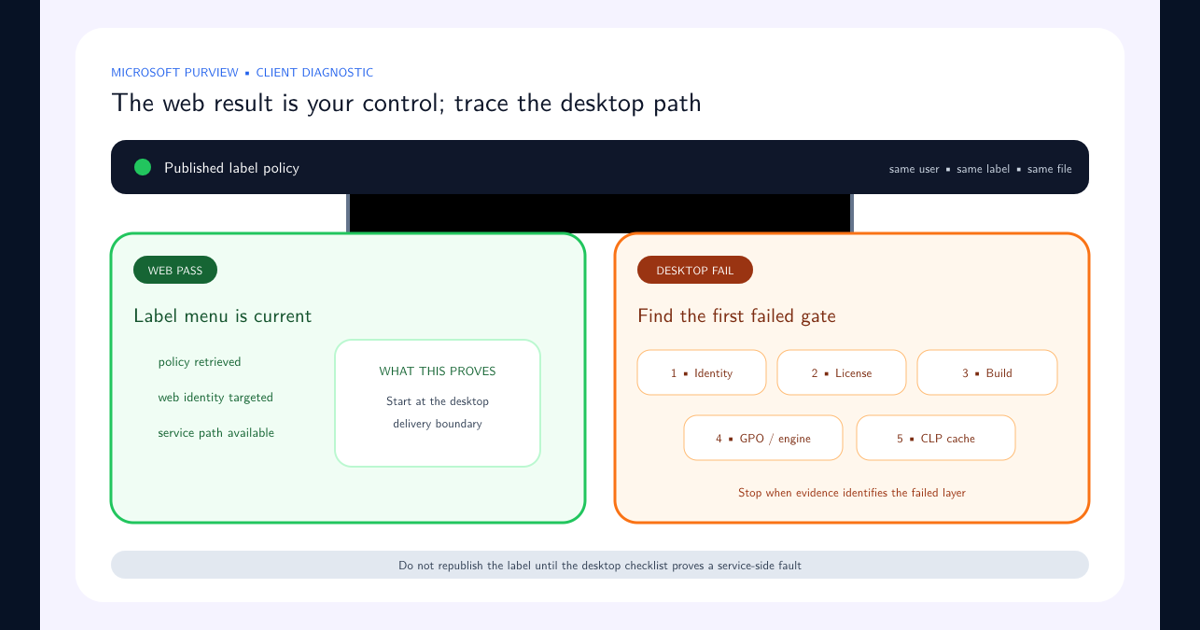
Confirm the signed-in account is the account you tested in the policy. Then verify the Microsoft 365 subscription, assigned license, supported Office build, file type, and application capability. A working Outlook on the web test does not prove the installed Word build is supported, and a working desktop client does not prove Office for the web prerequisites.
Microsoft documents a migration edge case where Office is forced to use the retired Azure Information Protection add-in behavior instead of built-in labeling. Check the documented UseOfficeForLabelling policy or registry value when that history applies. Do not deploy a registry change tenant-wide merely because one machine has stale policy.
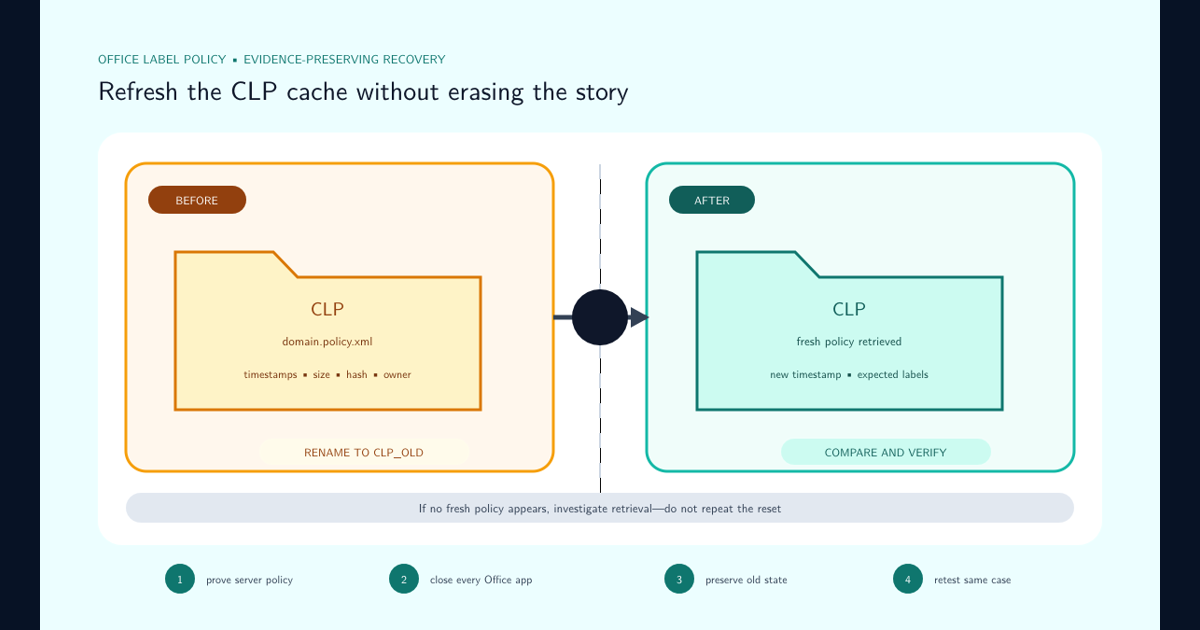
If service-side state is correct, collect the client version, sign-in identity, reproduction steps, and retrieval evidence. Microsoft’s missing-label guidance describes resetting the local Office labeling cache by closing Office apps and renaming the %localappdata%\Microsoft\Office\CLP directory so policy downloads again. Preserve the old folder during diagnosis; a cache reset can hide useful evidence and does not fix bad targeting.
Isolate SharePoint and Office for the Web Prerequisites
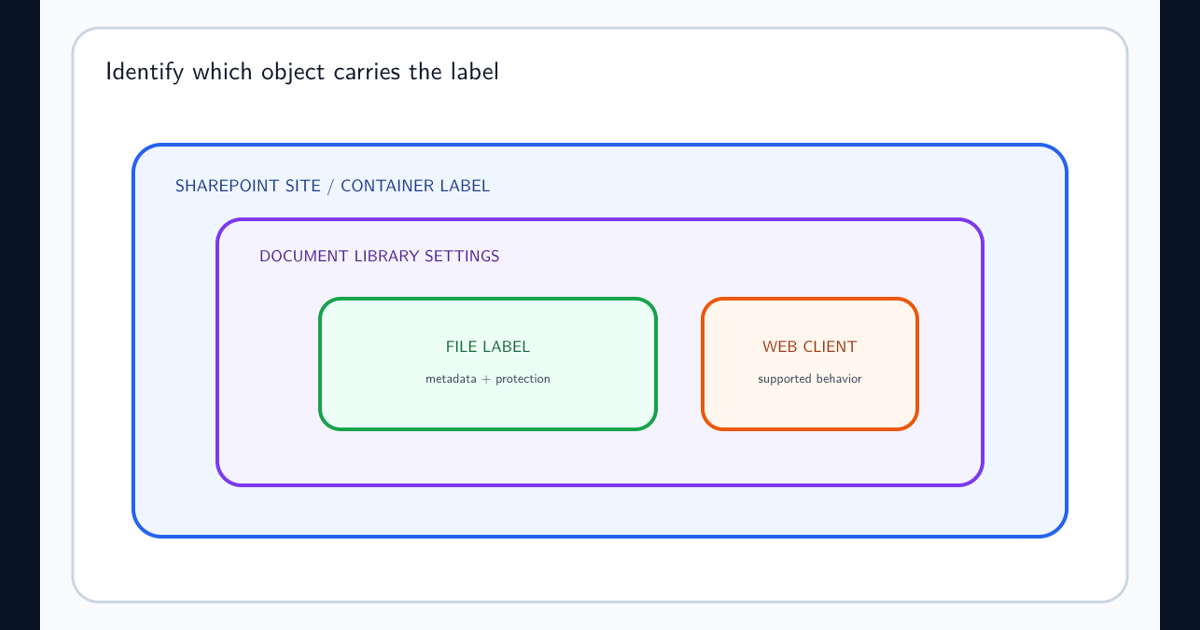
If labels appear in desktop Office but not in SharePoint or Office for the web, treat it as a workload-specific problem. Microsoft requires a one-time tenant enablement for sensitivity labels in SharePoint and OneDrive before supported web labeling and service-side scenarios work. Confirm that enablement instead of republishing every label. The SharePoint browser label troubleshooting guide separates legacy files, encryption compatibility, library defaults, item labels, and web-client behavior.
Separate container labels from file labels. A sensitivity label on a Team, Microsoft 365 group, or SharePoint site controls supported container settings; it does not automatically apply the same label to every document. Conversely, a labeled file can retain its item-level label even when its containing site has another container classification.
Verify file format and protection compatibility. Browser preview, editing, download, and desktop open are distinct operations. Record exactly where the label disappears or enforcement differs, because “ignored in SharePoint” can describe display, policy evaluation, encryption support, permissions, or a user opening a downloaded copy in another client.
Replace the Universal 24-Hour Myth With Control-Specific Timing
Purview has several control planes, so one propagation number cannot explain them all. Microsoft Endpoint DLP synchronization guidance says policy updates generally synchronize across the service in about an hour and targeted items are reevaluated when next accessed or modified. It separately states that Authorized Groups changes need 24 hours to synchronize. Use the workload-specific DLP propagation troubleshooting workflow when enforcement, rather than label visibility, is delayed.
Other products and reports have their own processing windows. A delayed alert, stale report, missing client policy, and unenforced SharePoint rule should not be placed on the same clock. Record the configuration save time in UTC, the service status, the expected documented window for that feature, the test event time, and the observation source.
Waiting is reasonable only after configuration, scope, permissions, licensing, and health are verified. Once the documented window is exceeded, collect identifiers and evidence and escalate through Microsoft support rather than repeatedly editing the policy, which can restart or complicate diagnosis.
Close the Incident With Evidence, Not With a Lucky Refresh
A useful incident record includes tenant and policy identifiers, label GUID, affected UPN, targeting path, distribution state, licensing, client and build, file type, timestamps, screenshots, policy retrieval evidence, and the first successful retest. Remove secrets and unnecessary user content before attaching logs.
If a cache reset appears to fix the issue, still determine why the cache became stale and whether the failure affects a cohort. If adding a direct user assignment fixes it, investigate the group path instead of leaving an unmanaged exception. If a portal page is slow or redirects unexpectedly, use the Purview portal performance troubleshooting workflow, verify configuration through another supported administration surface, and check service health; portal responsiveness is not itself enforcement state.
When labels work in Microsoft 365 web apps but not local Office, follow the ordered desktop-versus-web sensitivity label checklist. Use the dedicated Outlook Sensitivity button guide for an Outlook-only failure, the CLP cache reset guide for proven stale client policy, and the client-side auto-labeling prompt guide when labels are visible but the recommendation does not trigger.
Feed the result back into sensitivity label design and deployment operations. Maintain a small canary population, a known labeled file, documented client baselines, and a change log. Use a simulation-first approach for related automatic labeling and DLP changes so visibility and enforcement problems appear before broad rollout.
Frequently asked questions
How long do Microsoft Purview sensitivity labels take to appear?
There is no single safe timer for every client and workload. First verify policy distribution success, targeting, licensing, and client support. If those are correct, allow normal synchronization and retest with a controlled user rather than treating an arbitrary wait as proof of success.
Why can one user see a sensitivity label while another cannot?
Compare effective policy assignment, group membership, exclusions, license, signed-in account, Office build, labeling mode, and local policy cache. A tenant-wide label definition does not make the label visible until a publishing policy targets the user.
Why do labels work in desktop Office but not Office for the web?
SharePoint and OneDrive labeling must be enabled for the tenant, the label must support files, and the web workload and file type must support the intended capability. Desktop success does not prove the SharePoint prerequisite is enabled.
Does every Purview DLP policy change take 24 hours?
No. Microsoft documents that Endpoint DLP policy updates generally synchronize in about an hour; some settings, such as Authorized Groups changes, require 24 hours. Measure the correct control plane before assuming a universal delay.