Microsoft Purview Sensitivity Label Ignored in SharePoint Browser: Fix Guide
Diagnose sensitivity labels that appear ignored in SharePoint or Office for the web by separating tenant enablement, item and container labels, encryption compatibility, file support, and download behavior.
Define What “Ignored” Means in the Browser
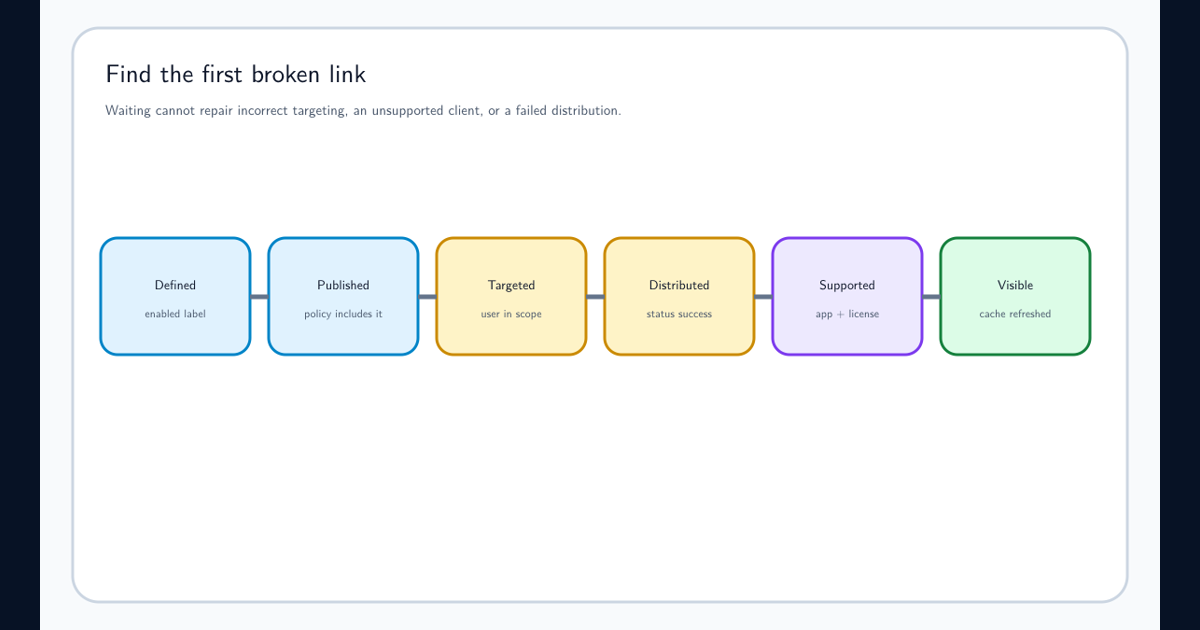
A Microsoft Purview sensitivity label can appear ignored in SharePoint in several ways: the label name is missing, Office for the web refuses to open the file, a default library label is not applied, DLP does not detect the label, sharing defaults differ from expectation, or a downloaded file behaves differently in desktop Office.
Record the site, library, file type, current item label, site label, encryption settings, upload date, browser action, user, and expected result. Test display, open, edit, share, download, copy, and move as separate actions.
Do not begin by changing the label. First identify whether the expected control belongs to a container label, document-library setting, item label, DLP policy, or Office client. Similar names do not make those mechanisms interchangeable.
Verify SharePoint and OneDrive Labeling Is Enabled
Sensitivity labels for files in SharePoint and OneDrive require tenant enablement. Microsoft describes this as a one-time prerequisite for Office for the web labeling and service-side auto-labeling. Confirm the setting rather than assuming published labels enable it automatically.
Microsoft SharePoint labeling guidance also states that labels applied before the feature was enabled are not recognized automatically. When those files are encrypted, SharePoint cannot process their content. Download and reupload a controlled sample to verify this historical edge case before planning broader remediation.
Check PDF enablement separately where PDF labeling is required. Validate with a newly uploaded supported Office file so legacy state does not contaminate the test.
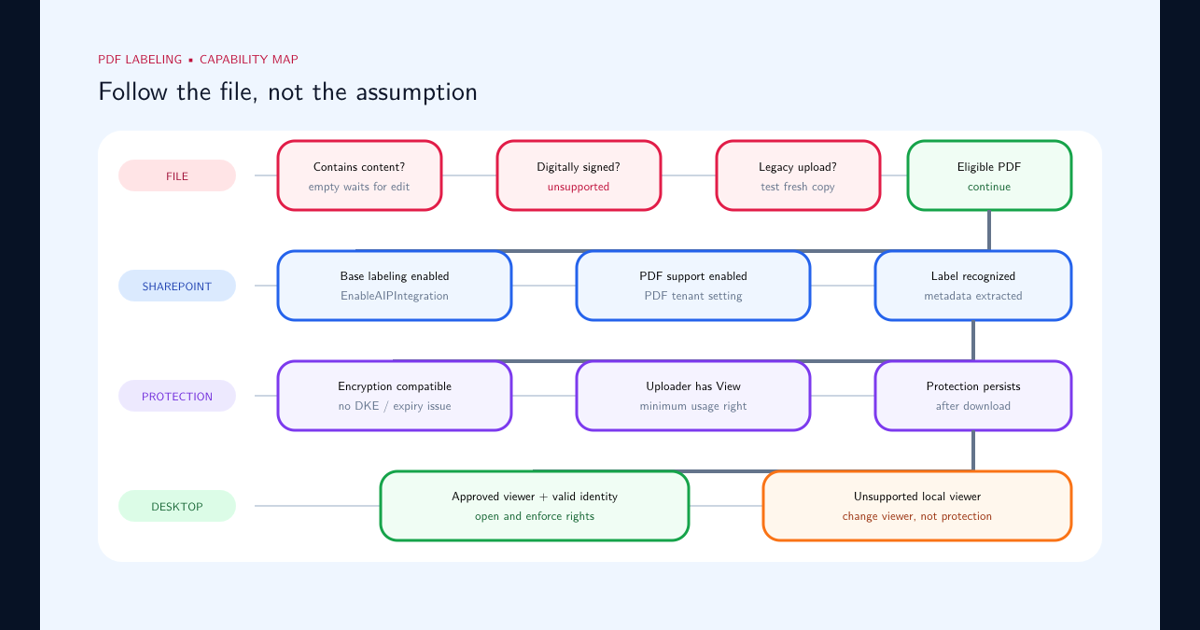
For PDF-specific differences involving signatures, legacy ingestion, encryption, rights, browser labeling, or local viewers, use the PDF web-versus-desktop label troubleshooting guide.
Check Whether the Encryption Configuration Is Web-Compatible
Desktop Office can support a protected file that SharePoint cannot process for browser editing. Microsoft lists encryption configurations that remain unsupported for SharePoint and OneDrive processing, including Double Key Encryption and labels where content access expires instead of being set to Never.
For unsupported protection, the correct result may be to open the file in the desktop app. Do not remove encryption merely to make the browser experience look consistent without reassessing the business requirement.
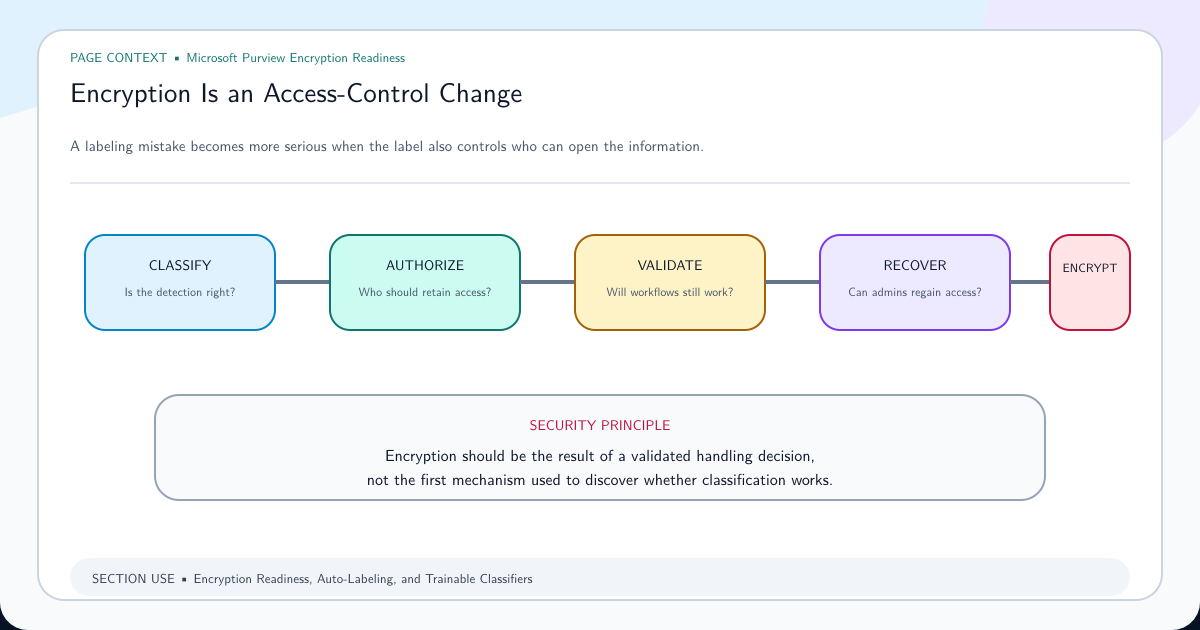
Co-authoring for files encrypted with sensitivity labels has its own tenant prerequisites. User-defined permissions, administrator-defined permissions, and library-based permission extension behave differently. Review encryption readiness across browser, desktop, mobile, search, eDiscovery, and recovery before changing the production label.
Separate Site Labels, Library Defaults, and Existing File Labels
A label scoped to Groups and sites can control supported privacy, external sharing, unmanaged-device access, authentication context, and default sharing behavior for the container. It does not automatically stamp that label onto every document.
A document-library default label can apply an item label to supported files, subject to its configuration and existing-label rules. Microsoft’s permission-extension feature can apply SharePoint permissions to downloaded, copied, or moved documents under specific prerequisites. An existing encrypted label is not overridden in the same way as an unencrypted label.
Inspect the actual item label and label GUID rather than inferring it from the site name or library badge. When DLP uses a sensitivity label condition, confirm the workload and file type are supported.
Read Auto-Labeling Failures as Item-Specific Evidence
Service-side auto-labeling can fail because a file is locked, checked out, unsupported, externally encrypted, already carries an equal or higher priority label, or because PDF labeling is not enabled. These outcomes require different responses.
The Microsoft auto-labeling failure reference distinguishes retryable states such as locked or checked-out files from unsupported states that need configuration or file changes. Do not treat every failure as propagation.
Export or retain item-level error details, file type, current label, target label, and retry outcome. A policy can be healthy while a subset of files remains ineligible.
Validate With a Browser-to-Download Test Matrix
Use newly uploaded positive and negative test files. Record label display in the library, browser open and edit, sharing defaults, DLP outcome, download, desktop open, copy, move, and audit evidence. Repeat for each required file type and protection configuration.
Keep the user and library constant while changing one variable. If a fresh unencrypted DOCX works but a legacy encrypted PDF does not, the difference is more informative than a broad statement that SharePoint ignores labels.
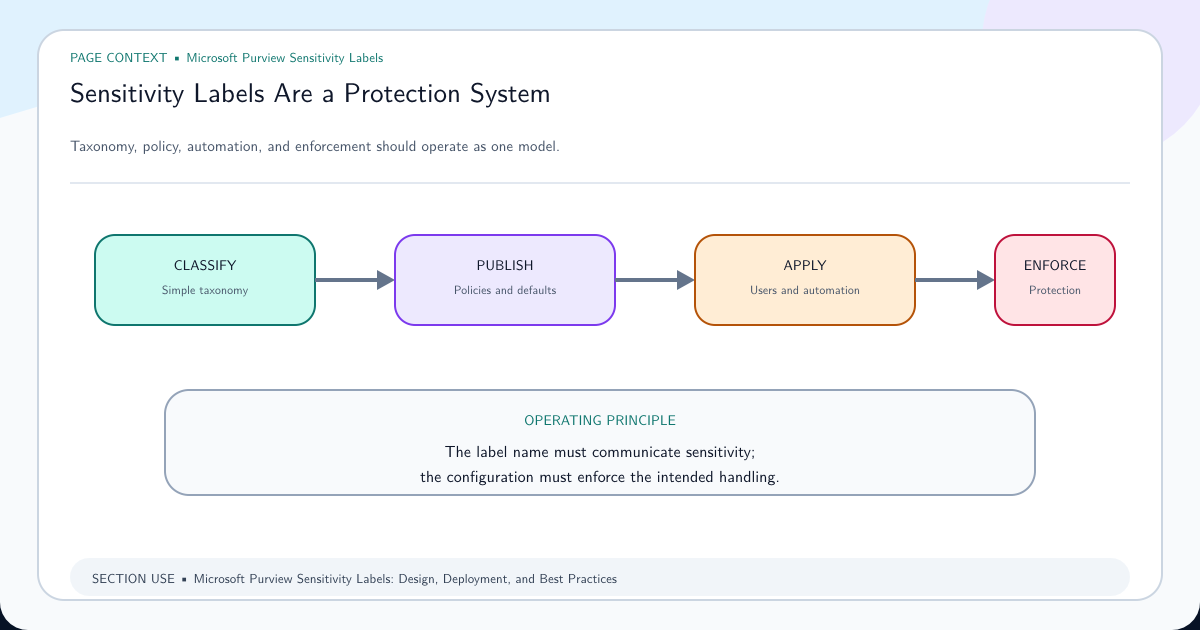
Feed the result into sensitivity label design and missing sensitivity labels troubleshooting. Browser compatibility is a deployment requirement, not an afterthought to the taxonomy.
Frequently asked questions
Does a sensitivity label on a SharePoint site automatically label every file?
No. A site or group label configures supported container settings. Files have separate item-level labels unless another feature, such as a document-library default label, applies one.
Why are older labeled files not recognized in SharePoint?
Microsoft documents that labels applied before SharePoint and OneDrive labeling was enabled are not automatically recognized. Downloading and uploading the files again can make them eligible for processing.
Why can a labeled file open in desktop Office but not Office for the web?
Some encryption settings cannot be processed by SharePoint or Office for the web, including Double Key Encryption and labels with content access expiration. Unsupported files should be opened in a supported desktop app.