Purview Auto-Labeling Recommendation Not Appearing in Word, Excel, or PowerPoint Desktop
Fix missing Microsoft Purview client-side auto-labeling recommendations in desktop Office by checking label scope, policy mode, conditions, client version, identity, content, simulation, and conflicting labels.
10 Things to Check When a Purview Auto-Labeling Prompt Does Not Appear
Complete these checks in order with a controlled test document.
- Confirm this is client-side labeling. The automatic or recommended condition must be configured on the sensitivity label, not only in a service-side auto-labeling policy.
- Use an applicable leaf label. The label scope must include Files and other data assets. A parent label with sublabels cannot be applied.
- Publish the label to the test user. Confirm effective group membership, inclusions, exclusions, and successful policy distribution.
- Verify license and signed-in identity. The desktop Office account must be the licensed user targeted by the publishing policy.
- Check the exact Office version and channel. Match automatic or recommended labeling support to the platform in Microsoft’s current capability table.
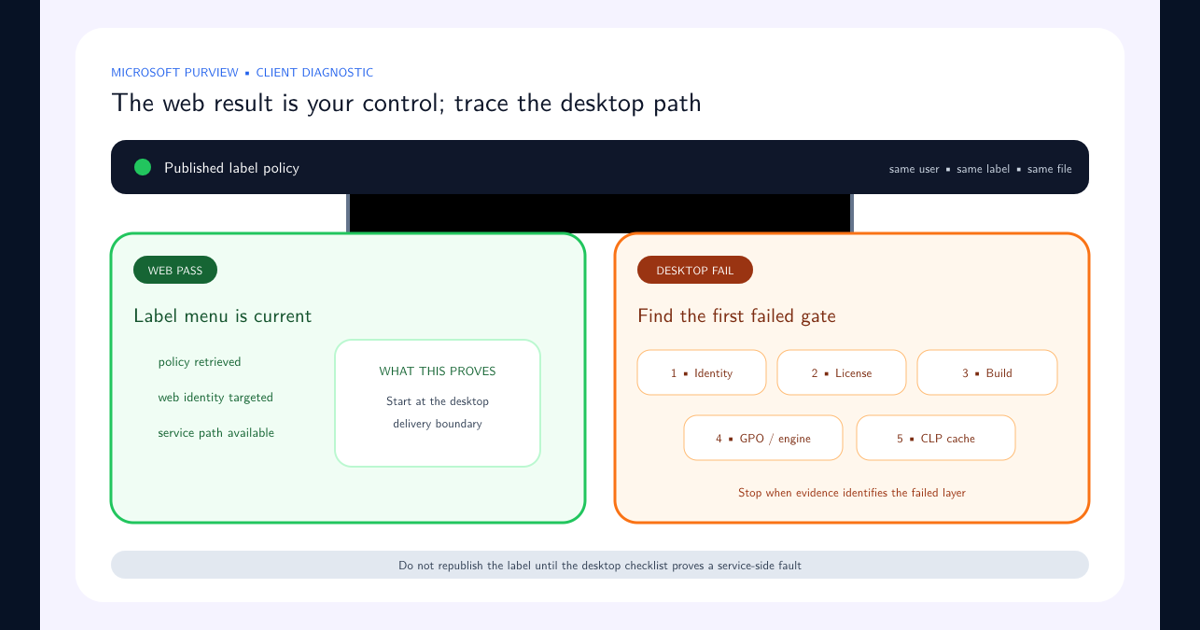
- Enable built-in labeling. Remove GPO, Intune, registry, or legacy AIP settings that disable the built-in Microsoft Purview Information Protection engine.
- Use supported content and a supported file type. Place a known positive match in the document body and save the file in a supported format.
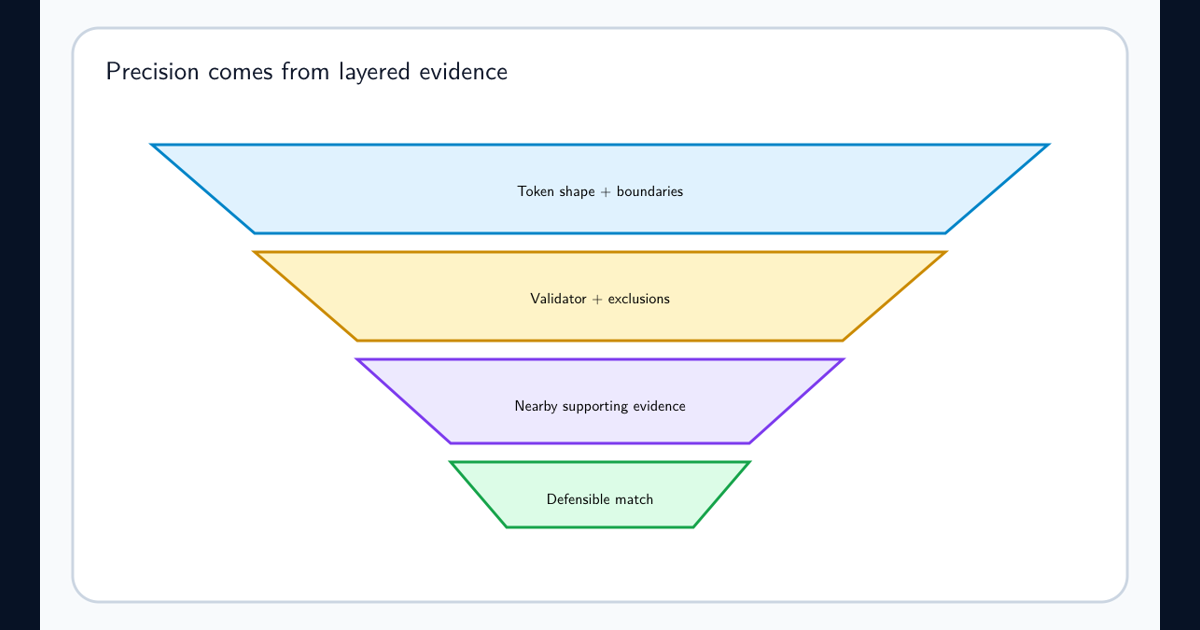
- Prove the condition. Test the sensitive information type, trainable classifier, or keyword logic independently and meet the configured instance count and confidence level.
- Check the current label. A higher-priority manually applied or otherwise protected label can prevent the expected replacement path.
- Trigger a fresh evaluation. Open or create the document in the supported app, add or edit matching content, save, and wait for the client evaluation. Record the event and result.
Change one variable at a time. This produces a conclusive failed gate instead of a series of untraceable policy edits.
Separate Client-Side and Service-Side Auto-Labeling
Client-side labeling evaluates documents and emails while users work in supported Office apps. The sensitivity label itself contains the condition and is configured to apply automatically or recommend the label to the user.
Service-side auto-labeling uses a policy in Microsoft Purview to evaluate supported content at rest in Exchange, SharePoint, and OneDrive. A successful service-side simulation does not prove that a desktop prompt is configured, and a desktop prompt does not prove that an at-rest policy exists.
Document which engine owns the expected outcome before troubleshooting. Use Microsoft automatic sensitivity labeling guidance as the authoritative configuration reference.
| Expected result | Engine to configure | Where to inspect first |
|---|---|---|
| A prompt appears while a user edits a document | Client-side recommendation on the sensitivity label | Label condition, publishing policy, Office client, and test content |
| The label is applied while a user edits a document | Client-side automatic application on the sensitivity label | The same client path plus existing-label priority |
| Files already stored in SharePoint are evaluated | Service-side auto-labeling policy | Simulation results, included locations, file eligibility, and policy mode |
| New files in one library receive a baseline label | SharePoint document-library default label | Library configuration, tenant enablement, and existing-label rules |
Fix Label Scope, Publication, and Mode
Select a leaf label whose scope includes Files and other data assets. Configure the client-side condition and explicitly choose automatic application or user recommendation. For a recommendation, provide clear user-facing text that explains why the label is suggested.
Publish that label through a sensitivity label policy assigned to the test user. Verify group membership and exclusions, then require successful policy distribution. Confirm the app displays the label before testing its automatic condition; an unavailable label cannot generate a recommendation.
Keep the test policy narrow. Broad label changes introduce unrelated defaults, mandatory-label settings, or priorities that obscure the result.
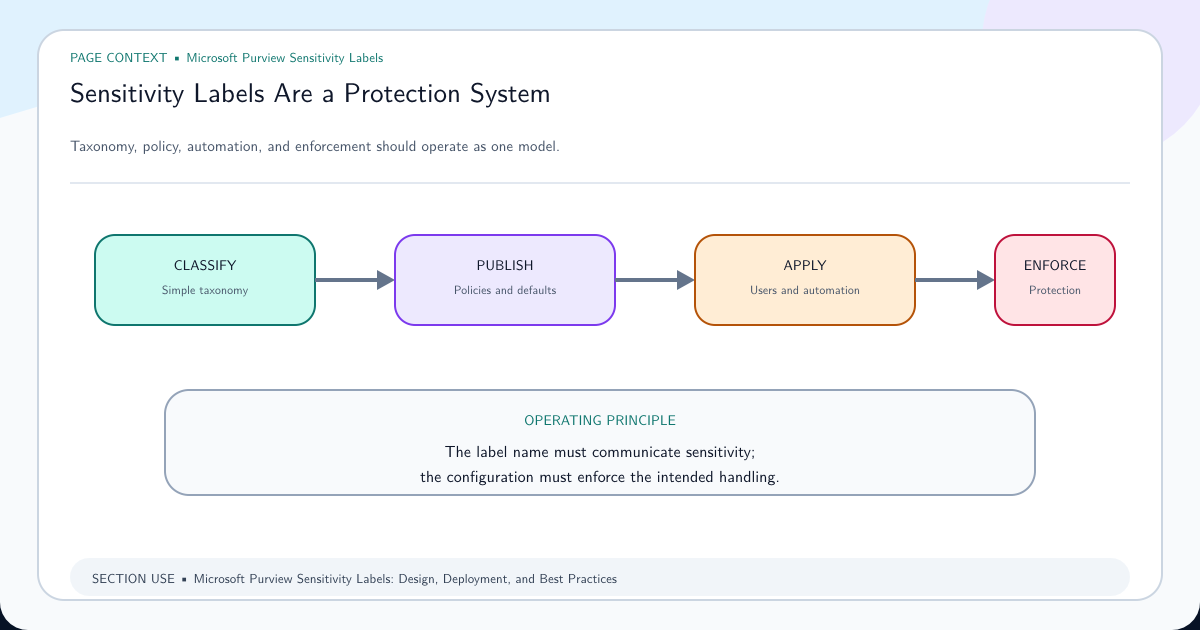
If the label hierarchy, priority, defaults, or publishing model is unclear, return to the sensitivity label design guide before tuning detection. Auto-labeling cannot make an ambiguous taxonomy easier for users to understand.
Prove the Detection Condition With Known Test Content
Build a positive document that meets the exact condition and a negative document that does not. Match the configured number of instances, confidence level, proximity, supporting evidence, classifier requirement, and Boolean grouping.
For custom sensitive information types, validate the primary element and corroborative evidence independently. A regex match alone might not satisfy a rule that also requires keywords or checksums. Use the custom sensitive information type false-positive reduction guide to make the signal testable.
Place test content in a supported document area and format. Do not use headers, footers, images, embedded objects, or protected content as the first proof case unless the documented client capability explicitly covers them.
A clean experiment uses three files. The positive file contains enough valid instances and supporting evidence to cross the configured threshold. The near-miss file contains the primary pattern but deliberately omits corroborative evidence; it should not trigger. The negative file contains ordinary business text. When all three behave as designed, the condition is understood. When only the positive file fails, inspect the rule and client evaluation. When every file triggers, reduce false positives before expanding deployment.
Enforce the Desktop Client Baseline
Verify the user license, signed-in identity, Office application, platform, build, and update channel. Check Microsoft sensitivity label client versions for the automatic or recommended labeling capability, not only manual labeling.
Enable built-in Microsoft Purview Information Protection labeling. Review GPO, Intune policy, and HKEY_CURRENT_USER\Software\Microsoft\Office\16.0\Common\Security\Labels; when UseOfficeForLabelling is configured, use 1 for built-in labeling. Remove legacy AIP conflicts through the approved endpoint-management channel.
If the correct label set is absent in desktop Office, resolve that first with the desktop-versus-web label troubleshooting guide.
Validate the Prompt, User Choice, and Final Label
Open the positive and negative files in the supported app under the test identity. Add or edit content, save, and record the evaluation time. For recommendation mode, verify the prompt text, selected label, user acceptance or dismissal path, and resulting file metadata. For automatic mode, verify application without user action.
Repeat with a lower-priority existing label, a manually applied higher-priority label, and no label. Confirm the policy does not downgrade protection. Verify markings, encryption, save and reopen behavior, and audit evidence.
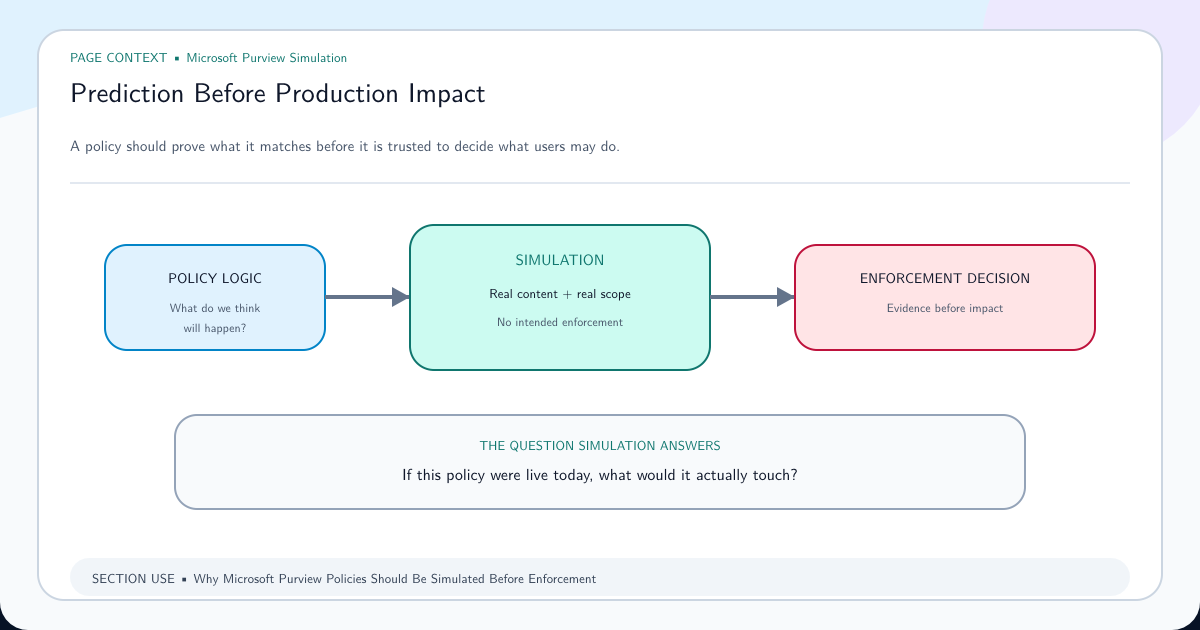
Promote the configuration only after positive, negative, priority, and regression cases pass. Use a simulation-first policy testing approach for the related service-side policy and maintain a known test corpus for future Office updates.
When the user sees the recommendation but dismisses it, record that as a successful detection and a user-choice outcome—not a missing prompt. When a lower label remains in place, inspect whether the policy recommends rather than automatically applies. When a higher manually applied label remains, preserve it; the safe result is normally to avoid silently reducing protection. These distinctions turn a vague “auto-labeling is broken” report into an actionable result.
Frequently asked questions
Is client-side auto-labeling the same as a Purview auto-labeling policy for SharePoint?
No. Client-side auto-labeling is configured on the sensitivity label and evaluated in supported Office apps while content is in use. Service-side auto-labeling policies scan supported data at rest in SharePoint, OneDrive, and Exchange.
Can a parent label be recommended automatically?
No. Microsoft states that a parent label with sublabels cannot be selected for automatic or recommended application. Select an applicable leaf label.
Should the CLP cache be reset before testing the condition?
No. First verify scope, publishing, client support, condition logic, test content, and current label priority. Reset the cache only when policy retrieval is the failed layer.