Microsoft Office Sensitivity Labels Stuck or Outdated: Reset the CLP Cache Safely
Refresh stale Microsoft Purview sensitivity labels in desktop Office without destroying evidence by validating policy distribution, preserving the CLP cache, retrieving fresh policy, and comparing results.
Know When the CLP Cache Is a Plausible Cause
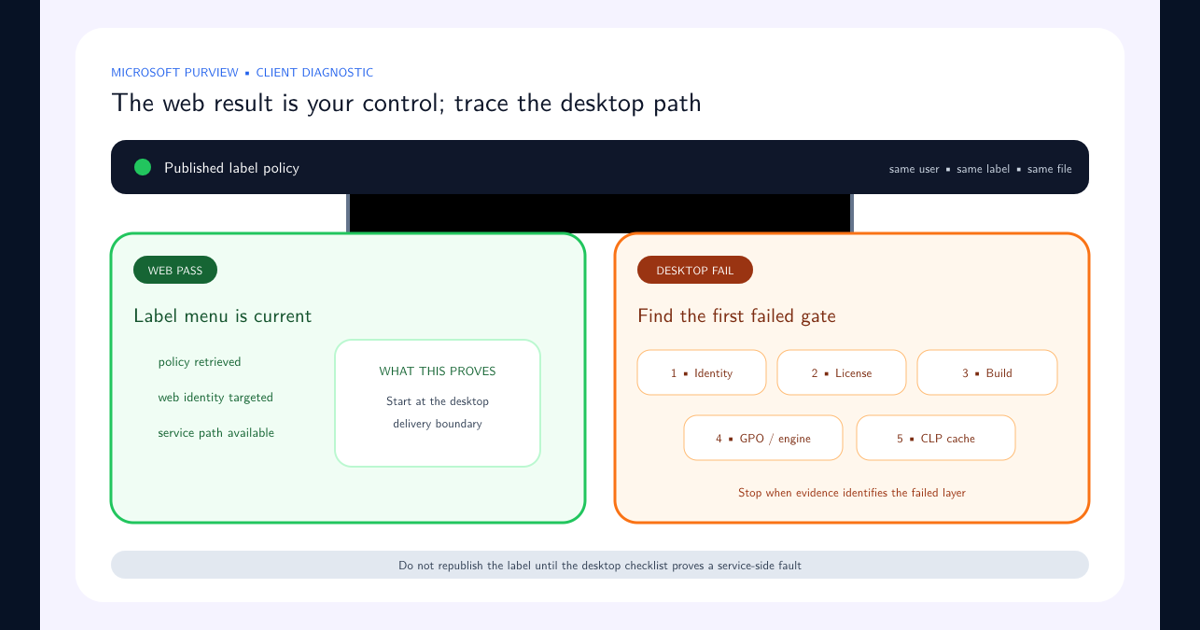
A cache issue is plausible when web apps or another device show the correct label set, the user is properly targeted, label-policy distribution is successful, the desktop build supports the capability, and the affected client shows an older or incomplete list. It is less plausible when every user and workload fails.
Use the symptom to decide whether opening the cache is worthwhile:
| Symptom | Cache reset value | Better first action |
|---|---|---|
| One device shows old label names while web and another device are current | High | Capture CLP metadata, then perform the controlled rename |
| Every user is missing the same newly published label | Low | Verify publication scope and policy distribution |
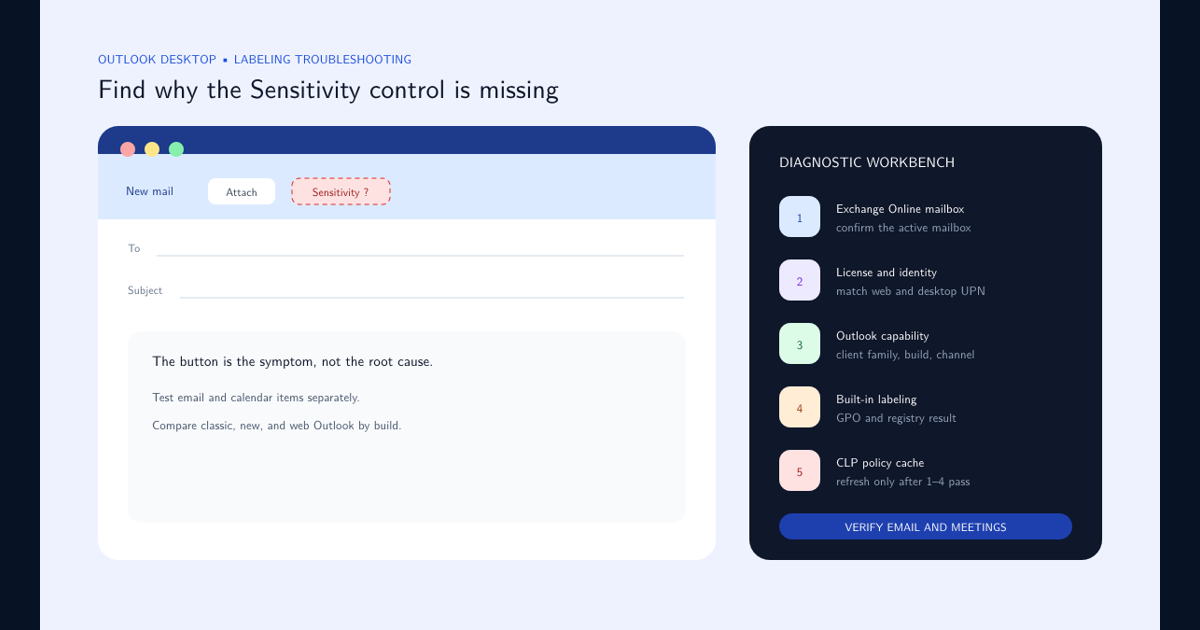
The Sensitivity button is absent and UseOfficeForLabelling=0 |
None | Correct built-in labeling policy and GPO first |
| A user recently changed tenant or primary identity | Medium | Correct the signed-in account, activation, and stored work identity before refresh |
| Labels return after every reset and disappear again | Diagnostic only | Investigate authentication, profile management, endpoint policy, and network interception |
Record whether labels are entirely absent, recently changed labels are missing, deleted labels remain, order is stale, or protection behavior differs. Capture the user principal name, tenant, app and build, update channel, policy name, label GUIDs, timestamps, and screenshots.
Do not reset first. A premature reset destroys the comparison that can distinguish stale local state from a service-side problem.
If web and desktop fail together, stop here and use the general missing sensitivity labels troubleshooting workflow. If web succeeds and desktop alone is stale, continue with the desktop-versus-web label troubleshooting checks before touching CLP.
Prove Policy, Identity, Version, and Labeling Mode First
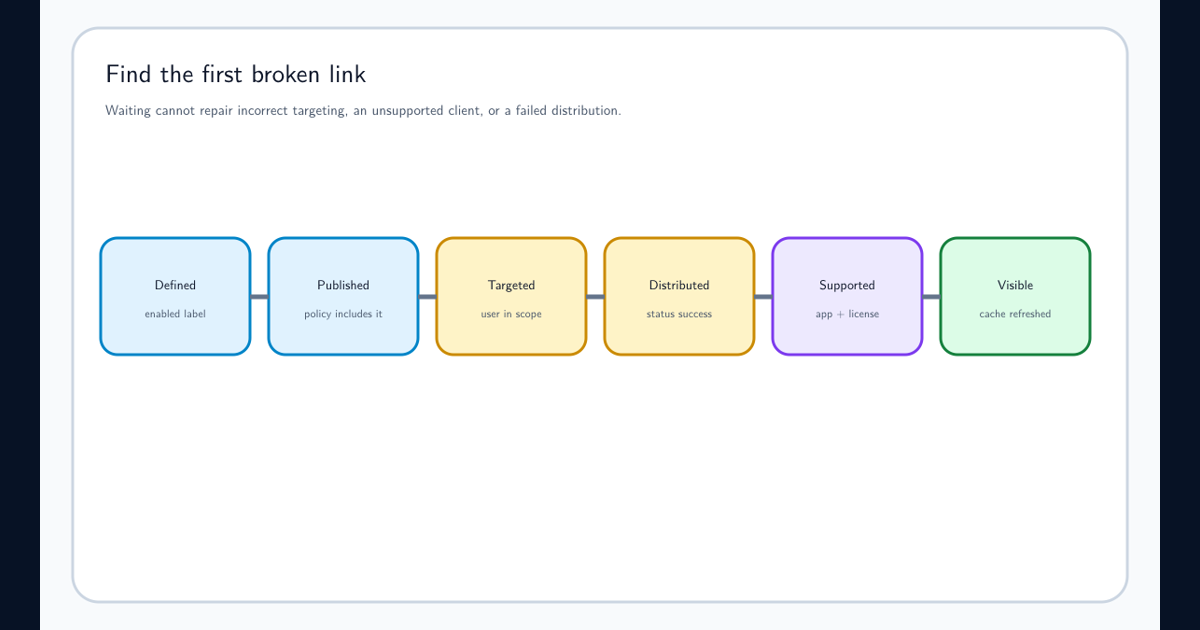
Confirm the label is published to the affected user and run Get-LabelPolicy for the policy. Microsoft identifies DistributionStatus : Success as the expected distribution state. Compare the signed-in desktop identity with the successful web identity and verify licensing.
Check the exact app capability against Microsoft minimum-version guidance. Then inspect HKEY_CURRENT_USER\Software\Microsoft\Office\16.0\Common\Security\Labels; UseOfficeForLabelling=0 indicates the legacy AIP client path rather than built-in labeling.
If one of these checks fails, correct that layer. A new cache cannot compensate for an unpublished policy, unsupported client, wrong identity, or disabled labeling engine.
Capture the Existing CLP State
Close nothing yet. Record the contents, timestamps, ownership, and size of %localappdata%\Microsoft\Office\CLP in the affected user context. Microsoft notes that the domain policy XML contains the assigned label-policy information.
Do not publish policy XML or logs without reviewing them for tenant identifiers, user data, label names, or other sensitive metadata. Store evidence with restricted incident records and calculate a hash if chain of custody matters.
Compare only necessary metadata with a healthy endpoint. Avoid copying a healthy user cache onto another profile; policy should be retrieved for the intended identity from the service.
Perform the Microsoft-Documented Reset Sequence
Close Outlook, Word, Excel, PowerPoint, and all other Office apps. Confirm their processes have exited. Rename %localappdata%\Microsoft\Office\CLP to a recoverable name such as CLP_old; renaming preserves rollback and comparison.
Start one affected Office app and authenticate with the intended account. The app should connect to Microsoft Purview Information Protection services and download label policy. Record when a new folder and policy XML appear.
Follow the Microsoft CLP cache reset procedure and your endpoint change controls. Do not automate a fleet-wide deletion based on a single workstation symptom.
Interpret the Result Instead of Repeating the Reset
If the fresh policy arrives and labels become correct, retain the before-and-after timestamps and determine whether the issue correlates with an identity, update, profile, or network event. If policy arrives but remains wrong, compare effective targeting and label GUIDs rather than display names.
If the CLP folder is never recreated, investigate authentication, proxy allowlists, TLS inspection, conditional access, endpoint protection, profile virtualization, and Microsoft 365 service health. If it is recreated only after long delays, measure network and sign-in events before calling the behavior propagation.
A reset that works temporarily but repeatedly regresses is evidence of an upstream problem, not a reason to schedule recurring cache deletion.
Consider a user whose laptop shows an obsolete “Internal” label after the organization renamed it “General.” If the new policy file arrives and the label changes immediately, the old cache was the failed layer. Now consider a device where no new CLP folder appears: the reset did not fail; it revealed that Office cannot retrieve policy. Move to sign-in and network evidence. Finally, if the new XML arrives but still contains the old label set, return to policy targeting and distribution—the endpoint downloaded exactly what the service offered.
Verify Persistence Across Apps and Restarts
Validate the intended label list and order in Word, Excel, PowerPoint, and Outlook as applicable. Test a new supported file, an existing labeled file, and the same content after an app restart and device sign-in cycle.
Check label application, markings, encryption, save, reopen, and audit evidence. A visible menu alone does not prove protection works.
If only Outlook remains affected, follow the missing Outlook Sensitivity button workflow. Feed repeated causes into endpoint baselines and canary monitoring.
Frequently asked questions
Where is the Microsoft Office sensitivity label cache?
Microsoft documents the cache under %localappdata%\Microsoft\Office\CLP. The domain policy XML contains sensitivity-label policy information for the user profile.
Is it safe to delete the CLP folder?
Preserve evidence and rename the folder after closing all Office apps. Renaming provides a rollback and lets administrators compare the previous and freshly downloaded policy.
What if the CLP cache keeps becoming stale?
Repeated cache resets are not a root-cause fix. Investigate identity changes, authentication, network interception, endpoint controls, Office servicing, profile management, and policy distribution.