Sensitivity Labels Visible in Microsoft 365 Web but Missing in Desktop Apps
Diagnose Microsoft Purview sensitivity labels that appear in Microsoft 365 web apps but not local Word, Excel, PowerPoint, or Outlook by isolating identity, build, policy, labeling mode, and cache failures.
12 Things to Check When Labels Work on the Web but Not in Desktop Office
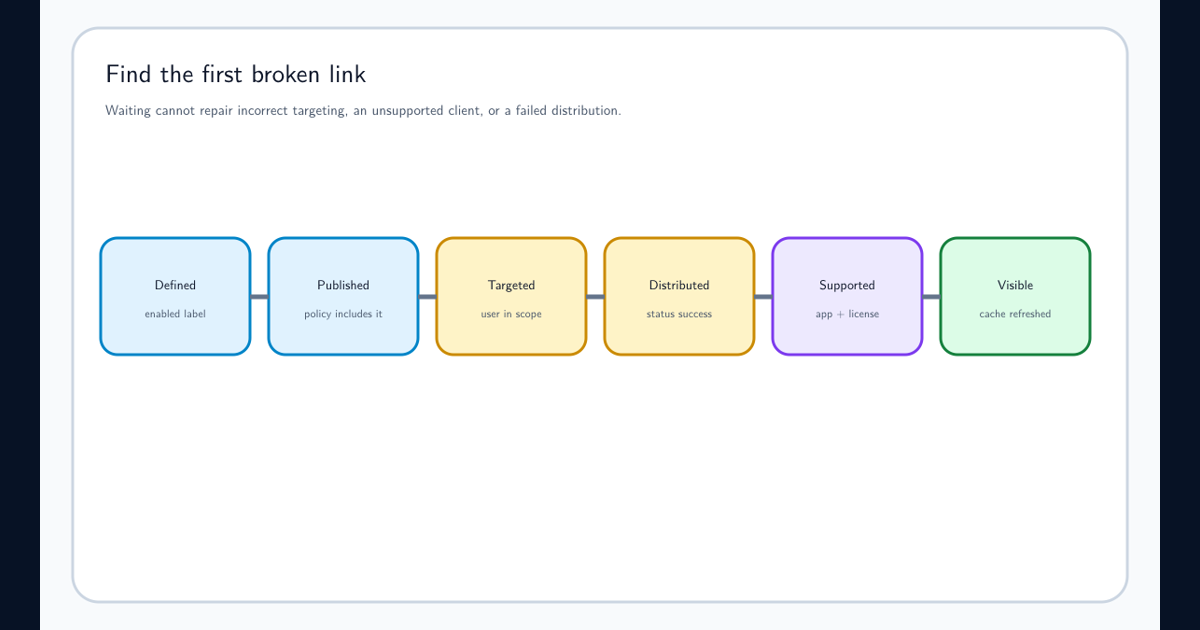
Work through this checklist in order. Do not republish the label or reinstall Office before completing it.
- Confirm the same user identity. Match the desktop Office account, browser account, Windows work account, and user principal name targeted by the label policy.
- Verify the Microsoft 365 license. Confirm the affected user has a subscription that supports the required sensitivity-label capability. Check the assigned service plans, not only the product name.
- Confirm the label is published. The label must be included in a sensitivity label publishing policy assigned to the user or a group that contains the user.
- Check inclusions and exclusions. Resolve nested and dynamic group membership and verify that an exclusion does not remove the user from the effective policy.
- Verify policy distribution. Run
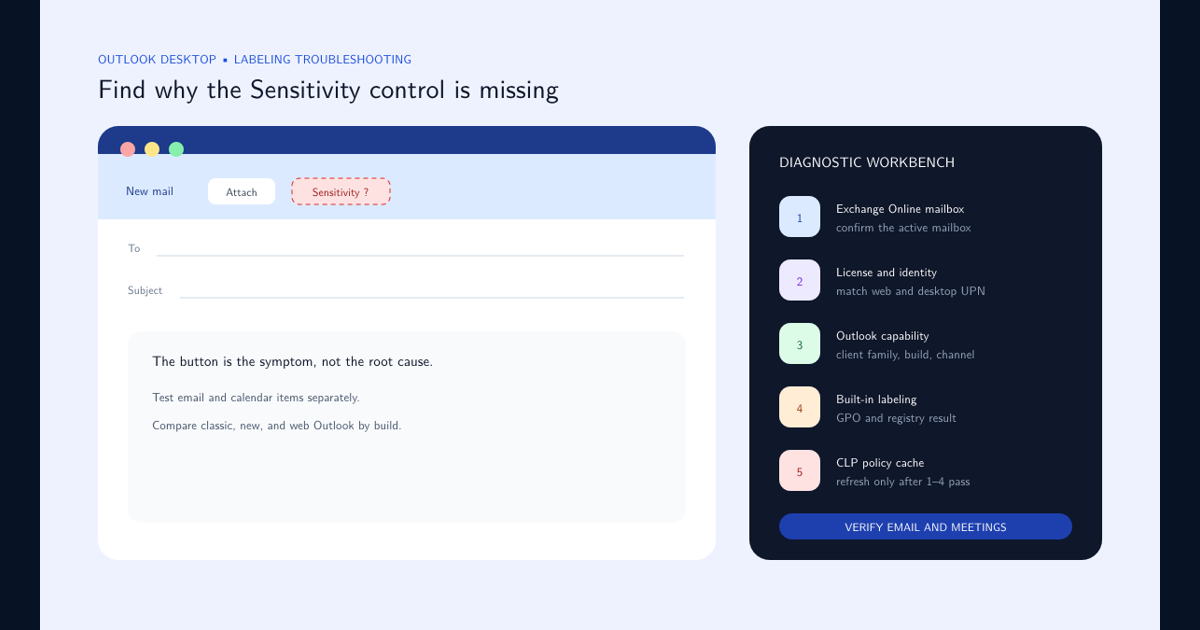
Get-LabelPolicy -Identity "Label_policy_name" | Format-Listand requireDistributionStatus : Successbefore troubleshooting the endpoint. - Confirm the workload prerequisite. Outlook requires an Exchange Online mailbox. SharePoint and OneDrive require sensitivity labeling to be enabled for files. PDF support has a separate tenant setting.
- Check the exact Office build. Compare the affected capability and platform with Microsoft’s minimum-version table. Record the full build number.
- Check the Office update channel. Current Channel, Monthly Enterprise Channel, and Semi-Annual Enterprise Channel do not receive every labeling capability at the same time.
- Verify the Information Protection engine. Current Microsoft 365 Apps use built-in labeling. In
HKEY_CURRENT_USER\Software\Microsoft\Office\16.0\Common\Security\Labels, requireUseOfficeForLabelling=1when the value is configured. A value of0forces the legacy AIP client path. - Review GPO and device-management policy. Confirm no Group Policy, Intune setting, security baseline, or legacy AIP migration policy disables built-in sensitivity labeling or writes a conflicting registry value.
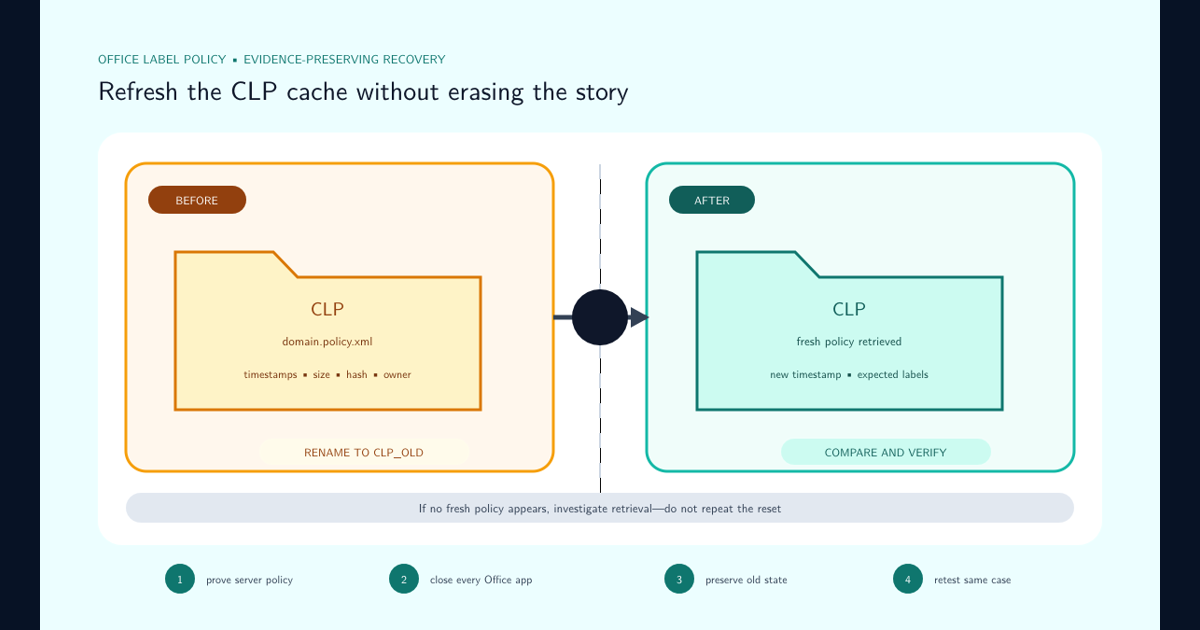
- Refresh the CLP policy cache. After checks 1–10 pass, close every Office app, preserve and rename
%localappdata%\Microsoft\Office\CLP, restart one app, and confirm a fresh domain policy XML is downloaded. - Run a controlled retest. Use the same user, same supported file, same label, and same action in web and desktop. Record the first working build, policy timestamp, and client result.
Web success proves that the service can deliver an applicable label policy to that web session. The checklist identifies the desktop gate that blocks the same result locally.
Confirm the Desktop App Uses the Same Licensed Identity
Office can display a document from one tenant while licensing and connected services use another account. In each affected desktop app, inspect the signed-in identity and product information. Match the user principal name to the account that succeeds in the browser and verify that the assigned Microsoft 365 license covers the required labeling capability.
This mismatch is easy to miss. A user can open a SharePoint document through a browser signed in as [email protected], while Word is activated with a personal account and connected to an older work tenant. The document still opens, so the user understandably expects the same label menu. Office, however, retrieves policy for its active work identity.
Use the comparison below to decide where to go next.
| What you find | What it means | What to do next |
|---|---|---|
| Browser and desktop use different UPNs | The two clients are not testing the same policy assignment | Sign out of the unintended Office identity, restart the app, and sign in with the licensed targeted account |
| The UPN matches, but Office shows an unlicensed product | The app cannot use the required Microsoft 365 labeling capability | Correct license assignment or activation, then repeat the test |
| Word works but Outlook does not | The general Office identity is valid; investigate the Outlook mailbox and client path | Confirm Exchange Online mailbox location, Outlook build, and labeling mode |
| Every local Office app fails for the same user | The common desktop identity, policy engine, or cache is the likely boundary | Continue with the version, GPO, registry, and CLP checks below |
Remove ambiguity caused by guest identities, stale Office activation, shared-computer activation, multiple work accounts, or a profile recently moved between tenants. Outlook adds a mailbox dependency: Microsoft requires an Exchange Online mailbox for the supported sensitivity-label experience.
A browser session opened under a different profile does not prove that the desktop user is targeted. Use one identity throughout the test.
Check the App Build and Update Channel Against the Capability
Label support is capability-specific. Manual labeling, mandatory labeling, calendar-item labeling, protection, and other functions have different minimum versions across Windows, macOS, mobile, classic Outlook, new Outlook, and Outlook on the web.
Use the Microsoft sensitivity label version requirements table for the exact capability and platform. Record both the displayed version and update channel. A device on Semi-Annual Enterprise Channel can legitimately lag a device on Current Channel even when both report that Office is up to date for their assigned channel.
Verify organizational update-ring policy before forcing a one-off update. If the build is below the supported baseline, move a controlled test device through the approved servicing process and repeat the same test.
Enable Built-In Information Protection Labeling and Remove GPO Conflicts
Current Microsoft 365 Apps use built-in Microsoft Purview Information Protection labeling. The legacy Azure Information Protection add-in is not a prerequisite. A legacy client configuration, Group Policy, Intune profile, or security baseline can force desktop Office onto the wrong path or disable the built-in experience.
Microsoft identifies HKEY_CURRENT_USER\Software\Microsoft\Office\16.0\Common\Security\Labels. If UseOfficeForLabelling exists and equals 0, Office is using the legacy AIP client path. Set the managed configuration to use built-in labeling (1) through the organization’s approved policy channel, then confirm the effective registry value on the endpoint.
Review both user and device scope in Group Policy Results, Intune configuration reports, security baselines, registry preferences, and legacy AIP deployment policy. Remove conflicting settings. Compare the effective policy on one affected endpoint with a healthy endpoint on the same Office channel; the applied result matters, not the intended assignment shown in an administration portal.
Reset the CLP Cache Only After Server-Side Checks Pass
Confirm that the label is published to the user and that Get-LabelPolicy reports DistributionStatus : Success. If policy targeting, identity, license, build, and labeling mode are correct but the desktop remains stale, follow Microsoft missing-label troubleshooting guidance.
Close Outlook and every Office app. Preserve evidence from %localappdata%\Microsoft\Office\CLP, where the domain policy XML represents the assigned label policy, then rename the CLP folder to a recoverable name such as CLP_old. Restart one app, authenticate if prompted, and allow it to retrieve policy again.
Test with the same user and file. If the folder is not recreated or the policy file does not arrive, investigate authentication, endpoint controls, proxy or network access, and service health instead of repeatedly resetting the cache.
Close the Incident by Naming the Failed Layer
Classify the root cause as identity, entitlement, client support, update channel, labeling mode, endpoint policy, local cache, connectivity, or service distribution. Record the first fixed build or configuration and test at least one unaffected user to protect against a misleading one-device result.
Feed the result back into sensitivity label design. If a required capability is unavailable on a supported update ring, the deployment design—not the individual user—needs correction.
If the issue is broader than desktop clients, return to the general missing sensitivity labels troubleshooting decision tree. If web labeling itself is inconsistent, use the SharePoint browser label troubleshooting guide.
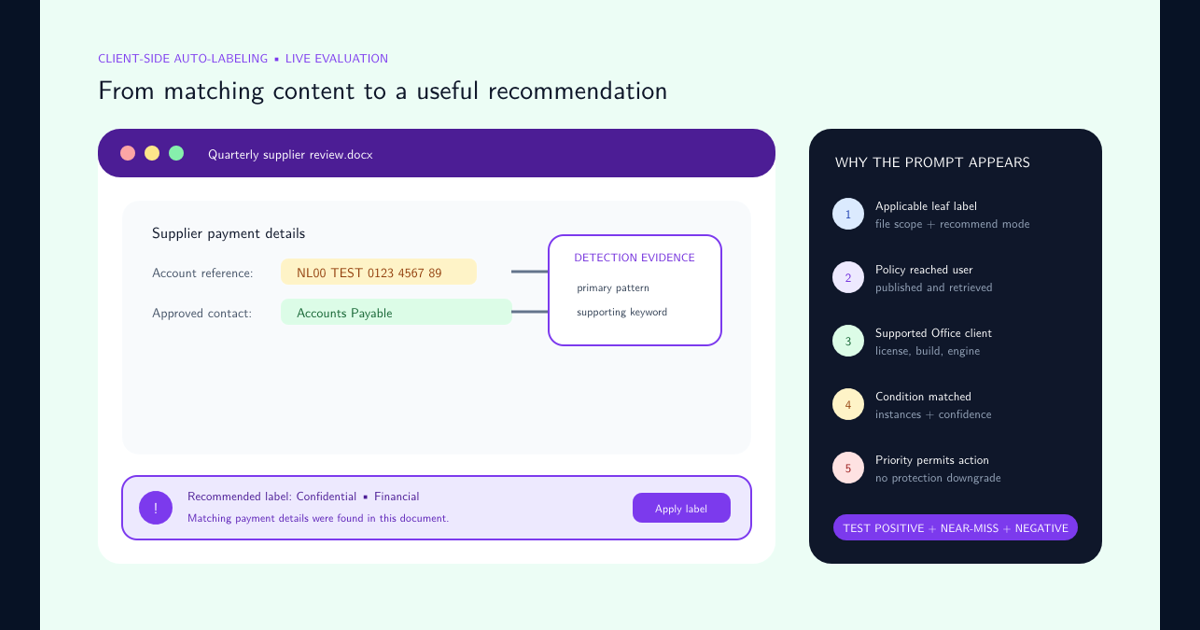
Continue with the symptom-specific guide when the boundary is known: use Outlook Sensitivity button troubleshooting for Outlook-only failures, the safe CLP cache reset after proving stale local policy, and desktop auto-labeling recommendation troubleshooting when labels are visible but the expected prompt never appears.
Maintain a canary user on each supported update channel. A repeatable web-versus-desktop test catches client drift before a large rollout becomes a help-desk incident.
Three common situations illustrate how to use the guide. If a newly hired user sees no labels anywhere, start with licensing and policy assignment rather than the local cache. If an established user sees yesterday’s label names on the web but last month’s names in Word, preserve and refresh CLP after proving distribution. If an entire Semi-Annual Enterprise Channel ring lacks a capability that Current Channel users have, treat the update channel as the explanation and plan the supported rollout instead of creating a second label policy.
Frequently asked questions
What does it prove when sensitivity labels work in Microsoft 365 web apps?
It strongly suggests that the label is published and the web session can retrieve an applicable policy. It does not prove that the desktop app uses the same account, has a supported build and license, uses built-in labeling, or has refreshed its local policy cache.
Where does desktop Office cache its Purview label policy?
Microsoft documents the %localappdata%\Microsoft\Office\CLP folder. A domain policy XML file in that folder contains label-policy information assigned to the user profile.
Should administrators delete the CLP folder first?
No. Confirm identity, licensing, policy distribution, version support, and labeling mode first. If a reset is justified, close all Office apps and rename the folder so the previous state remains recoverable.
Does the Azure Information Protection client need to be enabled?
No. Current Microsoft 365 Apps use built-in Microsoft Purview Information Protection labeling. Enable built-in labeling and remove policy conflicts that force Office onto the legacy AIP client path.