Sensitivity Button Missing in Outlook Desktop but Visible in Outlook on the Web
Fix a missing Microsoft Purview Sensitivity button in Outlook desktop by checking mailbox location, subscription, policy distribution, supported versions, built-in labeling mode, and the Office policy cache.
Separate a Missing Button From Missing Labels
A missing Sensitivity button is not the same symptom as a button that opens an incomplete label list. Test a new email, reply, calendar appointment, meeting invite, shared mailbox, and the same scenarios in Outlook on the web. Record whether the command is absent, disabled, or present with stale labels.
Start by asking the user to show the exact failure. “Outlook labels do not work” often describes one of four different situations:
| User experience | Most useful first check |
|---|---|
| The Sensitivity command is missing everywhere in Outlook desktop | Subscription, Exchange Online mailbox, supported build, and built-in labeling |
| The command exists, but the expected label is missing | Publishing policy, effective targeting, distribution, and CLP policy age |
| Email can be labeled, but meetings cannot | Calendar-item licensing and the minimum version for that Outlook client |
| The user’s mailbox works, but a shared mailbox does not | Active mailbox context, supported shared-mailbox behavior, and the identity applying the label |
Note the Outlook family—classic Outlook for Windows, new Outlook for Windows, Outlook for Mac, mobile, or web—plus the exact version. Capabilities do not arrive at the same minimum build on every client.
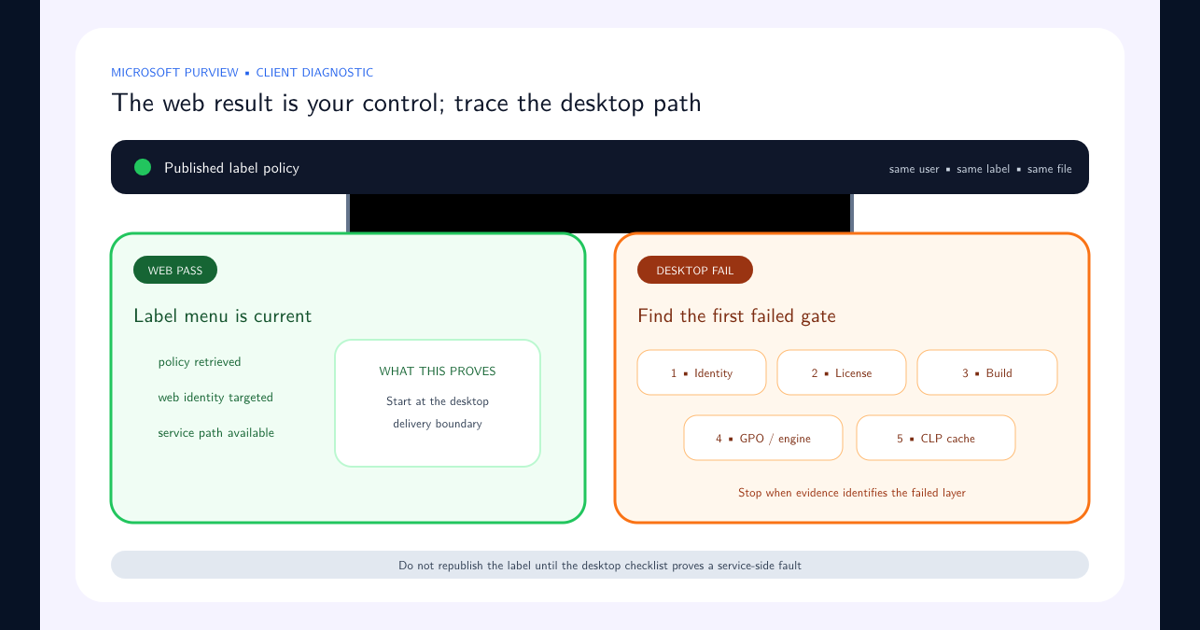
Use one licensed user and the same mailbox for the comparison. A web session against Exchange Online cannot validate a desktop profile connected to another mailbox.
Verify Exchange Online, Subscription, and Published Policy
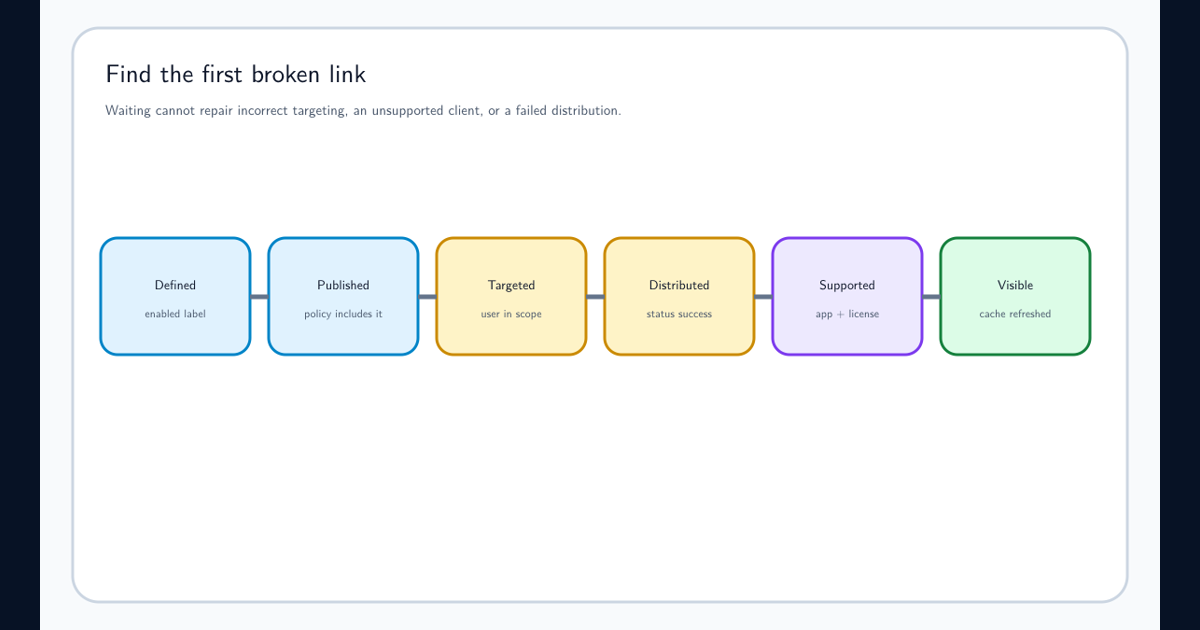
Microsoft identifies three early checks for Outlook: the signed-in account is a Microsoft 365 subscriber, sensitivity labels are published, and the label policy reached successful distribution. Confirm the effective publishing policy includes the user or group and is not counteracted by an exclusion.
Run Get-LabelPolicy -Identity "Label_policy_name" | Format-List and retain the output. DistributionStatus : Success verifies policy distribution; it does not verify that a specific endpoint downloaded the policy.
Confirm that the mailbox is in Exchange Online. Treat hybrid and shared-mailbox cases explicitly, because Office activation, signed-in identity, and the active mailbox can belong to different security contexts.
Match the Outlook Build to the Exact Label Capability
Use the Microsoft Outlook label capability table instead of a generic Office support statement. Manual labels for email and labels for calendar items have different minimums. New Outlook and classic Outlook are separate columns, and Windows update channels can have different availability.
If email labeling works but calendar labeling does not, investigate the calendar capability and license rather than resetting all label policy. Microsoft also documents that labeled meetings require Outlook on the web or built-in labeling in a supported Microsoft 365 Apps client.
Record a healthy and affected build side by side. Update through the managed channel and retest before altering Purview policy.
Confirm Outlook Uses Built-In Labeling
Check HKEY_CURRENT_USER\Software\Microsoft\Office\16.0\Common\Security\Labels. Microsoft documents that UseOfficeForLabelling=0 selects the AIP client path; built-in labeling uses a value of 1. Review the setting in the context of the organization migration plan and effective device policy.
Check the policy-backed path as well: HKEY_CURRENT_USER\Software\Policies\Microsoft\Office\16.0\Common\Security\Labels. A policy value overrides an administrator’s manual correction in the non-policy path. In Group Policy, the legacy setting Use the Azure Information Protection add-in for sensitivity labeling must be Not configured or Disabled because the add-in is no longer supported. Deploy the current Microsoft 365 Apps administrative templates before judging the setting.
Also check whether an administrative policy disables built-in labeling. Compare registry and policy results with a working device on the same Outlook family and update channel.
Avoid reinstalling Office before capturing this state. Reinstallation can remove useful evidence while leaving a centrally delivered policy unchanged.
Refresh the Office Label Cache Safely
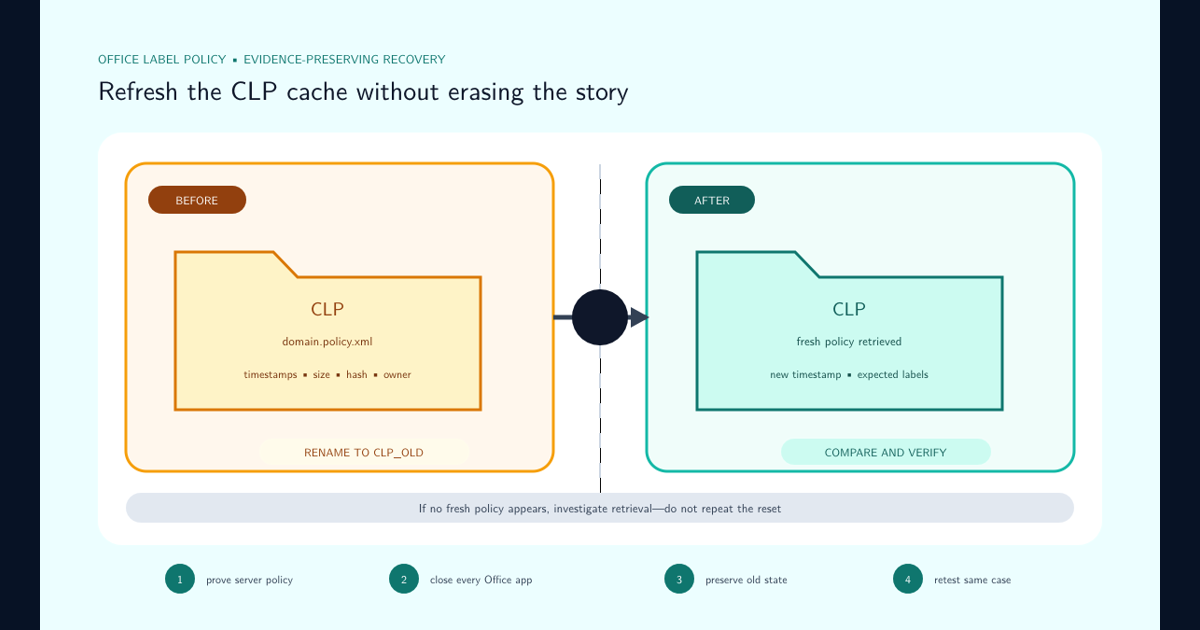
When server policy, mailbox, licensing, version, and labeling mode all pass, close Outlook and every other Office application. Preserve and rename %localappdata%\Microsoft\Office\CLP, then restart Outlook so it can authenticate and retrieve a new label policy.
Follow the full safe CLP cache reset procedure when evidence must be preserved or the problem affects managed endpoints at scale.
Inspect whether the domain policy XML is recreated and whether its timestamp aligns with the test. If Outlook on the web still works but desktop never recreates the cache, shift the investigation to authentication, proxy, TLS inspection, endpoint security controls, or Microsoft 365 service health.
Use the broader desktop-versus-web label troubleshooting guide if Word, Excel, and PowerPoint are affected as well.
Validate Email, Replies, and Meetings Separately
After remediation, test a new email, reply and forward, attachment, calendar appointment, meeting invite, and any approved shared-mailbox workflow. Confirm label visibility, protection, recipient experience, audit evidence, and persistence after Outlook restarts.
Do not close the incident because the ribbon button returned. Verify that the correct labels—not merely any labels—are available and that mandatory or default labeling behaves as designed.
Document the failed layer and the minimum working build. Add a canary mailbox for both classic and new Outlook if the organization supports both clients.
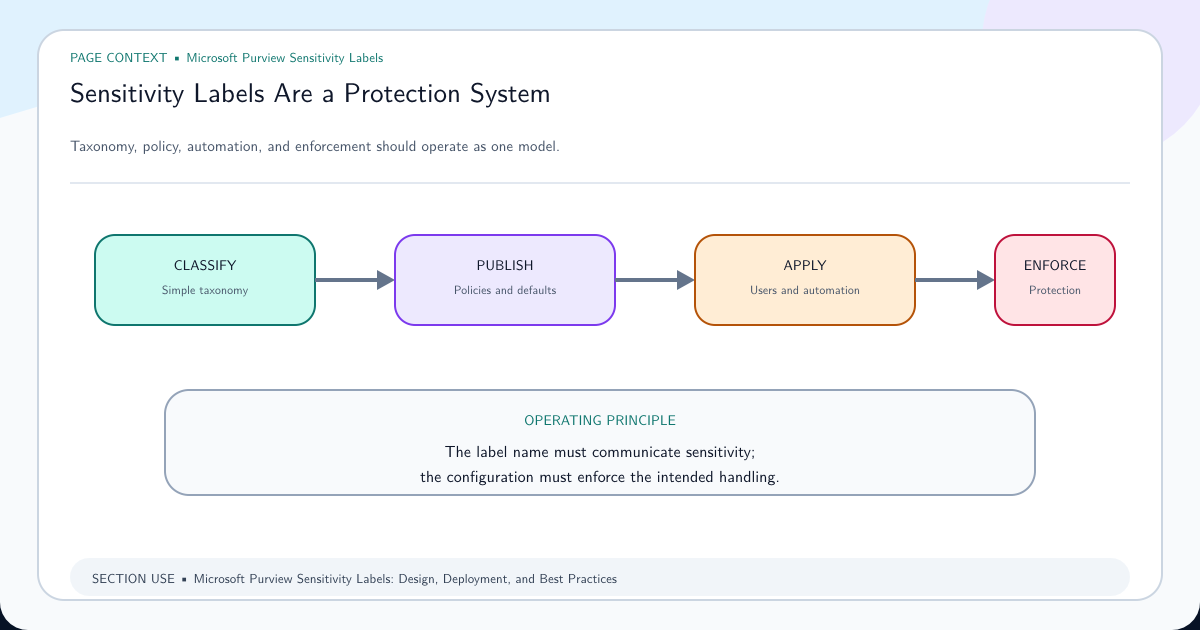
If labels are missing in web clients or for several users as well, leave the Outlook-only path and use the broader missing sensitivity labels troubleshooting workflow. Repeated Outlook-specific failures should inform sensitivity label design, client baselines, and the supported-client policy communicated to users.
If the button returns only after a cache refresh, close the incident as a cache failure only after a second restart proves the result persists. If it returns after an Office update, record the old and new builds so support teams can recognize the same pattern. If the button remains absent while Word and PowerPoint label correctly, keep the investigation in Outlook and Exchange; reinstalling the complete Office suite is not the next diagnostic step.
Frequently asked questions
Do sensitivity labels in Outlook support an on-premises mailbox?
Microsoft documents Exchange Online as a requirement. An on-premises mailbox is not made supported merely because the user also has Microsoft 365 Apps or can see labels in another web workload.
How can an administrator verify label-policy distribution?
Run Get-LabelPolicy for the relevant policy and inspect DistributionStatus. Microsoft uses DistributionStatus: Success as the expected result.
Why can a user label email but not calendar items?
Calendar-item labeling has separate licensing and minimum-version requirements. Check the exact Outlook platform and capability in Microsoft current version guidance.