How to Create a DLP Policy in Microsoft Purview: Step-by-Step Guide
Create a Microsoft Purview DLP policy that protects sensitive data without breaking legitimate work. This guide covers prerequisites, scope, rules, policy tips, simulation, staged enforcement, and troubleshooting.
Start With the Policy Outcome, Not the Portal
To create a DLP policy in Microsoft Purview, open the Purview portal, go to Data Loss Prevention → Policies, select Create policy, choose a template or custom policy, configure its scope and rules, and submit it in simulation mode. That is the short answer. The work that determines whether the policy is useful happens before and after those clicks.
Begin with one sentence that a data owner can approve:
Prevent customer identity records from being shared with people outside the company, while allowing the approved customer-support workflow.
This sentence identifies the protected information, risky activity, affected destination, and required exception. “Protect personal data” does not. A vague objective produces a policy that is either too broad to enforce or too narrow to reduce risk.
Use this pre-build worksheet:
| Decision | Example answer |
|---|---|
| Information | Customer records containing a verified customer number and national identifier |
| Risky action | External email or external SharePoint sharing |
| Population | Customer Operations pilot group |
| Allowed path | Approved secure customer portal |
| Initial response | Policy tip and audited override with justification |
| Final response | Block external sharing except through the approved path |
| Owner | Head of Customer Operations |
| Success evidence | Fewer unsafe attempts, low false-positive rate, reviewed overrides |
If these fields cannot be completed, pause the portal work. The broader DLP policy design and best practices guide helps convert a risk statement into a supportable control.
Check These 10 Items Before You Create the Policy
A policy can be configured correctly and still fail because its prerequisites are missing. Complete this list before building:
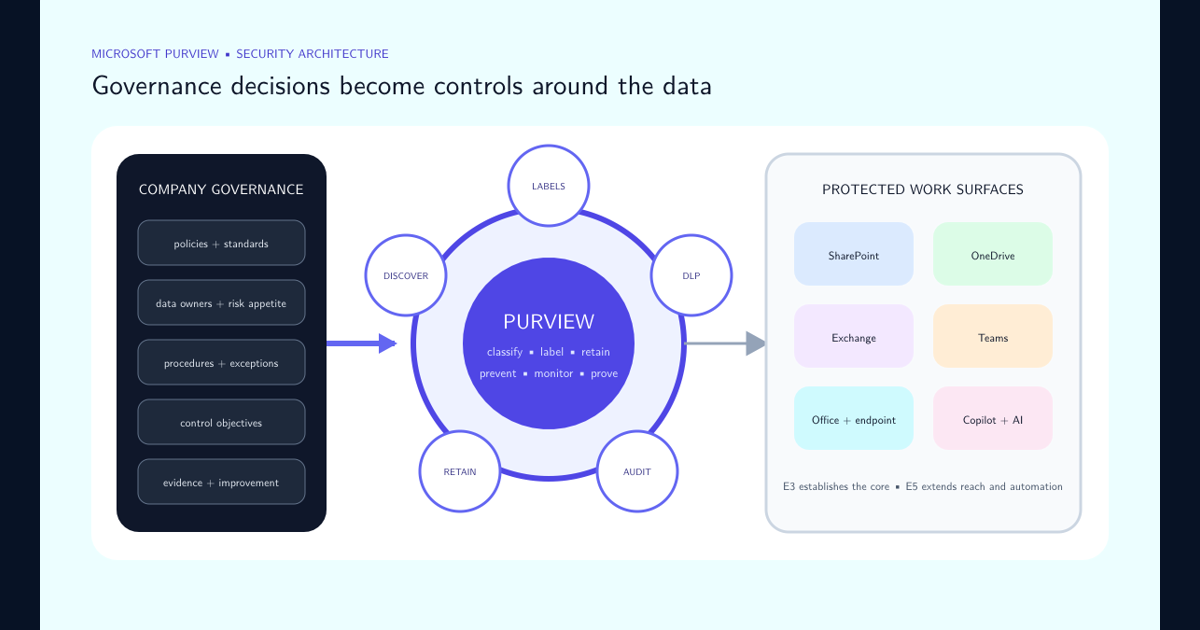
- Confirm licensing for every user who benefits. DLP capabilities differ by location and entitlement. Standard Microsoft 365 DLP and advanced Endpoint, Teams, analytics, or AI scenarios do not share one universal license. Use the Purview E3 and E5 security-layer guide to frame the design, then verify current product terms.
- Assign least-privilege administration. Use an appropriate Purview role group such as Data Loss Prevention or Information Protection rather than making the policy author a permanent Global Administrator.
- Name a business owner. Security operates the control; a data or process owner decides which business activity is legitimate.
- Verify the location prerequisites. Exchange, SharePoint, and OneDrive are service locations. Endpoint DLP requires supported devices to be onboarded and configured. On-premises repositories require the relevant scanner path.
- Confirm the identities and groups are cloud-resolvable. Use current Microsoft Entra and Microsoft 365 groups supported by the selected location.
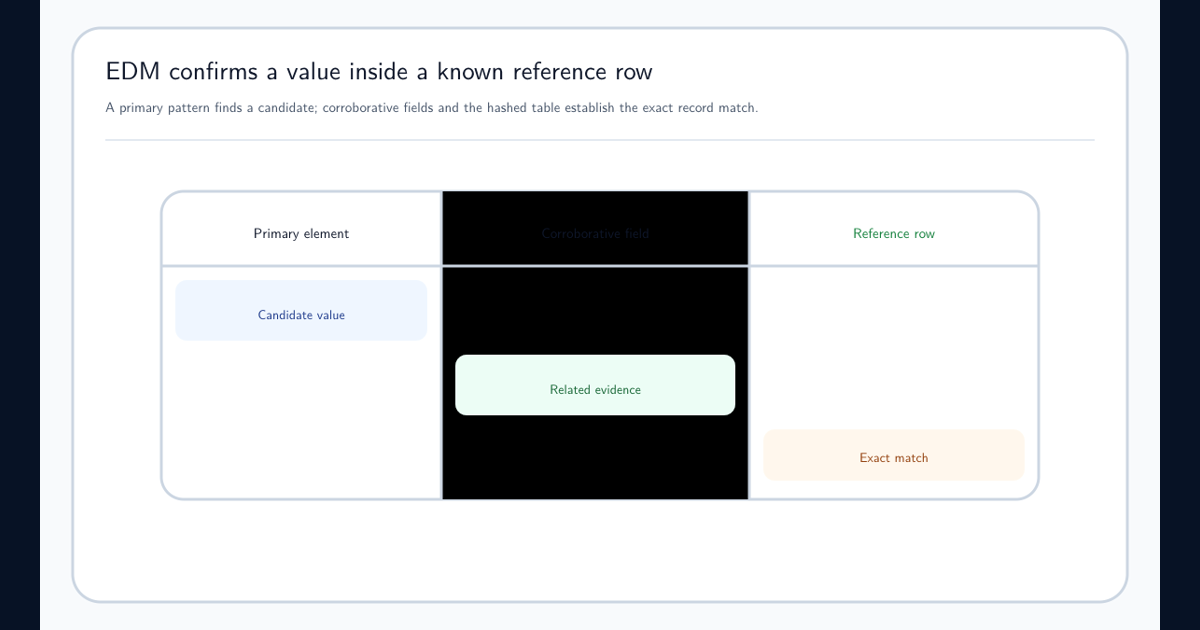
- Validate the detector separately. Test built-in or custom sensitive information types against true-positive and negative samples. For authoritative identifiers, consider the Exact Data Match guide.
- Document approved applications and destinations. A policy cannot distinguish “approved” from “unapproved” unless that distinction is represented in its conditions, actions, or endpoint settings.
- Prepare user-facing wording. Write the policy tip, help URL, and escalation path before users see them.
- Choose test content and test accounts. Include a positive sample, a near miss, a clean control file, an in-scope user, and an out-of-scope user.
- Agree on rollback. The immediate rollback is normally to return the policy to simulation or turn it off while retaining evidence—not to delete it.
Microsoft’s DLP overview lists supported enterprise locations and explains that prerequisites vary. Treat the portal’s ability to show a location as an option, not proof that the tenant is ready to enforce there.
Create the Microsoft Purview DLP Policy Step by Step
Sign in to the Microsoft Purview portal with the approved administrative account, open Solutions → Data Loss Prevention → Policies, and select Create policy. Portal labels can change, but the decisions remain consistent with Microsoft’s create and deploy DLP policy guidance.
Step 1 — Choose the starting point. Select a regulatory or regional template only when its detectors and default behavior are close to the approved objective. Otherwise choose Custom. Open every template rule before submission; a template is Microsoft’s reusable starting logic, not your organization’s approved policy.
Step 2 — Name it for operations. Use a stable convention such as DLP-CustomerIdentity-ExternalSharing-Pilot-v1. Put the control objective, owner, ticket, and exception route in the description. Avoid names such as “New Policy 2” that become meaningless in alerts.
Step 3 — Select the administrative scope. If the tenant uses administrative units, decide whether the policy must be restricted to one unit. This controls who administrators can manage; it is distinct from choosing which users and locations the policy evaluates.
Step 4 — Choose locations deliberately. Enable only locations covered by the objective and ready for testing. Exchange email, SharePoint sites, OneDrive accounts, Teams chat and channel messages, devices, on-premises repositories, Fabric and Power BI, connected services, and Copilot-related locations have different conditions and actions. Do not select every location simply because the switches are available.
Step 5 — Include and exclude populations. Begin with a representative pilot group or named test locations. Exclude a group only when there is an approved business reason, owner, expiry date, and compensating control. Broad permanent exclusions are invisible holes in a security policy.
Step 6 — Create or edit the rules. A rule combines conditions, exceptions, actions, notifications, alerts, and priority. Build the smallest rule that expresses the control. Two understandable rules—one warning on low-volume sharing and one blocking high-volume sharing—are easier to investigate than one deeply nested rule.
Step 7 — Configure incident evidence. Choose alert thresholds and recipients that an operating team can actually review. A policy that creates thousands of unowned alerts is not monitored; it is merely noisy.
Step 8 — Select simulation. Choose Run the policy in simulation mode. Enable policy tips in simulation only when you intentionally want pilot users to see them. Do not select automatic activation after 15 days unless the owner has explicitly approved that change path.
Step 9 — Review and submit. Capture the policy name, configuration summary, approver, date, and change record. Submission starts evidence collection; it is not the end of deployment.
Build Rule Logic That an Investigator Can Explain
Read every DLP rule as a sentence:
When these conditions are true, unless this exception applies, take these actions, tell these people, and create an alert at this threshold.
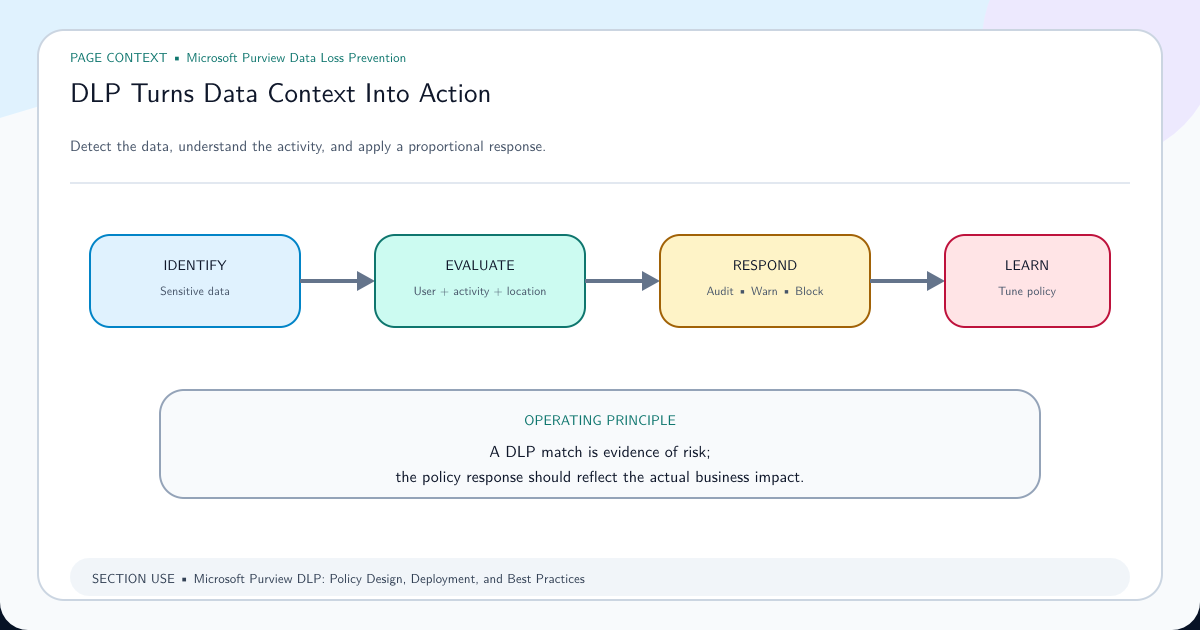
Conditions identify content and context. They can include a sensitive information type, sensitivity label, trainable classifier, sharing state, recipient, file property, device activity, destination, or workload-specific signal. The current Microsoft DLP policy reference is essential because the condition and action catalogue changes by location.
Use confidence and occurrence counts to express risk. One loosely matched identifier in an internal document may justify audit. Ten high-confidence identities sent externally may justify a block. Where practical, use a sensitivity label design as stable business context rather than rebuilding classification through keywords in every policy.
| Response | Use it when | Evidence to monitor |
|---|---|---|
| Audit only | Learning normal behavior or evaluating a weak signal | Match volume, destinations, true and false positives |
| Policy tip | The user can choose a safer action | Tip views, abandoned actions, help requests |
| Block with override | Legitimate exceptions occur and can be reviewed | Override rate, justification quality, repeat users |
| Hard block | The activity is prohibited with no normal exception | Block volume, business incidents, attempted workarounds |
Write exceptions narrowly. “Exclude Executives” is an identity-based bypass. “Allow the audited merger workspace for members of the transaction team until the closing date” is a bounded exception. Record an owner and expiry outside Purview because the portal cannot decide whether the business reason remains valid.
Rule order also matters when several rules can match. Keep priorities intentional, document overlap, and test combined behavior. Do not rely on “stop processing more rules” as proof of simulation behavior; Microsoft notes that this setting does not operate in simulation mode.
Make the Policy Tip Tell the User What to Do Next
A policy tip is part of the control, not decorative text. “This action is blocked by your organization” creates a support ticket. A useful message states what was detected in safe terms, why the action is restricted, and which approved route the user should take.
Use wording such as:
This file appears to contain customer identity information and cannot be shared through an external link. Share it through the approved Customer Exchange workspace. If this detection is incorrect, select Override, enter the business reason, and notify Data Protection.
Do not place the sensitive value itself in a notification, email subject, or help-desk ticket. Provide an internal help page, policy owner, and response expectation. If override is available, require a business justification and review it; otherwise the override becomes an unmonitored “continue” button.
When users report that an expected tip is missing, check the workload and action first. A SharePoint sharing event, an Outlook message, a Teams post, and a device upload do not use identical evaluation paths. Confirm the account, app, destination, policy mode, supported condition, and whether the exact activity has occurred before editing the detector.
Prove the Policy in Simulation Before You Enforce It
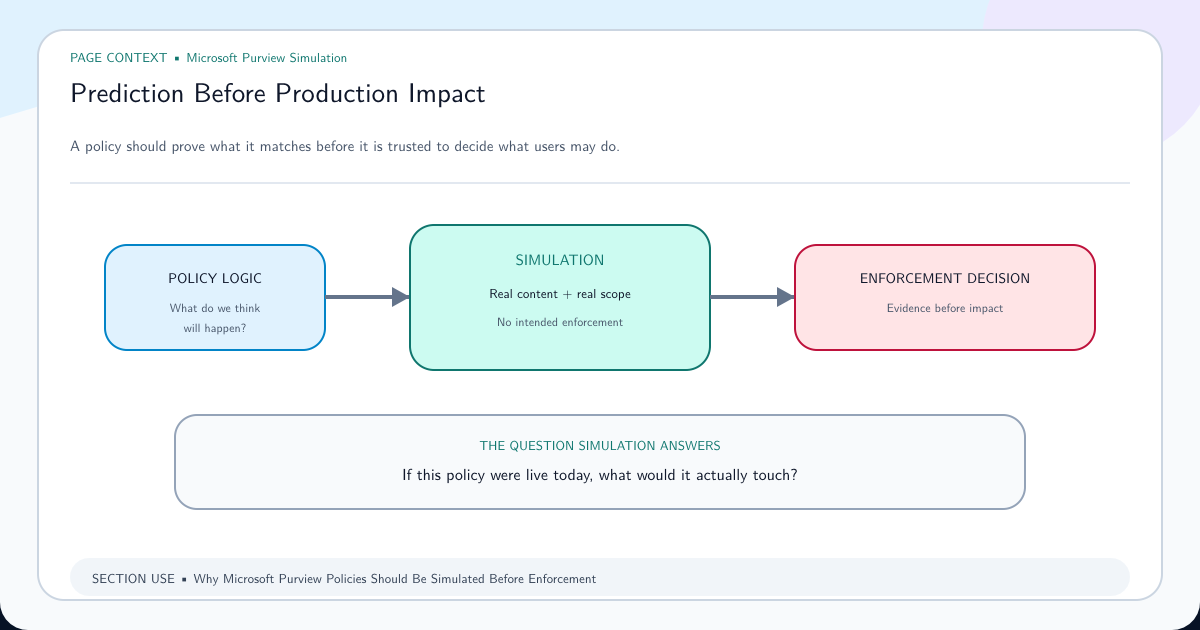
Open the policy after submission and select View simulation. Microsoft’s DLP simulation guidance exposes an overview, items for review, and alerts. Results are retained for the most recent 30 days. Exchange and Teams commonly evaluate when a message is sent, devices when a relevant transfer occurs, and SharePoint or OneDrive can also scan existing content at rest.
Run the planned test matrix, then review real production matches:
| Test | Expected result |
|---|---|
| In-scope user shares a true-positive sample externally | Match the intended rule |
| In-scope user shares a clean control file | No match |
| Near-miss sample lacks supporting evidence | No match or lower-severity rule |
| Out-of-scope user performs the same action | No match |
| Approved destination or bounded exception is used | Allowed and recorded as designed |
| High-count sample is used | Match the higher-severity rule |
Sample across departments, file types, languages, recurring reports, templates, and service-generated content. A detector that works on five hand-built files is not yet proven against the data estate. Review the matched item, rule, user, location, activity, count, confidence, destination, and expected production action. Ask the data owner to classify representative results as true positive, false positive, or legitimate exception.
The decision gate is explicit: enforcement is approved only when the policy matches the stated risk, false positives are acceptable, required exceptions are bounded, support is prepared, and rollback is documented. The simulation-first deployment guide provides a deeper evidence model.
Move From Simulation to Enforcement in Controlled Stages
Do not move from tenant-wide simulation to tenant-wide hard blocking in one change. Use a progression that matches the risk:
- Simulation without tips establishes baseline behavior and detector quality.
- Simulation with tips validates the wording and gives pilot users a safe route.
- Pilot enforcement applies the planned response to a representative group while support watches closely.
- Wave deployment expands by department, region, or workload after each review.
- Full enforcement occurs only when ownership, evidence, and operational capacity remain sound.
Before each wave, record the scope, start time, approver, expected match volume, support contact, monitoring window, and rollback trigger. Microsoft states that policies generally take effect about an hour after activation, but do not use that statement as a stopwatch across every workload. Confirm behavior through policy status, a controlled test, alerts, and Activity Explorer.
After enforcement, monitor blocks, warnings, overrides, justifications, affected users, destinations, help-desk cases, and business outcomes. A falling number of unsafe attempts can indicate that users learned the approved path. A rising override rate often means the rule conflicts with legitimate work or users discovered that justification has no consequence.
Material changes—new detectors, locations, actions, or populations—return to simulation. Keep a versioned record so an investigation can establish which logic was active when an event occurred.
What to Do When the Policy Does Not Behave as Expected
The policy has no matches. Confirm that submission succeeded and the policy is in simulation or enforcement. Verify the user, group, site, account, device, and activity are in scope. Recheck every condition, count, confidence level, and exception. Use a known positive sample and create a fresh supported activity; an existing file at rest and a newly shared file do not always follow the same timing. Then inspect simulation status and Activity Explorer.
The policy matches almost everything. Stop before enforcement. Identify which detector contributes the match, raise confidence or occurrence thresholds, add corroborating evidence, narrow the activity or external context, and replace broad keywords with a stronger signal. Review custom SIT false-positive reduction when a regular expression is involved.
The right content matches, but the wrong action occurs. Compare the selected location with the action supported there, rule priority, policy mode, override configuration, and any overlapping DLP policy. The same conceptual “block” can appear differently in Exchange, SharePoint, Office, Teams, and endpoint channels.
A pilot works, but another department fails. Compare licenses, group membership, administrative-unit boundaries, device onboarding, client or browser path, data formats, and destinations. Do not weaken the global rule until the difference is known.
A change is not visible yet. Preserve the existing policy and follow the DLP propagation troubleshooting guide. Check configuration acceptance, distribution, workload evaluation, and event visibility separately instead of repeatedly editing the policy and resetting the investigation.
A business process is blocked in production. Return the affected policy or rule to simulation, or narrow the pilot scope according to the approved rollback. Preserve the event and configuration evidence, restore the safe workflow, identify whether the result is a false positive or an undocumented legitimate exception, then obtain owner approval before redeployment.
Finish only when the policy can be operated
A complete policy has more than conditions and a block action. It has a named owner, traceable objective, verified entitlement, tested detector, bounded scope, intelligible user guidance, simulation evidence, approval record, alert route, support procedure, rollback plan, and review date.
Store those details in a policy register and review them after incidents, major business changes, new data sources, licensing changes, and scheduled control reviews. Retire policies that no longer serve a current requirement. Unowned rules accumulate exceptions and noise until nobody can explain their effect.
To build the surrounding knowledge, use our free cybersecurity courses, including the Microsoft Purview learning material. When the implementation is complete, validate practical understanding through the free cybersecurity exams. The goal is not to memorize a wizard. It is to make every DLP decision—from detection to enforcement—explainable, testable, and supportable.
Frequently asked questions
How do I create a DLP policy in Microsoft Purview?
Open the Microsoft Purview portal, go to Data Loss Prevention and Policies, select Create policy, choose a template or custom policy, define administrative scope and locations, configure rules and user notifications, then submit the policy in simulation mode. Review representative matches before moving through a pilot to enforcement.
How long does a Microsoft Purview DLP policy take to apply?
Microsoft states that policies generally take effect about one hour after being turned on, but timing and evidence differ by workload. SharePoint and OneDrive simulation also scan content at rest, while Exchange, Teams, devices, and other locations commonly produce results when an applicable activity occurs. Troubleshoot by workload instead of relying on one universal delay.
Should a new DLP policy be turned on immediately?
No. Run a new or materially changed policy in simulation, inspect its matched items and alerts, tune false positives and scope, then enforce it for a representative pilot group before broad deployment. Immediate enforcement is reserved for an urgent, clearly understood risk with an approved change and rollback plan.
Should I use a Microsoft DLP template or create a custom policy?
Use a template when its protected data, locations, thresholds, and actions closely match your control objective. Use a custom policy when the organization has a specific data type, label, business workflow, destination, or enforcement model. A template is a starting point and must still be reviewed and tested.
Should users be allowed to override a DLP block?
Allow override with business justification when legitimate exceptions are expected and reviewable. Use a hard block when the transfer is prohibited and no normal exception should exist. If overrides become routine, the rule, approved workflow, or business process needs correction.
Why does my DLP policy show no matches?
Confirm that the policy is submitted and in the intended mode, the test user and location are in scope, the content meets every condition and threshold, exclusions do not remove it, the workload prerequisites are complete, and a supported activity has occurred. Then inspect Activity Explorer and simulation status before changing the rule.