
Introduction
Microsoft Security Copilot is the generative AI assistant that sits on top of Microsoft Purview, Microsoft Defender, and Microsoft Sentinel. Instead of clicking through dashboards, running audit log searches, and manually piecing together investigation timelines, you type a question in natural language and Copilot returns an answer with references to the underlying data.
I have been using Copilot in Purview since its early preview, and it genuinely changes how investigations work. What used to take 45 minutes – searching the audit log, filtering Activity Explorer, cross-referencing DLP alerts – now takes a single prompt: “Show me everything user j.smith did in the 24 hours before this DLP alert fired.” The system queries the audit log, Activity Explorer, and DLP incident data, then returns a structured timeline with links to each source record.
This guide covers what Security Copilot can do in Purview today, how to write effective prompts, where it saves the most time, and where you still need to verify its output manually. Security Copilot requires Microsoft 365 E5 plus the Copilot add-on licence. It is not included in any base Purview plan. For the foundational features Copilot queries against, see the AI-powered compliance guide and the audit log search guide.
What Security Copilot Can Do in Microsoft Purview Today
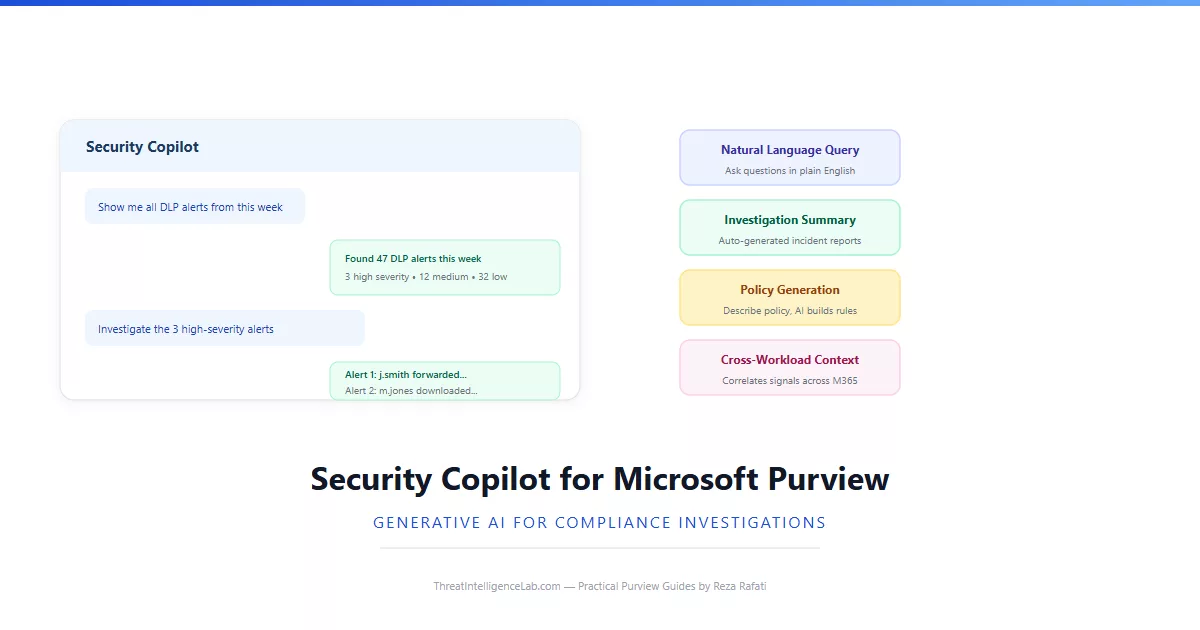
Copilot’s capabilities in Purview fall into four categories. Understanding each category helps you know what to ask it and what to do yourself.
Investigation and triage. This is where Copilot saves the most time. You describe an incident – a user, a time window, a type of activity – and Copilot queries the unified audit log, Activity Explorer, and DLP incident data to return a structured timeline. Each event in the timeline links back to the source record so you can verify it. Copilot does not replace the audit log – it makes it faster to query.
Alert summarisation. Instead of reading through a DLP incident with 47 individual matches, you ask Copilot to summarise. It groups related matches, identifies the common sensitive info types, notes the user and the destinations, and highlights anything unusual – such as external forwarding to a domain the user has never contacted before. The summary includes links to each underlying alert for verification.
Policy generation. This is still in preview and evolving rapidly. You describe the policy you want in plain language – “block emails containing financial data sent to external recipients outside business hours” – and Copilot generates the DLP rule configuration, suggests the sensitive info types to include, and recommends initial thresholds. A human must review and approve the policy before it activates. Copilot handles about 80% of the configuration work; the remaining 20% is checking its assumptions.
Compliance posture queries. You can ask questions like “How many documents with a Confidential label were shared externally this month?” or “Which users have the most insider risk alerts in the past 30 days?” Copilot queries the Purview dashboards and returns the answer with breakdowns by user, department, and trend direction. These are the kind of questions that previously required building custom reports.
Writing Effective Prompts That Return What You Actually Need
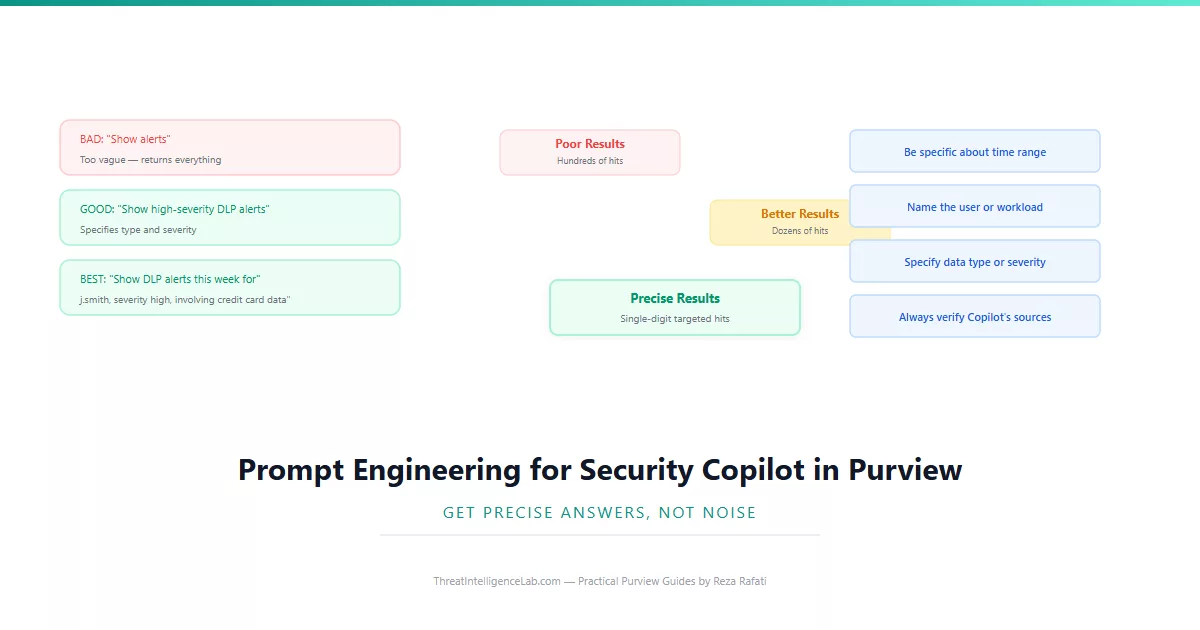
The difference between a useful Copilot response and a vague one comes down to how you phrase the prompt. Vague prompts return vague results. Specific prompts with time ranges, user identities, data types, and severity levels return precisely what you need.
A bad prompt: “Show me alerts.” Copilot returns every alert from every policy across every user for the default time window. Hundreds of results, most irrelevant. A good prompt: “Show me high-severity DLP alerts from the past 7 days.” Copilot filters by severity, policy type, and time range. Dozens of results, more manageable. The best prompt: “Show me high-severity DLP alerts from the past 7 days for user j.smith involving credit card data sent to external domains.” Copilot returns a handful of precisely targeted results.
The pattern is consistent across every investigation type. Always include the user, the time window, the data or policy type, and the severity or threshold you care about. If you do not know the user but know the file, specify the file name. If you do not know the time but know the event type, specify that. Each additional constraint narrows the results and improves relevance.
Where Copilot Gets It Wrong – and Why You Must Verify
Copilot is not a replacement for human judgment. It is an accelerator. It queries data faster than you can, but it does not understand your business context, and it will occasionally return incorrect or incomplete results. Knowing where it is most likely to fail prevents you from acting on bad information.
Missing data. Copilot queries the same data sources you have access to. If audit logging was not enabled for a particular workload, or if retention has already expired for the time window you are querying, Copilot returns nothing – just as a manual audit log search would. It does not warn you that data might be missing. If you ask about events from 18 months ago and your organisation is on E3 licensing with 90-day retention, Copilot will confidently report zero results instead of telling you the data has expired.
Hallucination. Like all generative AI, Copilot can fabricate details. It might confidently state that a user forwarded an email to a specific external address when the underlying audit record shows forwarding to a different address, or no forwarding at all. Every Copilot response includes source links. Click them. Verify the underlying data matches what Copilot summarised. If there is a discrepancy, trust the source data, not the summary.
Context blindness. Copilot does not know that your legal team routinely shares confidential documents externally as part of their job. It does not know that your CFO downloads large files every quarter-end. It will flag these as potentially suspicious because the statistical pattern looks anomalous. You must overlay your business knowledge on Copilot’s output. The tool finds what looks unusual; you decide what actually matters.
Building Copilot into Your Investigation Workflow
The most effective way to use Copilot is as the first step in every investigation, not the last. You ask Copilot for the initial picture. You verify its sources. Then you use the traditional tools – audit log search, Activity Explorer, eDiscovery – to go deeper on what Copilot surfaces.
Here is the workflow I follow. When a DLP alert or insider risk alert arrives, I open Copilot and ask: “Summarise this alert and show me all activity for this user in the 24 hours before and after the alert fired.” Copilot returns a timeline with linked source records. I click through to verify the key events.
If the timeline reveals additional users or files, I run follow-up Copilot queries for those. Once I have the full picture, I document the investigation in our case management system – Copilot can draft the initial summary, but I review and edit it before finalising.
This workflow cuts investigation time by roughly 60% compared to manual audit log searches and Activity Explorer filtering. The 40% that remains is the irreplaceable human work – verifying sources, applying business context, and making the final judgment. Copilot accelerates the mechanical parts. It does not replace the judgment parts. For ongoing monitoring after investigations, use the Purview dashboards to track investigation volumes and resolution rates over time.
Leave a Reply
You must be logged in to post a comment.