Purview Endpoint DLP Blocking Chrome Uploads: Troubleshooting Guide
Diagnose Microsoft Purview Endpoint DLP Chrome upload blocks, extension and domain configuration, cached decisions, activity evidence, and related information protection scanner health warnings.
First Identify Which Browser Activity Is Failing
“Purview is blocking Chrome uploads” can describe at least three different incidents: the intended block appears on an unapproved cloud site, an approved site is blocked unexpectedly, or a sensitive upload is not blocked at all. Record the URL, file, user, device, time, policy tip or toast text, and expected action.
Keep upload, paste, print, copy, and access-in-unallowed-browser activities separate. They can use different Endpoint DLP settings and detection constraints. The service domain list used for upload-to-cloud does not configure Paste to supported browsers. Solving the wrong activity is a common reason troubleshooting changes have no effect.
Reproduce with a synthetic sensitive file whose expected classifier is known. Avoid customer or employee data. Test once in Microsoft Edge and once in Chrome on the same device where appropriate; the comparison separates native browser enforcement from extension-specific behavior.
Verify the Endpoint and Chrome Integration Before Editing the Rule
Confirm the device is onboarded to Microsoft Purview Endpoint DLP and appears healthy. Verify the operating system, browser version, extension deployment, extension enablement, and required enterprise browser policy. On Windows, Chrome and Firefox use the Microsoft Purview extension for supported controls; Microsoft Edge is supported natively. On macOS, supported browsers use native integration and the Windows extension model does not apply.
Check whether the user can reach the extension’s required command integration and whether other browser-management policy disables or replaces it. Confirm the policy includes the Devices location and that user and device scoping target this test. Compare with a known-good managed endpoint.
In Activity Explorer, look for the underlying file and browser activity. No event suggests onboarding, telemetry, file support, or browser integration. An audit event without the expected restriction points toward rule matching, action, group, or destination configuration.
Resolve the Destination Domain the Way Purview Sees It
Browser policy usually evaluates a service destination, not the friendly product name. Capture the actual hostnames contacted during the upload and map them to the intended service domain or sensitive service domain group. Authentication, regional, storage, and API hosts can differ from the visible URL.
Check the interaction between allowed, restricted, and unallowed browser or service-domain configuration. A rule can be logically correct while the destination is placed in the wrong group or a broader rule wins. Review effective rule priority and exceptions with the same user and file used in the test.
Do not weaken the global rule to accommodate one poorly understood SaaS endpoint. Establish the service’s complete upload domain set, validate ownership, and make the smallest justified group change. Retest another unapproved destination to ensure the exception did not open a broader route.
Account for the 15-Minute File Decision Cache
Microsoft Chrome extension behavior documents that the DLP engine caches files for about 15 minutes by default to prevent repeated upload attempts. During that window, a file blocked at an unallowed domain can also be blocked when immediately uploaded to an allowed domain.
This is a particularly misleading test artifact because the second destination appears misconfigured. Use a fresh test file or wait beyond the cache period before comparing allowed and blocked domains. Record file identity and attempt order. Microsoft recommends Edge when quick successive uploads are required.
The cache is not a substitute for investigating persistent blocks. If a fresh file is blocked at an allowed destination, return to scope, classification, destination mapping, effective rule, and browser integration. Avoid repeatedly renaming real sensitive files to evade the control; use approved synthetic samples.
Do Not Reuse Upload Assumptions for Paste to Browser
Paste to supported browsers evaluates clipboard content at the moment of paste and applies a destination-aware action. Microsoft’s paste diagnostic states that the standalone service domains list used by upload-to-cloud does not control paste; configure the dedicated restricted service domain groups and the relevant paste activity.
Detection support also differs. Standard SIT patterns, regex, keywords, functions, and custom keyword dictionaries can drive paste controls, but Microsoft states that a paste rule relying on Exact Data Match or a trainable classifier is not blocked by design. A rule can therefore detect a file upload yet not block a pasted excerpt.
Test paste with plain synthetic content that matches a supported SIT, confirm an audit event, then add the intended destination and action. Keep browser, operating system, and extension requirements in the incident record.
Diagnose Scanner Health as a Separate Server-Side Chain
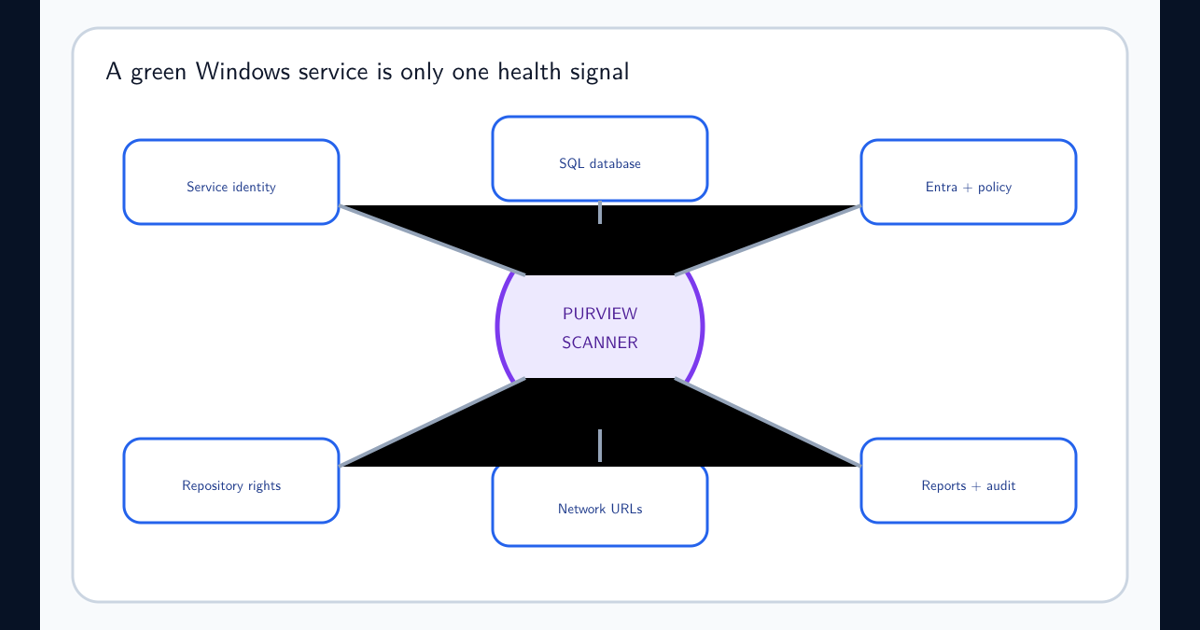
The Microsoft Purview Information Protection scanner is not the Endpoint DLP Chrome extension. It runs as a Windows Server service and scans supported on-premises repositories. A scanner health warning should be triaged separately even if it uses the same labels or sensitive information types.
Verify the service identity, service state, SQL database reachability and ownership, repository permissions, Entra authentication, policy retrieval, profile, network URLs, and rule validity. Microsoft scanner prerequisites require the service account to have Log on as a service and appropriate repository rights; discovery-only scans can use read access, while classification and protection require stronger permissions. The dedicated scanner service-account health guide provides the full identity, SQL, repository, authentication, and diagnostic sequence.
Use the documented scanner diagnostics to check database, URLs, token, policy, profile, configuration, and rules, and capture recent errors. Run under the scanner identity or use the supported OnBehalfOf credential flow. Do not “fix” health by making the account a broad administrator; grant only the documented rights for the chosen mode and repository.
Validate the Fix With a Small Browser Test Matrix
Retest an allowed domain and a blocked domain using fresh positive and negative files in the supported browsers. Verify the user notification, Activity Explorer record, rule and policy identifiers, destination, action, and override behavior. Test again after the normal policy synchronization window.
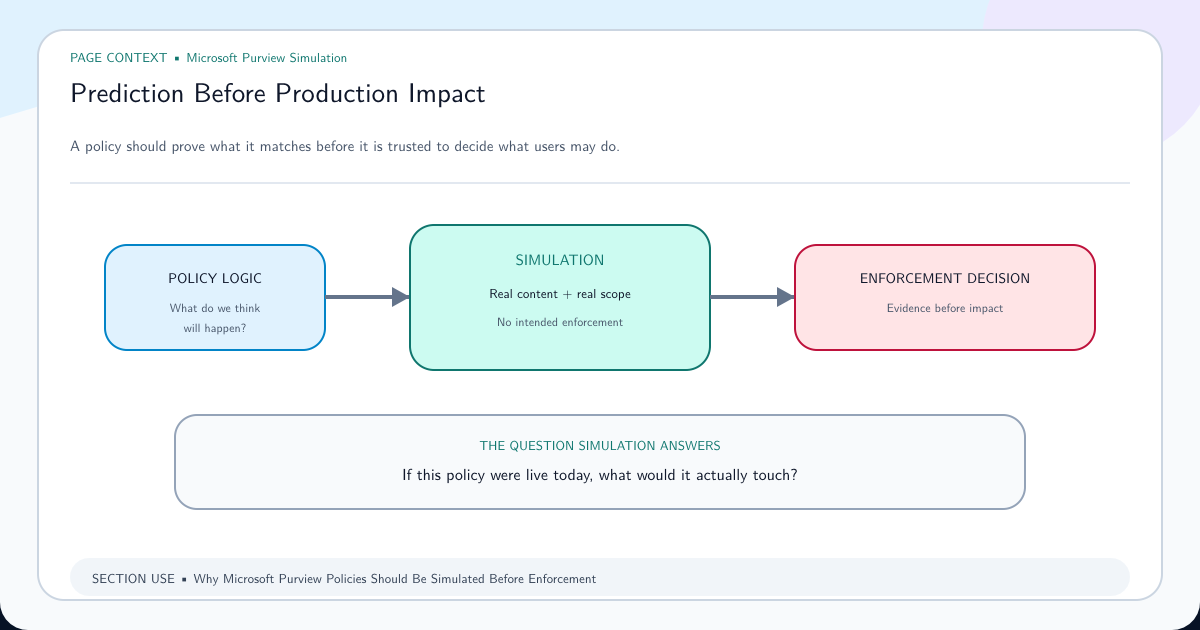
Run the change in simulation or audit mode before broad blocking where the control supports it. A simulation-first rollout reveals misclassified destinations, noisy classifiers, unsupported file types, and business processes that need an approved route.
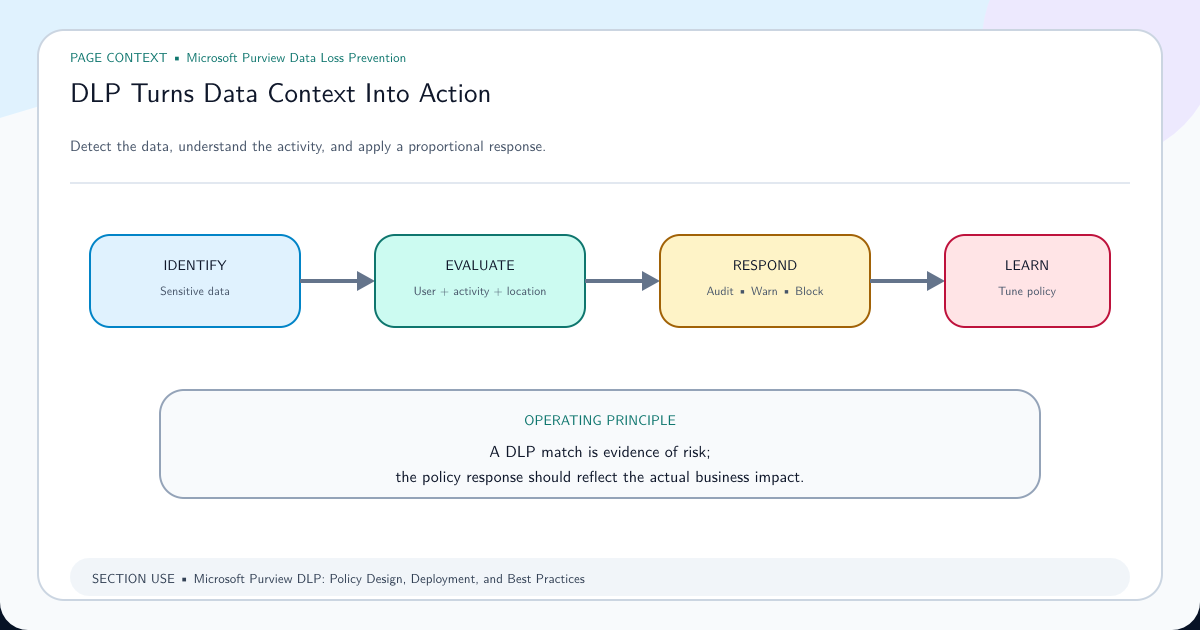
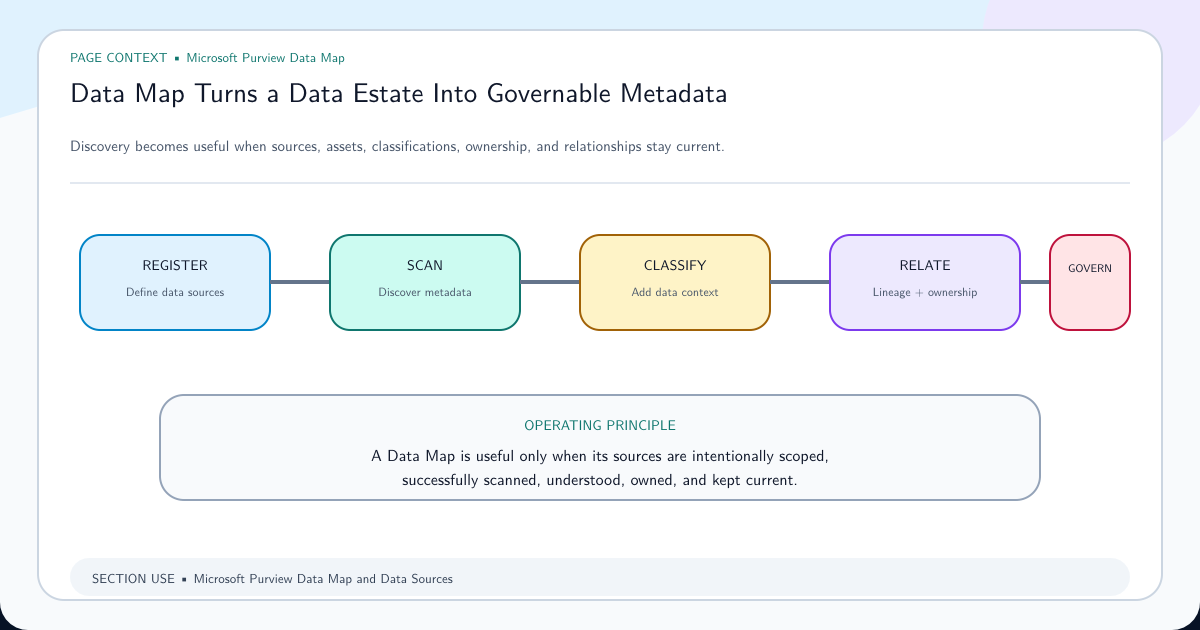
Link the operational result back to Purview DLP policy design and the Data Map and data source guide. Endpoint browser enforcement and repository scanning cover different movement and storage paths; neither demonstrates that the other is healthy.
Frequently asked questions
Why does Chrome block an upload to an allowed site after a blocked attempt?
Microsoft documents that the Purview Chrome extension's DLP engine caches files for about 15 minutes by default. During that period, a decision from an unallowed destination can also block an immediate attempt to upload the same file to an allowed domain.
Does Chrome always need the Microsoft Purview extension for Endpoint DLP?
On Windows, Chrome uses the Microsoft Purview extension for supported browser controls. On macOS, supported browsers use native integration and the Windows extension is not used. Edge has native support on Windows and macOS.
Why does upload blocking work but paste-to-browser blocking does not?
These are separate activities with different settings. Microsoft states that the standalone service domains list governs activities such as upload to cloud, not Paste to supported browsers. Paste evaluation also does not block when a rule relies on EDM or a trainable classifier.
What should be checked first for a Purview scanner health warning?
Verify the Windows service identity, SQL access, repository permissions, authentication token, policy retrieval, profile and configuration, URL access, and valid rules. The scanner diagnostic cmdlet checks these layers and can return recent errors.