How to Fix Microsoft Purview Scanner Health Warnings for Service Accounts
Troubleshoot Microsoft Purview Information Protection scanner health warnings by validating service identity, SQL, repository rights, authentication, policy retrieval, diagnostics, and scan evidence.
Identify the Failing Layer Before Changing Permissions
A Purview scanner health warning can come from the Windows service, SQL database, authentication token, policy download, network access, content scan profile, repository permissions, or invalid rules. Giving the service account more privilege without isolating the layer increases risk and can leave the original failure untouched.
Record the cluster, scanner server, service state, service identity, database, scan job, repository, last successful scan, warning text, UTC timestamp, and recent change. Determine whether the failure affects discovery, classification, protection, DLP enforcement, or only reporting.
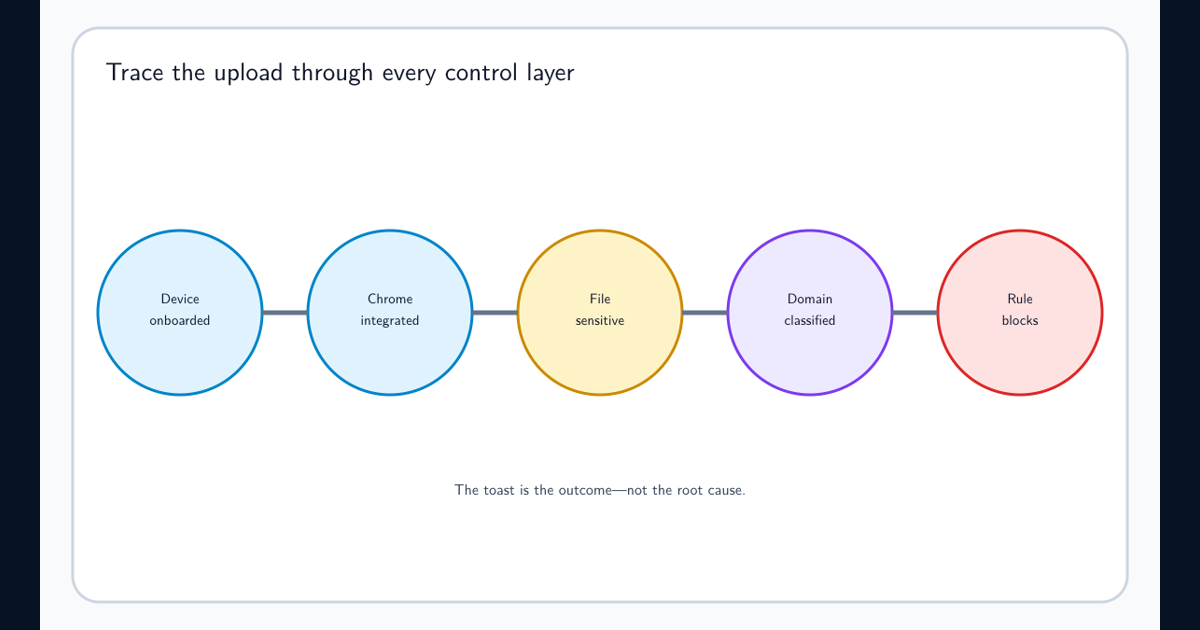
A running service proves that Windows launched the process. It does not prove the scanner can authenticate, retrieve policy, access SQL, enumerate files, modify protected content, or publish results.
Validate the Service Identity and Logon Rights
The standard scanner design uses an Active Directory service account synchronized to Microsoft Entra ID. Enter the on-premises identity in DOMAIN\username format during installation; Microsoft’s current installation guidance warns that a UPN can cause later SID resolution, service-start, or SQL permission problems.
Microsoft scanner prerequisites distinguish two Windows rights. Log on locally is needed for installation and configuration but can be removed after the scanner is validated. Log on as a service is required for installation, configuration, and operation and is normally granted by setup.
Confirm the Windows service actually runs under the intended account and that password rotation, lockout, Group Policy, or service hardening has not invalidated it. Use a managed process for credential updates; do not exempt the account from all controls to suppress warnings.
Match Repository Permissions to Discovery or Enforcement Mode
Discovery-only scanning generally needs read access. Applying labels or protection requires read, write, and modify access to file shares or local files. SharePoint Server scanning and protection have their own documented rights. Reprotecting or removing Rights Management protection can require the scanner account to be an authorized super user.
Test access using the scanner identity and a controlled repository path. Verify share permissions and NTFS permissions, inheritance, deny entries, long paths, file locks, and service-to-server authentication. A human administrator opening the share proves nothing about the service identity.
Scope rights narrowly to configured repositories. If a scan job is discovery-only, do not grant write merely because another deployment guide mentions protection. Document the permission owner and periodic review.
Verify SQL and Local Scanner Configuration
The scanner database must be reachable, current, correctly collated, and available to the service account. Verify the configured SQL instance, DNS and port path, TLS requirements, database ownership, disk capacity, and whether a hardening change removed access.
Microsoft recommends a dedicated SQL instance for production where practical and documents capacity considerations based on file count and filename length. A small SQL Express deployment may be appropriate for testing but should not be assumed to scale with the production repository.
Confirm the scanner profile, online or offline configuration, cluster name, and valid rules. A server can reach SQL while using the wrong database or stale profile.
Separate Windows Service Credentials From Entra Authentication
The Windows identity starts the service and accesses local resources. An Entra token lets the scanner retrieve Purview policy and operate unattended. A healthy Windows logon does not prove the token exists or remains usable.
Standard deployments can use the synchronized service identity. Microsoft also documents alternatives where the service identity cannot be synchronized: a local or AD service account can run the service while a separate Entra identity is supplied with supported delegated and OnBehalfOf parameters.
For certificate authentication, verify the certificate store, private-key permission for the service identity, provider type, chain, subject or thumbprint, and expiry. Preserve the exact authentication error before renewing or replacing credentials.
Run Diagnostics and Prove a Complete Scan Cycle
Microsoft scanner diagnostics checks database access, required URLs, authentication token, policy acquisition, profile, online or offline configuration, and rule validity. Run under the scanner account or use the supported OnBehalfOf credential parameter, and collect verbose recent errors.
After correction, scan a controlled repository containing known positive, negative, unsupported, encrypted, and inaccessible samples. Confirm enumeration, match, labeling or DLP action, file permission result, scanner report, Activity Explorer or audit evidence, and next scheduled cycle.
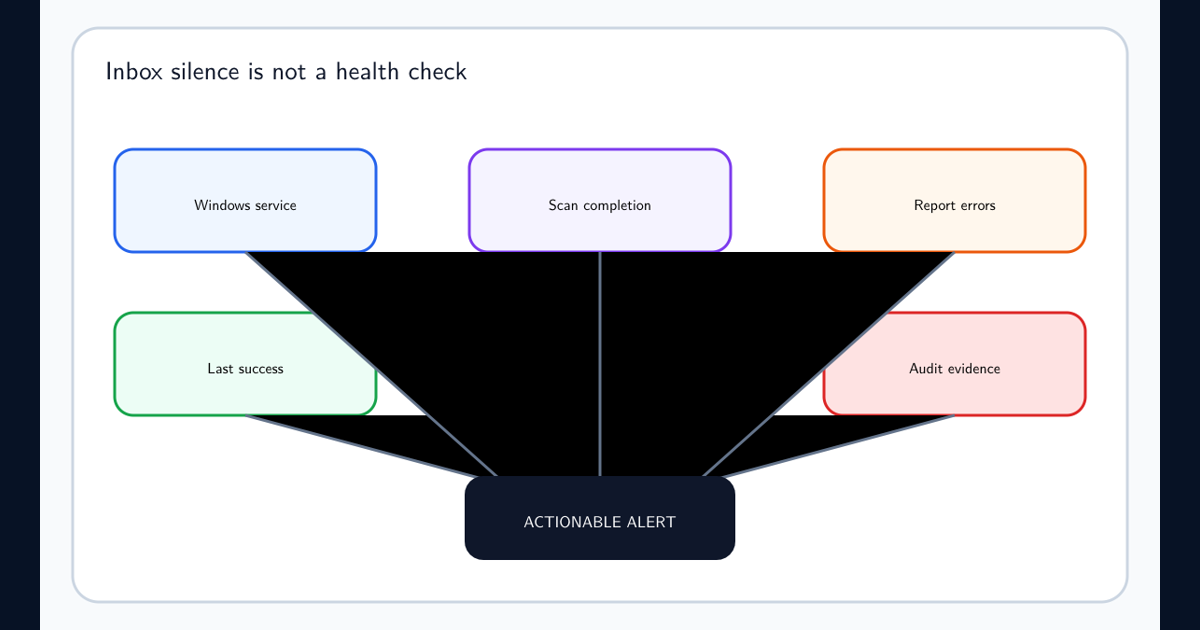
A missing failure-notification email should not be the sole health signal. The failed-scan monitoring guide turns reports, freshness, coverage, audit ingestion, and a deadman check into an operated alert path. Monitor Windows service state, diagnostic results, scan completion, error counts, last successful scan, repository coverage, and audit ingestion.
Frequently asked questions
Does the Purview scanner service account need Log on locally permanently?
Microsoft says Log on locally is required to install and configure the scanner but can be removed after discovery, classification, and protection are validated. Log on as a service remains required for operation.
Must the scanner service account be synchronized to Microsoft Entra ID?
The standard design uses an Active Directory account synchronized to Entra ID. Microsoft also documents an alternative with a local or AD service identity and a separate Entra identity supplied through supported authentication parameters.
Does the scanner account need Full Control over every repository?
Discovery-only scanning generally needs read access. Applying classification or protection requires read, write, and modify permissions, while SharePoint Server scenarios have their own documented rights. Grant permissions for the intended mode only.