Microsoft Purview PDF Sensitivity Labels Work in Web but Not Desktop: Troubleshooting Guide
Troubleshoot PDF sensitivity labeling differences between SharePoint, Office for the web, synced files, and desktop PDF applications by checking tenant enablement, signatures, encryption, rights, and client support.
Define the PDF Operation That Differs
A PDF can display a label in the SharePoint details pane yet fail to open locally, open locally without a labeling command, be excluded from auto-labeling, or be unreadable to DLP. These are different capabilities.
Before changing the label, identify the operation that failed:
| Operation | What success proves | What it does not prove |
|---|---|---|
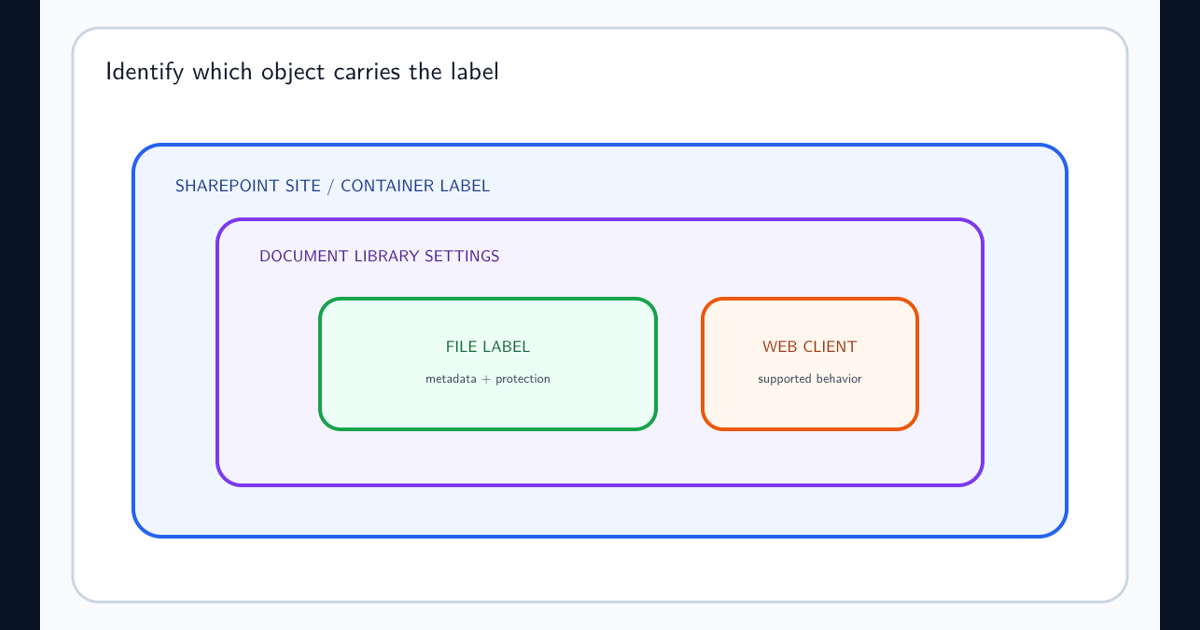
| Label appears in the SharePoint details pane | SharePoint recognized label metadata for that file | A desktop viewer can authenticate and enforce its usage rights |
| User applies a label in the browser | PDF tenant support and that web action are available | Service-side auto-labeling or every local PDF application is supported |
| PDF opens after download | The user and viewer can open this protection configuration | SharePoint extracted content for DLP, search, or eDiscovery |
| DLP matches the PDF label | The workload recognized the label for that supported DLP path | The PDF content itself was inspected or a desktop label button exists |
This distinction keeps the investigation focused. A security team troubleshooting DLP does not need to begin with the user’s local viewer, and a user who cannot open a downloaded PDF does not need the auto-labeling policy rebuilt.
Record whether the expected action is label display, manual application, automatic application, encryption enforcement, search, eDiscovery, DLP inspection, download, or desktop viewing. Capture the source repository, upload date, label GUID, encryption configuration, digital-signature state, viewer name and version, and user rights.
Use a newly created unsigned test PDF alongside the failing file. That control separates tenant and client configuration from a file-specific structure or history problem.
Verify SharePoint PDF Labeling Is Explicitly Enabled
First confirm sensitivity labels are enabled for SharePoint and OneDrive. Then verify the separate PDF capability. Microsoft documents (Get-SPOTenant).EnableSensitivityLabelforPDF as the check and Set-SPOTenant -EnableSensitivityLabelforPDF $true as the enablement path, subject to the required SharePoint Online Management Shell version and administrative change process.
The capability supports applying a label in Office for the web, extracting and displaying an uploaded label, search, eDiscovery, DLP, auto-labeling, and SharePoint library defaults for eligible PDFs.
In Multi-Geo, apply and verify the setting for each geo-location. Do not infer tenant-wide state from a successful test in one geography.
Exclude Signed, Empty, Legacy, and Ineligible Files
Microsoft SharePoint and OneDrive labeling requirements state that signed PDFs are not supported. Library labels also require files to contain content; an empty file is labeled only after content is added.
Files labeled before SharePoint and OneDrive labeling was enabled might not be recognized. Test a fresh upload and, for a controlled legacy sample, download and upload it again as Microsoft documents. Preserve the original and its evidentiary properties when legal, records, or signature requirements apply.
Do not remove a digital signature or rewrite a regulated PDF merely to make labeling work. Route unsupported files through an approved protection and records workflow.
Check Encryption and User Rights Before Blaming the Viewer
SharePoint and OneDrive can process supported labeled PDFs encrypted with a cloud-based key when the label configuration is compatible. Microsoft identifies content expiration and Double Key Encryption as configurations the service cannot process in this path.
An uploader needs at least View usage rights for SharePoint to recognize an encrypted labeled file. Upload can succeed without that minimum right while label recognition and content processing fail.
Test label metadata separately from decryption. A desktop application that is not integrated with Microsoft Information Protection might not provide the same sign-in and rights experience as Microsoft 365 web services. Preserve the label and protection requirement while selecting a supported viewer or workflow.
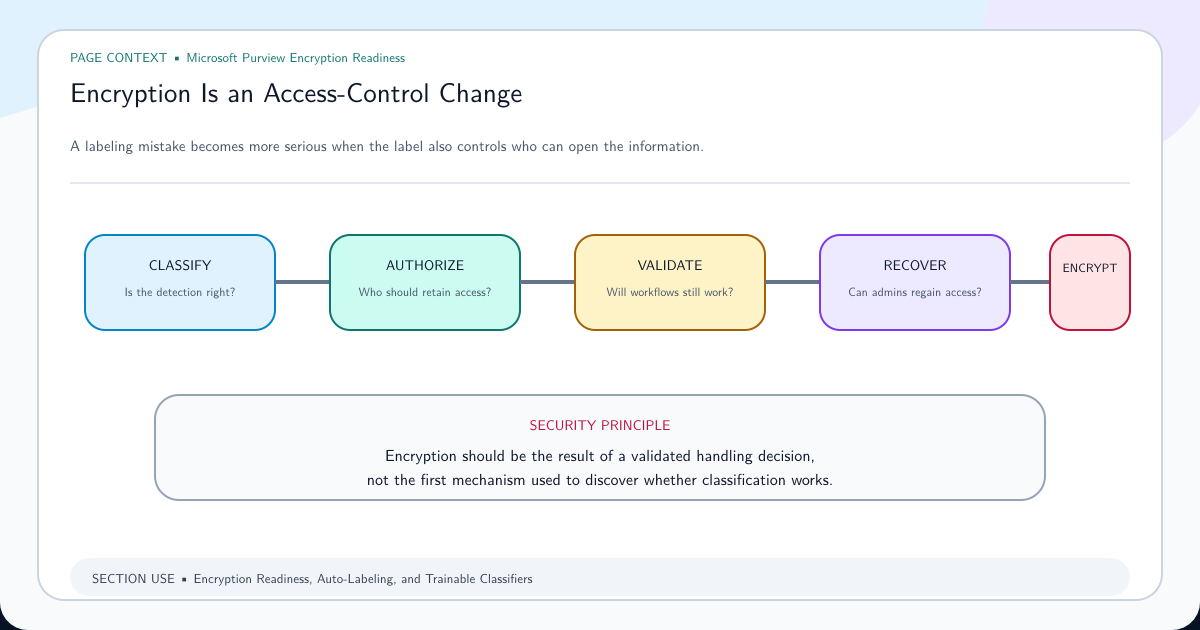
Before changing a production label to make one PDF open, use the encryption readiness assessment to test authorized access, recovery, search, eDiscovery, coauthoring, automation, and unsupported-client consequences together.
Compare Web, Sync, Download, and Desktop Paths
Build a matrix for SharePoint details-pane display, browser labeling, browser opening, OneDrive sync, direct download, managed desktop viewing, DLP detection, and eDiscovery or search. Keep user, label, and file constant.
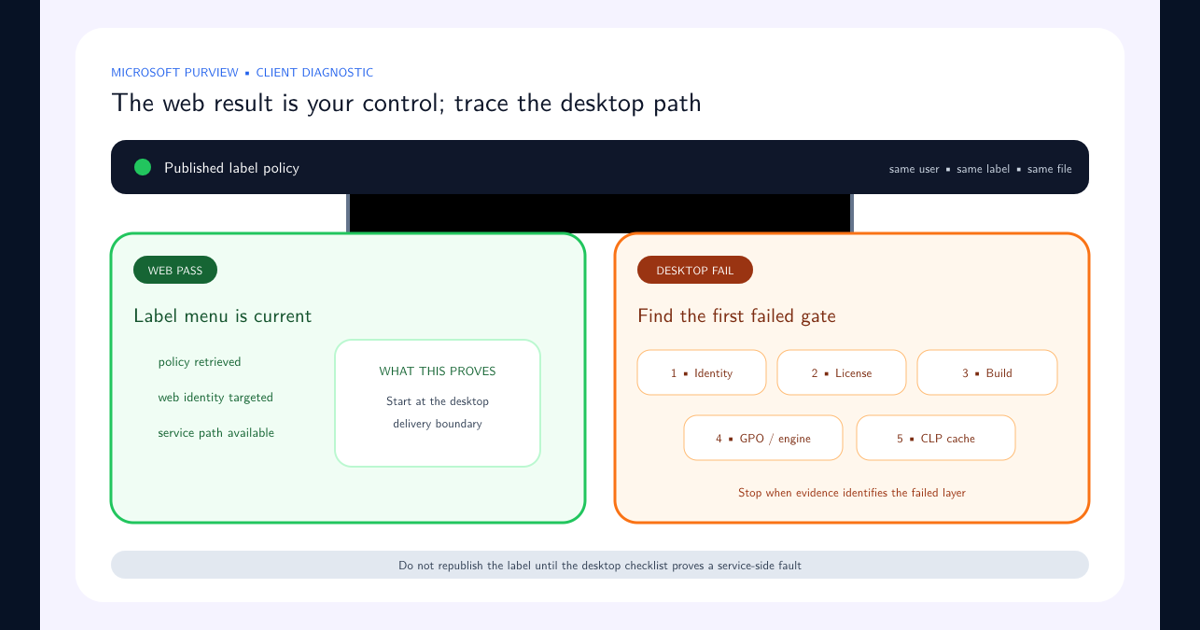
A web success proves the repository can process that item under that identity; it does not guarantee every desktop PDF viewer implements labeling or rights management. Conversely, a desktop viewer opening a file does not prove SharePoint extracted the label for DLP and search.
Use the desktop-versus-web label troubleshooting workflow for Office client policy issues and the SharePoint browser label troubleshooting workflow for repository processing.
Validate Without Weakening Protection
Use unsigned positive and negative PDFs with known content. Verify label display, application, download persistence, authorized and unauthorized open behavior, DLP condition matching, search, and audit evidence. Include Multi-Geo locations where relevant.
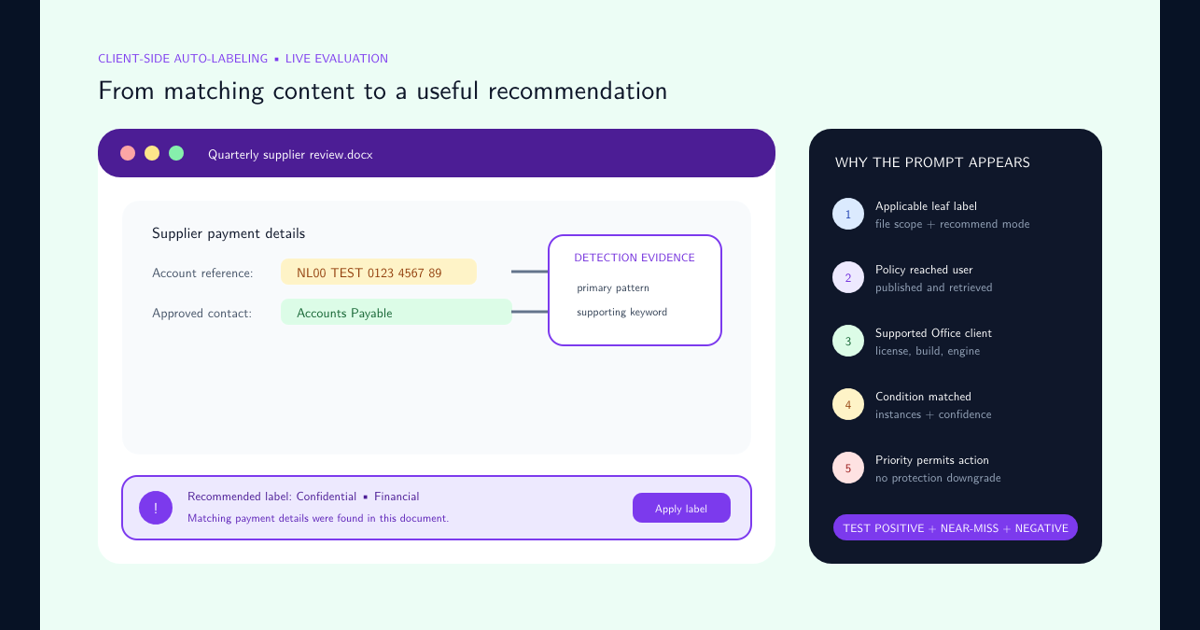
Monitor auto-labeling volume after enabling PDF support. Microsoft warns that enabling it can increase the number of files affected by existing auto-labeling policies, which have documented processing limits.
Record whether the root cause was tenant enablement, file eligibility, legacy ingestion, encryption configuration, rights, viewer support, or workload limitation. Do not remove encryption or signatures in production without security, legal, and records approval.
Use the response that matches the situation. For a signed regulatory PDF, preserve the signature and choose a supported governance path; do not rewrite the evidence. For an old unsigned PDF that predates tenant enablement, test a preserved copy through the documented reupload path. For a PDF recognized in SharePoint but rejected by a local reader, validate the user’s rights and move the test to an approved Information Protection-aware viewer. For a whole geography that cannot process otherwise identical PDFs, verify the Multi-Geo tenant setting in that location.
Frequently asked questions
Is PDF sensitivity labeling enabled automatically with SharePoint labeling?
No. Microsoft documents a separate EnableSensitivityLabelforPDF tenant setting for SharePoint and OneDrive PDF support.
Do Microsoft Purview sensitivity labels support signed PDFs in SharePoint?
Microsoft states that sensitivity labels do not support signed PDFs in this SharePoint and OneDrive capability.
Why is an older labeled PDF not recognized after PDF support is enabled?
Files labeled before SharePoint and OneDrive labeling support was enabled may not be recognized. Test a newly uploaded file and use a controlled download and reupload where Microsoft documents that remediation.