
Introduction
Communication Compliance is the part of Microsoft Purview that monitors internal and external messages for policy violations. It scans emails, Teams chats, channel messages, Yammer conversations, and even third-party platforms like Slack and Zoom if you have the connectors set up.
When I first deployed this for a financial services client, we caught an insider trading reference in a Teams direct message within the first week. Their existing Data Loss Prevention and Insider Risk Management tools had completely missed it. DLP looks at what data is moving. Communication Compliance looks at what people are saying.
It detects harassment, threats, regulatory disclosures, conflicts of interest, and corporate policy violations that no amount of sensitivity labeling can catch. This guide walks you through creating your first policy, choosing detection methods, and setting up a review workflow that does not overwhelm your team.
Communication Compliance requires Microsoft 365 E5, the E5 Compliance add-on, or the E5 Insider Risk Management license. It is not available with E3. You also need the Communication Compliance or Communication Compliance Admin role assigned through Purview permissions. Set that up before starting – nothing in this module is accessible without it.
Choosing a Policy Template That Matches What You Actually Need
Go to Communication compliance in the Purview portal and click Create policy. Microsoft gives you several templates, each designed for a different type of violation. Choosing the right one determines what gets flagged and how much noise you generate.
Detect inappropriate text is the broadest template. It uses built-in classifiers to catch offensive language, harassment, and threats. If you are unsure where to start, pick this one – it is the simplest to configure and gives you a baseline view of what communication looks like in your organization. The classifier has been trained on millions of messages and does a decent job of distinguishing genuinely abusive language from casual profanity.
Detect inappropriate images scans for adult or offensive visual content in message attachments and inline images. It requires the same classifier technology but applied to images rather than text. This template generates fewer alerts than the text version, because image sharing in most business environments is less common.
Regulatory compliance is for financial services and regulated industries. It detects messages that suggest insider trading, market manipulation, money laundering, or unauthorized disclosure of material non-public information. This is the template that caught the insider trading reference I mentioned – it flagged a Teams message where someone wrote “buy before the announcement” to a colleague.
The regulatory template works by matching keywords, phrases, and patterns commonly associated with regulatory violations. You can customize the keyword dictionaries extensively. If you are building custom keyword lists, consider how they overlap with your existing DLP policies – the same sensitive terms should appear in both places for consistency.
Conflict of interest monitors for messages between specific groups that should not be communicating – traders and research analysts, procurement and vendors, HR and employees under investigation. You define the groups, and the policy flags any communication between them. This is the most targeted template and generates the lowest alert volume, because the scope is narrow by design.
For your first policy, start with Detect inappropriate text. It gives you the broadest coverage and teaches you how the review workflow operates without the complexity of custom keyword tuning. Once you are comfortable with the review process, add a regulatory or conflict of interest policy that targets your specific risks.
Scoping Your Policy to the Right People and Channels
After selecting a template, you choose who and what to monitor. The locations page lets you monitor Exchange email, Teams chats, Teams channel messages, Yammer, and third-party sources. For a first policy, select Teams chats and Exchange email. These are where sensitive conversations happen most often.
Teams channel messages tend to be more public and formal. Violations are less common there but more visible when they occur. Include channel messages if your organization uses Teams channels for cross-department discussions. Skip Yammer initially unless your company actively uses it.
On the users and groups page, choose whose communications to monitor. I strongly recommend starting with a pilot group of 20 to 50 people – your compliance team, a single department, or a specific geography. Communication Compliance alerts require human review. There is no auto-remediation. Every alert that fires is a task someone must investigate.
A policy scoped to all 5,000 employees on day one will generate hundreds of alerts you cannot triage. Monitor the pilot for two weeks. Review every alert. Understand what normal looks like. Then expand gradually – add one department at a time and let the alert volume stabilize before the next expansion. This approach mirrors the phased rollout strategy I recommend for insider risk policies as well.
Use the exclusions page to protect privileged communications. Exclude legal counsel if their messages are protected. Exclude HR if they communicate with employees under investigation. Carve out protected channels before the policy activates – retroactive exclusions are far harder to manage than proactive ones.
How the Review Workflow Actually Works Day to Day
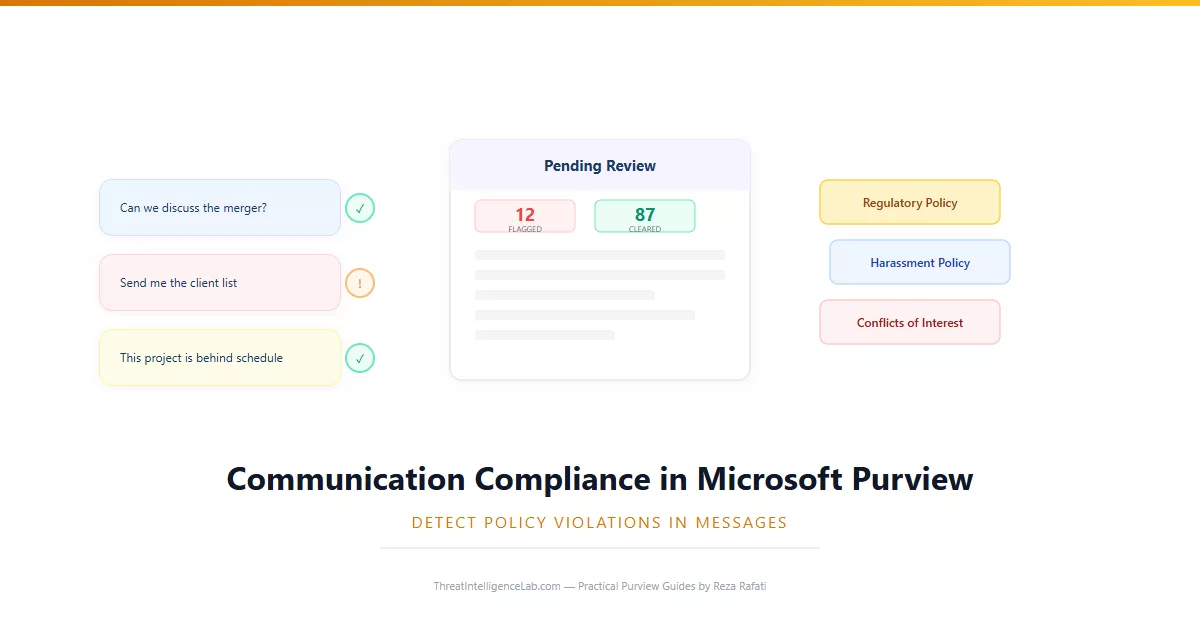
When a message matches your policy conditions, it lands in the Pending review queue. This queue is the core of Communication Compliance. Each item shows a preview of the message, the policy that flagged it, the sender and recipients, and the detection method – classifier match, keyword hit, or group conflict.
Your job as a reviewer is to open each flagged item and decide whether it is a true violation or a false positive. You have three actions available. Resolve marks the item as reviewed and closes it – use this for false positives and benign matches. Notify sends a remediation email to the user who sent the message, explaining why it was flagged and what they should do differently. Escalate sends the item to a designated escalation reviewer, typically someone in legal or HR who handles serious violations.
The review workflow is designed so that reviewers only see the content of flagged messages – not the sender’s other communications, not their file activity, not their browsing history. This privacy boundary is intentional and legally important. Communication Compliance is not a surveillance tool. It is a policy enforcement tool. Reviewers see exactly what the policy flagged and nothing more. If you need to investigate a user’s full activity, use the unified audit log or eDiscovery – both have their own permission models designed for broader investigation.
In my experience, a single reviewer can handle 20 to 30 flagged items per hour. If your policy generates more than 100 items per day across your pilot group, your detection conditions are too broad or your scope is too wide. Tighten your keyword lists. Raise your classifier confidence thresholds. Narrow your monitored users. A well-tuned policy should generate 10 to 20 items per day for a mid-sized organization. Anything beyond that leads to reviewer fatigue, and fatigued reviewers dismiss violations without proper investigation.
Detection Methods and How to Tune Them
Communication Compliance gives you three detection methods, and you can combine them in a single policy. Understanding what each one does prevents the most common mistake – enabling all three at once and then wondering why the alert queue is unmanageable.
Built-in classifiers are Microsoft’s pre-trained models. They detect inappropriate text, threats, harassment, and adult content without any configuration from you. The classifier assigns a confidence score to each match and only flags items above the threshold you set.
Start with the default threshold of medium confidence. If you get too many alerts, raise it to high. If you miss violations, lower it. The classifier is your lowest-maintenance option and the one I recommend for first policies.
Custom keyword dictionaries let you define lists of words and phrases that indicate a policy violation. For a regulatory policy, include terms like “insider trading,” “non-public,” and stock ticker symbols. Keywords can be simple words, phrases in quotes, or regular expressions.
The key to useful keyword matching is keeping your lists tight. A 500-word dictionary generates noise. A 50-word dictionary of high-signal terms generates actionable alerts. Review your keyword lists quarterly – remove terms that produce false positives and add terms that appeared in real violations. This tuning process is similar to how you refine trainable classifiers, where iterative feedback improves accuracy over time.
Trainable classifiers work the same way as document classifiers. You seed the model with example messages, train it, test it, and publish it. This is the most precise detection method but requires the most upfront effort. Use it when keyword matching cannot reliably catch specific violation types.
Privacy Boundaries and What Reviewers Can Actually See
Communication Compliance operates within strict privacy boundaries that are worth understanding before you deploy. Reviewers only see the content of messages that match a policy condition. They cannot browse a user’s full mailbox or read their other Teams conversations. This is by design – the tool enforces policy, not surveillance.
Message content is pseudonymized by default. Reviewer names are visible in the audit log, and every action they take – resolve, notify, escalate – is recorded. This creates accountability on both sides. The person whose message was flagged can see that it was reviewed, by whom, and what action was taken. Users can dispute a finding, and the dispute goes back to the reviewer for reconsideration. Every review action is also captured in the unified audit log, so external auditors can verify your review process later.
One practical consequence of these boundaries: you cannot use Communication Compliance to proactively read someone’s messages hoping to find something. The policy must flag it first. If you need broader investigative access, that is what eDiscovery is for, and eDiscovery has its own permission model and audit trail.
Keep these tools separate in your mind – Communication Compliance for policy enforcement, eDiscovery for legal investigations. Communication Compliance also complements Insider Risk Management, which monitors user activity patterns like file downloads and USB copies rather than message content. Together they give you layered visibility into risky behavior. For a complete view of your compliance posture across all these tools, use the Purview reports and dashboards to track trends across DLP, insider risk, and communication compliance from a single pane.
Leave a Reply
You must be logged in to post a comment.