
Introduction
You followed the guides. You configured sensitivity labels, set up DLP policies, assigned permissions. And yet something is not working. Labels are not appearing in Outlook. The DLP policy is not blocking anything. The scan keeps failing with an unhelpful error code.
These are the moments that make people give up on Microsoft Purview – not because the tools are bad, but because the feedback when something goes wrong is often opaque. This guide covers the ten most common configuration mistakes I see, why they happen, and exactly what to check to fix each one.
For every issue below, I start with the symptoms you will notice, then the root cause, then the fix. Work through them methodically. Most Purview problems have simple explanations once you know where to look. Each fix also links to the relevant deep-dive guide for full configuration instructions.

Labels, DLP, and Permissions
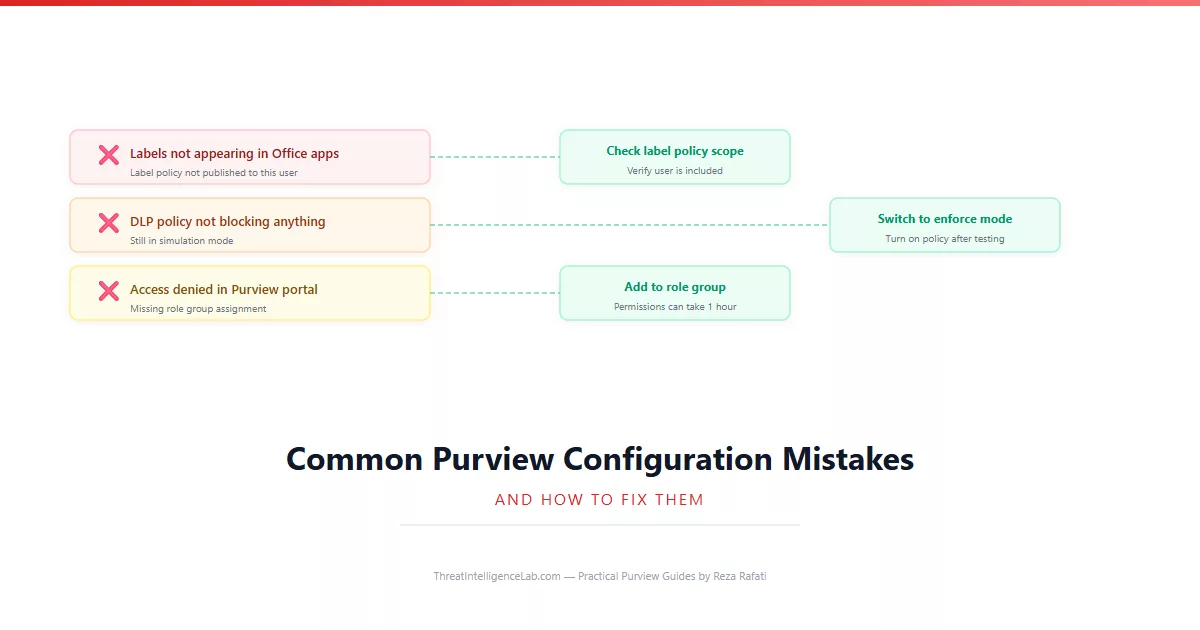
1. Sensitivity labels not appearing in Office apps. You published a label policy, but users do not see the label in Word or Outlook. Check three things in order. First, confirm the user is in the scope of the label policy – go to the label policy, click Edit, and verify the user or their group is included. Publishing to all users is the simplest way to avoid this mistake.
Second, confirm the user has a license that supports sensitivity labels – Microsoft 365 E3, E5, or Business Premium. E1 and Business Basic do not include this feature. Third, check timing – labels can take up to 24 hours to appear in desktop Office apps. Users can force a refresh by opening Word, going to the Sensitivity dropdown, and clicking Refresh. For the full label creation and publishing workflow, see the sensitivity labels guide.
2. DLP policy not blocking anything. You created a DLP policy, but sensitive data still flows through. The most common cause is that the policy is still in simulation mode – go to the policy and check its status. If it says Test it first or Test with policy tips, it is not enforcing. Change to Turn it on immediately.
The second cause is scoping – the policy applies to locations, but the data is flowing through a location you did not include. If you only scoped to Exchange but data moves through Teams, the policy will not catch it. Third, check your detection thresholds – if you set a minimum count of 10 instances and the data only contains 2, the policy will not trigger. For complete DLP configuration, refer to the DLP setup guide.
3. Access denied when opening any Purview feature. Your global admin account cannot see Data classification or Information protection. This is by design – Microsoft decoupled Purview admin roles from Azure AD roles for security reasons. Global admins must explicitly add themselves to Purview role groups. Go to Roles and scopes, select Permissions, and add your account to the Compliance Administrator role group. Permissions can take up to an hour to propagate. For the full permissions walkthrough, see the first-day setup guide.
Scans, Auto-Labeling, and Content Explorer
4. Data source scan fails with authentication error. You registered an Azure SQL database or Blob Storage account, but the scan fails with an authentication error. The most common cause is that the Purview managed identity does not have permission to read the data source. Go to the data source in Azure, open Access Control (IAM), and add the Purview account’s managed identity with the Reader and Storage Blob Data Reader roles. The managed identity name matches your Purview account name. After adding the roles, wait 5 minutes and retry the scan.
5. Auto-labeling policy not applying labels to existing files. You switched an auto-labeling policy to enforcement, and new files are being labeled but old files are untouched. Auto-labeling in enforcement mode processes files at rest on a schedule – it is not instant. The initial backlog scan can take days for large SharePoint libraries. Check the policy status under Auto-labeling to see how many items are pending. Also verify that files are in a location covered by the policy. For full auto-labeling configuration, see the sensitivity labels guide and the trainable classifiers guide.
6. Content Explorer shows no data. You open Content Explorer and see zero items across all locations. This usually means the content scan has not completed its initial run, which takes 24 to 48 hours after licensing is assigned. Check the Overview tab under Data classification – it shows when the last scan completed. If more than 48 hours have passed, verify that audit logging is enabled under Audit. Content Explorer relies on the same underlying data. For more on using these tools, see the Content Explorer and Activity Explorer guide.
7. Retention policy not deleting expired items. You configured a retention policy to delete items after 2 years, but items older than 2 years still exist. Retention deletion is not immediate – Purview runs a timer job that processes expired items on a schedule, typically every 7 days. If the policy was recently created, wait a full week before concluding it does not work.
Also check whether any other retention policy or label applies to the same items with a longer retention period. Purview always honors the longest retention period across all applicable policies and labels. For full retention configuration and conflict resolution, see the retention policies guide.
Insider Risk, eDiscovery, and Classifiers
8. Insider risk policy generating no alerts. You deployed a Data theft by departing users policy, but the alerts queue is empty even though people have left. The most common cause is that no triggering event reached Purview. The policy needs to know who is departing. Without the HR connector or the Azure AD account deletion indicator enabled, the policy has no trigger.
Enable the Azure AD account deletion indicator as a fallback if the HR connector is not set up. Also verify that audit logging is enabled and users have E5 or Compliance add-on licensing. Insider risk management does not function without E5 licensing on monitored users. For full configuration, see the insider risk management guide.
9. eDiscovery search returns no results. You created a search across Exchange and SharePoint, but zero items are returned despite knowing relevant data exists. The most common cause is a partial index on the data sources. Click the search options and choose to include partially indexed items – this forces Purview to return everything including unindexed content.
A second cause is scope. Adding an Exchange mailbox only searches that mailbox. You must explicitly add each SharePoint site to the data sources. Go back to Data sources and confirm all relevant locations are listed. For the full eDiscovery workflow, see the eDiscovery guide.
10. Trainable classifier stuck on low accuracy. You trained a classifier but its precision and recall scores are stuck around 60 percent despite adding more sample documents. More samples are not always better – quality matters more than quantity. Review the documents you labeled during the testing phase.
The most common cause of low accuracy is inconsistent labeling. If you sometimes label a one-page cover letter as a match and sometimes not, the model learns noise instead of signal. Go back to the classifier, reset the training, and provide new samples that are clearly in one category or the other. Use unambiguous examples. If the classifier consistently misclassifies a specific type of document, add more examples of that type specifically labeled as not a match. The model learns from both positive and negative examples equally. For the full training methodology, see the trainable classifiers guide.
For ongoing monitoring after fixing these issues, use the monitoring dashboards and Activity Explorer to verify your fixes are working and catch new issues before they become problems.
Leave a Reply
You must be logged in to post a comment.