Cannot Find a User by Last Name in Microsoft Purview eDiscovery: Data Source Search Guide
Find the correct user data source in the new Microsoft Purview eDiscovery experience by using supported identifiers, validating permissions and account state, and confirming the mailbox and OneDrive locations actually added.
Why a Last-Name Search Can Return Nothing
The new eDiscovery source picker is not a general employee directory. It resolves supported Microsoft 365 identities and data locations for a case, search, or hold. A last name by itself is both ambiguous and absent from Microsoft’s documented list of supported person-search values.
The picker supports a person’s full display name, first name, SMTP address, alias, Exchange GUID, or OneDrive URL. Use the exact primary SMTP address whenever it is available. It remains clear when several people share a surname, display names contain accents, a user has changed their name, or the directory contains guests and duplicate objects.
Do not confuse this step with searching the person’s content. First resolve and add the data source. Then build the eDiscovery content query against that mailbox, site, or other selected location.
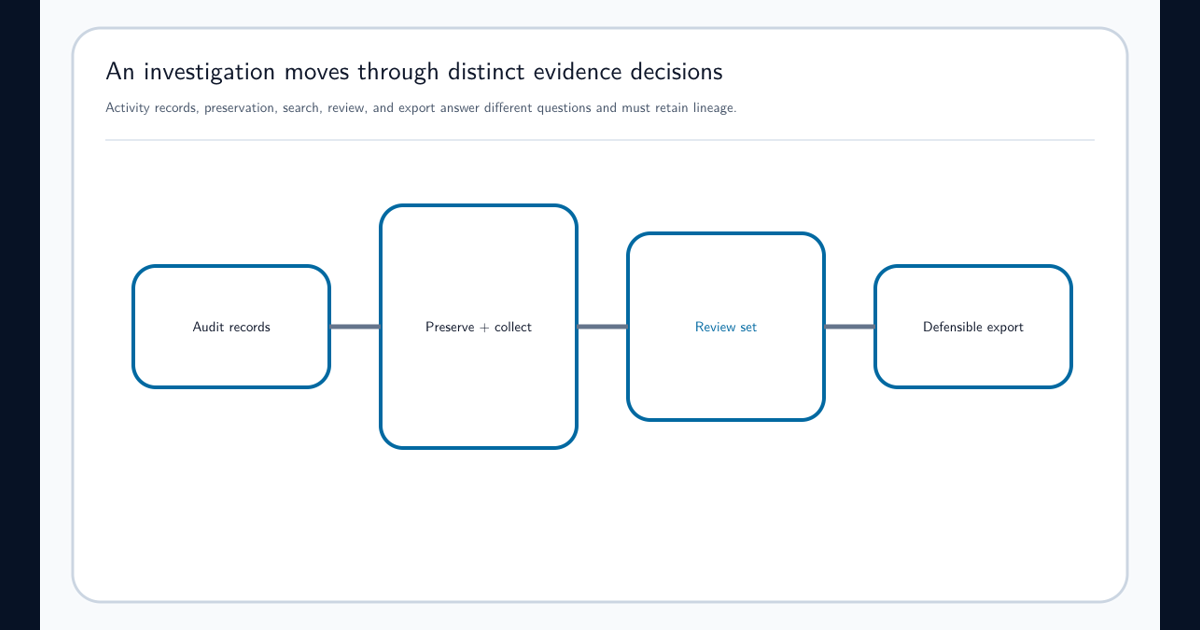
The Purview Audit and eDiscovery investigation workflow provides the surrounding case model so source selection remains tied to an authorized scope rather than becoming an open-ended directory search.
Use the Strongest Identifier Available
Work down this table until the user resolves. Keep the value in the case notes so another reviewer can reproduce the source selection.
| Identifier | Use it when | Important limitation |
|---|---|---|
| Primary SMTP address | The user has an active or known mailbox identity | Best general choice; verify aliases and renamed accounts |
| Exchange GUID | Names and addresses are duplicated or changed | Obtain it from an authoritative Exchange record |
| Full display name | The name is distinctive and current | Can return duplicates or miss renamed users |
| First name | Performing a broad interactive lookup | Produces noise in a large tenant |
| User alias | The organization maintains unique aliases | Aliases can be unfamiliar or changed |
| OneDrive site URL | The user object no longer resolves but the site remains | Adds the site location, not an automatically reconstructed user source |
| Last name only | Do not rely on it | Not listed as a supported person-search value |
If several inputs must be tested, separate SMTP addresses with semicolons. The semicolon multi-search does not support site URLs, so add those as site locations.
Verify the Investigator Can See and Add the Source
A correct SMTP address still returns an unusable experience when the investigator lacks the required eDiscovery role or case access. Confirm the account can open the case and manage its data sources. Non-administrators see only cases where they are members, and the Custodian role provides access to the Data Sources tab for case-related source management.
Run Microsoft’s eDiscovery RBAC diagnostic from the Purview help control when Search, Preview, Export, or source-management behavior differs between investigators. Record the role group, case membership, diagnostic result, and time of the most recent permission change.
Permissions and source existence are separate questions. If another authorized investigator can resolve the same SMTP address, correct RBAC. If nobody can resolve it, move to account and workload state.
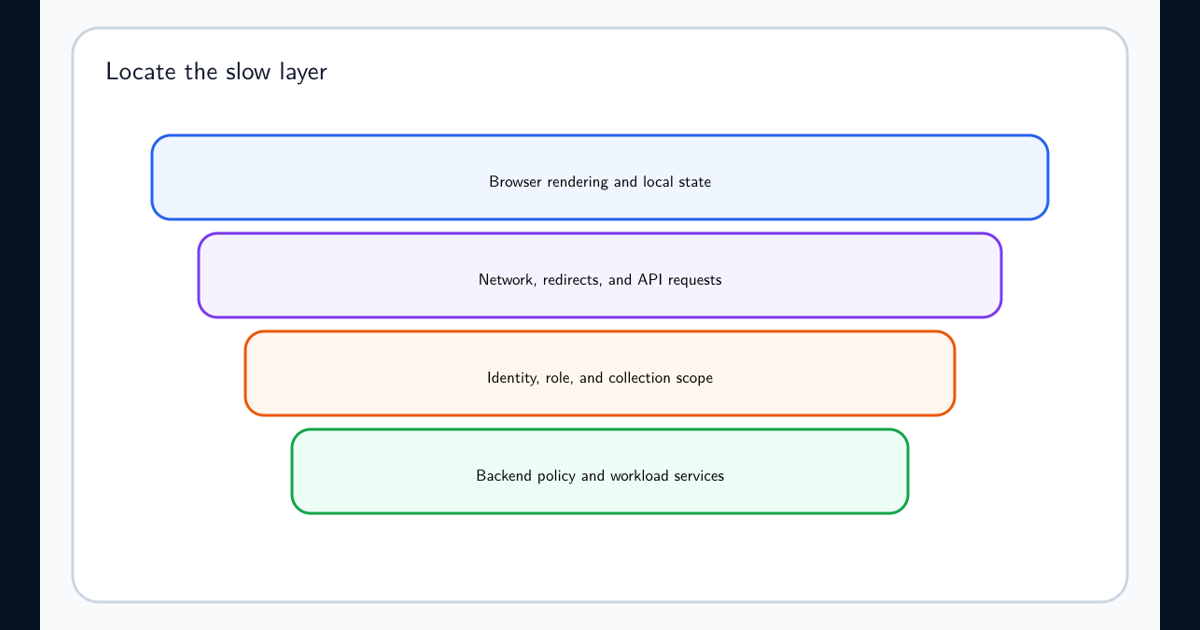
When the source picker itself is slow or repeatedly redirects, preserve the case and user identifiers and follow the Purview portal troubleshooting workflow before rebuilding the case.
Resolve Deleted, Unlicensed, Converted, and Unavailable Users
Open Manage sources and inspect the location status instead of assuming a selected person’s mailbox and OneDrive are both available.
| Situation | What eDiscovery can show | Correct response |
|---|---|---|
| OneDrive was never provisioned or is still synchronizing | Mailbox exists; site is absent | Verify provisioning and allow directory synchronization to complete |
| User was deleted or departed | User object no longer links to the remaining OneDrive | Add the OneDrive URL directly; use an inactive mailbox when it was preserved before deletion |
| License was removed | Mailbox can deactivate and the OneDrive link can break | Reassign the required license when appropriate and wait for provisioning |
| Mailbox became shared or the object became a mail user | Source association can change | Resolve the current mailbox identity and add required locations explicitly |
| Source is marked Unverified | The service could not validate it at selection time | Correct typos or add it and inspect final verification in the process report |
| Source shows Not available | Underlying identity or location state is unresolved | Fix the account issue, remove the source, and add it again |
For duplicate objects, Microsoft recommends checking Exchange recipients with Get-Recipient -Filter "EmailAddresses -eq '[email protected]'". Resolve duplicate identity data before placing a consequential hold.
Rebuild Legacy Case Sources in the New eDiscovery Experience
Microsoft states that data sources from the legacy eDiscovery experience do not synchronize into the same case in the new experience. Add the users, groups, mailboxes, and sites again at the case level or directly to the search or hold.
After selecting a user, open Manage and choose whether the investigation needs mailboxes and sites, mailboxes only, or sites only. The default includes both the mailbox and site. Review supported application containers and remove irrelevant locations only when the investigation scope authorizes that choice.
For multiple exact sources, use bulk import with SMTP addresses and full URLs separated by semicolons. Microsoft supports up to 500 sources per import but recommends splitting large imports to reduce processing time. Export the verification list and correct duplicates or unverified inputs before relying on the scope.
Prove the Source Is in the Search or Hold
A person appearing in the picker is not proof that all expected locations were added. Open the search or hold, inspect Manage sources, and verify the mailbox, OneDrive, SharePoint, and relevant application containers individually. Save the scope, run the operation, and review the location CSV in the process report.
If the user resolves by SMTP but OneDrive is missing, add the known OneDrive URL directly and document why. If a departed user’s mailbox should be inactive, verify it with the inactive-mailbox inventory rather than selecting a similarly named active account. If the source remains Unverified, allow the operation to retry verification and inspect the final process report before drawing a coverage conclusion.
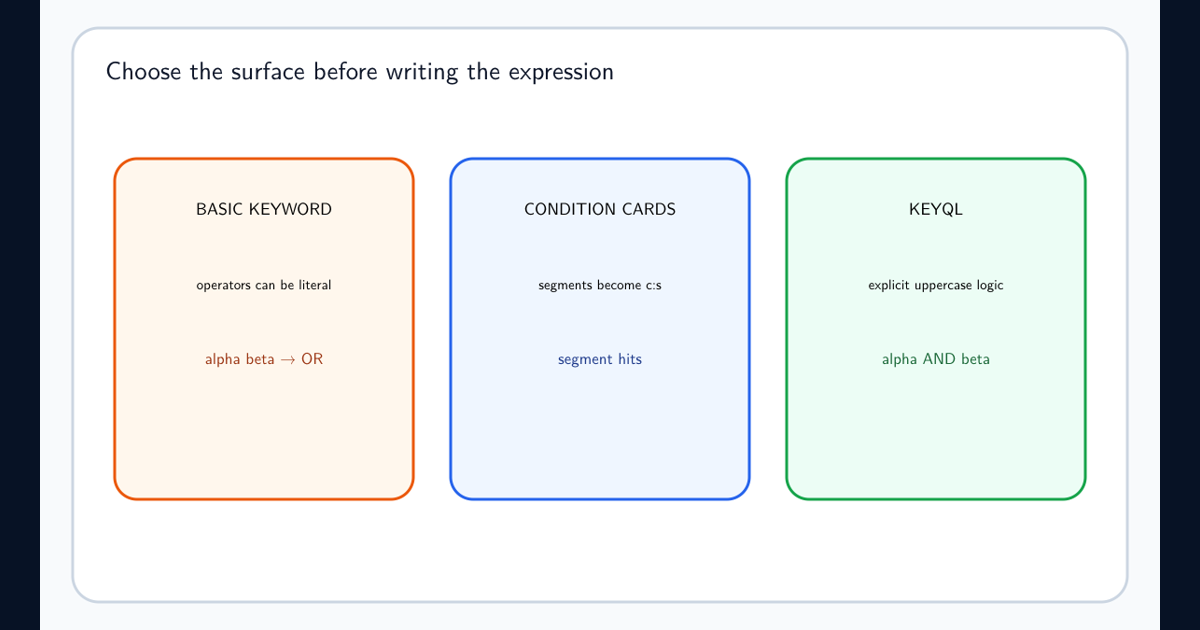
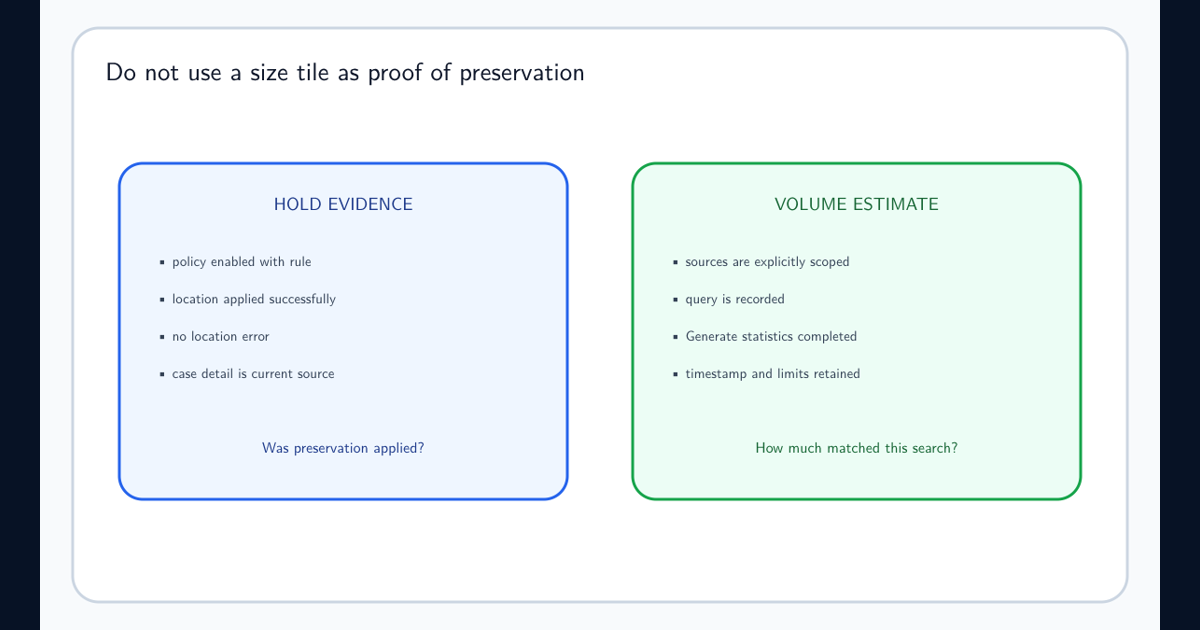
Keep source selection separate from query design. Once the locations are correct, use the eDiscovery query condition building guide for keywords and Boolean logic, and the eDiscovery hold verification guide for hold status and statistics.
Close the issue with the exact identity used, resolved source type, included locations, verification status, RBAC evidence, process report, and any direct URLs added. That record protects the investigation from the much larger risk: believing a person’s data was searched when only part of their Microsoft 365 footprint was in scope.
Frequently asked questions
Can the new Purview eDiscovery source picker search by last name only?
Microsoft lists full display name, first name only, SMTP address, alias, Exchange GUID, and OneDrive URL as supported person-search values. Last-name-only search is not listed; use the exact SMTP address for the most reliable match.
What locations are added when I select a user data source?
A user data source typically includes the user mailbox and OneDrive site. Review Manage sources because provisioning, deletion, licensing, or conversion can leave one location unavailable.
Do data sources from legacy eDiscovery automatically appear in the new experience?
No. Microsoft states that legacy eDiscovery data sources do not synchronize to the same case in the new experience and must be added again.