Cannot Delete a SharePoint Site Because of a Purview Retention Policy: Safe Fix Guide
Identify the Microsoft Purview retention policy or eDiscovery hold blocking SharePoint site deletion, choose exclusion versus removal correctly, respect Preservation Lock, and verify release without risking retained content.
Start With the Meaning of the Error
Messages such as This site has a compliance policy set to block deletion, A compliance policy is currently blocking this site deletion, or The requested operation is not supported for site mean SharePoint has found a preservation dependency. Treat that message as a successful safety control, not as a permissions annoyance.
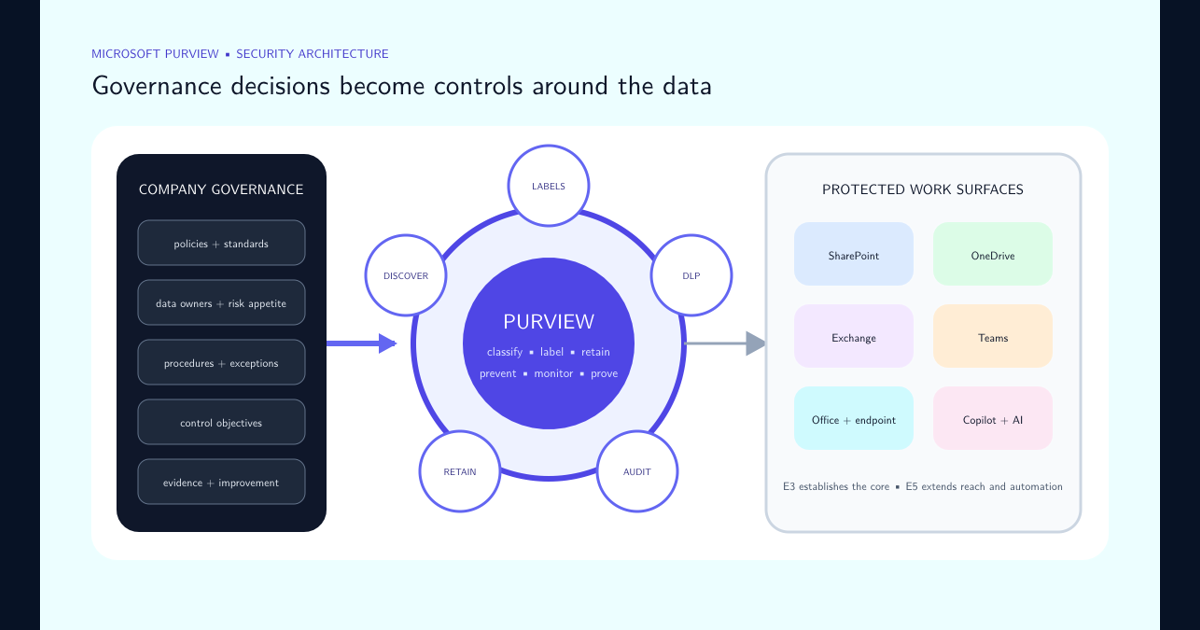
The site can be protected by a Microsoft Purview retention policy, an eDiscovery hold, a retained Microsoft 365 group, or more than one control at once. A SharePoint lock state and record-labeled content can add further restrictions. Site owner permissions do not override these controls.
Pause the deletion request and capture the exact site URL, error text, UTC time, requesting administrator, business owner, associated Team or Microsoft 365 group, and the approved reason for retirement. Do not delete libraries, remove records, or detach the group while the governing control is unknown.
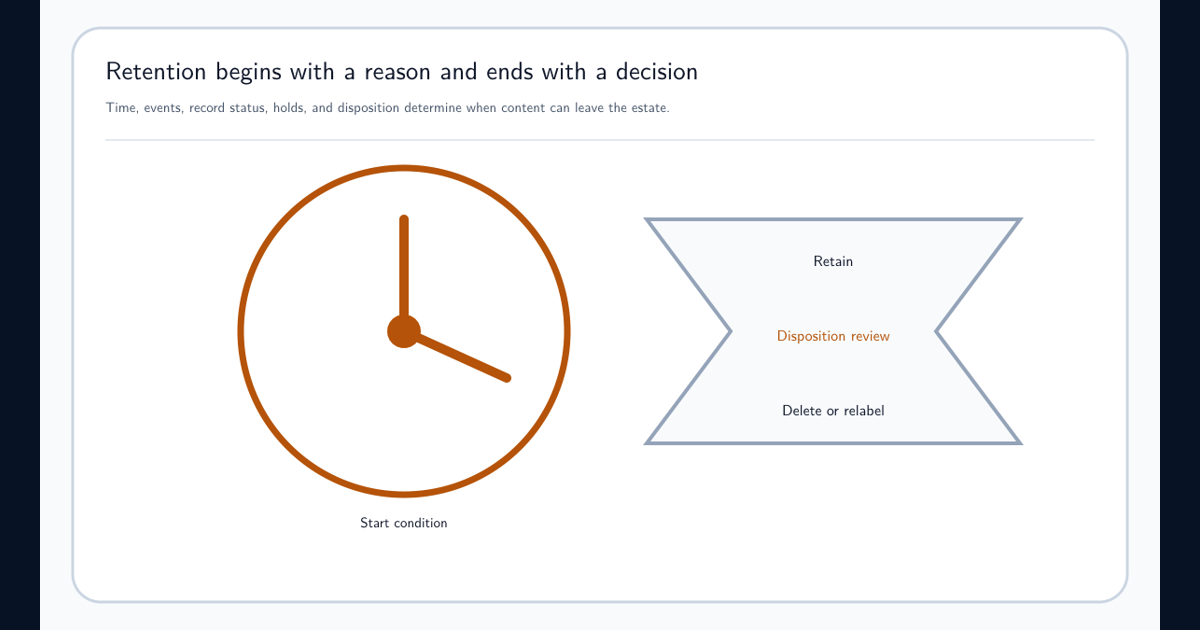
Use the broader Microsoft Purview data lifecycle management guide when the organization must first decide whether a retention policy, item-level label, record declaration, or disposition process is the correct control.
Identify Every Policy and Hold Applied to the Exact Site URL
Run Microsoft’s site deletion diagnostic from the Microsoft 365 admin center. It is designed to determine why a site cannot be deleted, although it is not available in GCC High, DoD, or Microsoft 365 operated by 21Vianet.
Next, open Policy lookup in Data Lifecycle Management or Records Management and enter the complete canonical SharePoint URL. Policy lookup requires an exact URL; partial values and wildcards do not work. Review all returned retention policies and label policies rather than stopping at the first match.
Check open and closed eDiscovery cases for holds that contain the site directly or through an associated user or group data source. Review the Microsoft 365 group relationship because a retention policy applied to a group can include both the group mailbox and its SharePoint team site.
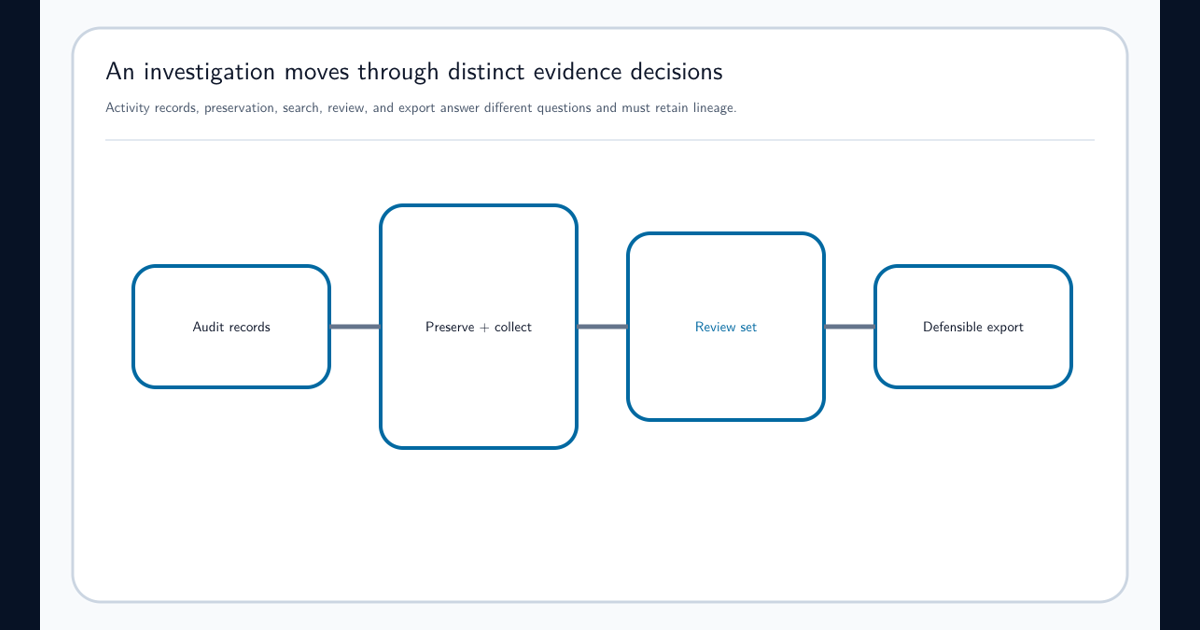
The Purview Audit and eDiscovery investigation workflow explains why preservation, collection, review, and export are separate actions. Releasing a hold requires the case decision; deleting the site is not a substitute for closing that decision properly.
| Evidence | What it establishes | Owner to involve |
|---|---|---|
| Policy lookup returns an all-sites retention policy | The site inherited broad lifecycle coverage | Retention or records-management owner |
| Policy lookup returns a selected-sites policy | The site was explicitly included | Policy owner and site business owner |
| An eDiscovery hold contains the site | An investigation is preserving content | Case manager and legal counsel |
| Policy has Preservation Lock | The policy cannot be weakened or disabled | Records, legal, and regulatory governance |
| No Purview control appears | Investigate SharePoint lock state, group dependency, and diagnostic output | SharePoint administrator |
Obtain Approval Before Releasing Retention or a Legal Hold
Finding the policy does not authorize changing it. Confirm that the site has reached the approved end of its business life and that its content is not required for litigation, investigation, audit, regulatory retention, or records disposition.
For an eDiscovery hold, the case manager and legal owner decide whether the site can be released. For a retention policy, the policy owner and records function confirm that an exception is permitted. Record the ticket, approver, policy, site URL, intended action, and rollback plan.
If Preservation Lock is enabled, stop. Microsoft designed the lock so no administrator can turn off the policy, delete it, or make it less restrictive. The correct response is governance and legal escalation, not a PowerShell workaround.
Never delete or manipulate the Preservation Hold library. SharePoint uses this hidden system location to keep copies required by retention. Microsoft does not support editing, moving, relabeling, or deleting those automatically retained files directly.
Choose Exclude or Remove Based on Policy Scope
Open the retention policy in Microsoft Purview and inspect how SharePoint locations are scoped. The correct action is determined by that design:
| Policy scope | Correct action | Timing behavior |
|---|---|---|
| All SharePoint sites | Add the site URL to Exclude sites | Microsoft states that exclusion bypasses the 30-day retention grace period |
| Selected SharePoint sites | Remove the site URL from Choose sites | Removal leaves the site subject to a 30-day retention grace period |
| Adaptive scope | Correct the adaptive-scope membership or policy design through its owner | Allow membership and policy evaluation to complete before validation |
| Preservation Lock | No weakening action is available | Follow the regulatory governance process |
Microsoft exposes Exclude sites for an all-sites policy and Choose sites for selected inclusions. If Exclude sites is unavailable, do not force the workflow; the site belongs to a selected-sites policy and must be removed from that list.
Be especially careful when removing the final selected inclusion. Microsoft warns that removing the last included location can make the location configuration revert to All. Turn the SharePoint location off when that is the real intent, or add the correct exclusion, and review the summary before saving.
Wait for Policy Distribution and Verify the Release
Save the approved policy change and record the UTC time. Microsoft states that the change can take up to 24 hours to take effect. Retention policy status can remain pending while it replicates across Microsoft 365 locations; repeated edits during this window make the result harder to interpret.
After distribution completes, rerun Policy lookup with the exact URL and rerun the site deletion diagnostic. Confirm the site is absent from the intended policy and that no other policy or eDiscovery hold still applies. Review the 30-day grace-period consequence when the site was removed from a selected-sites policy.
If the error remains after the documented window, collect the site URL, policy and rule GUIDs, policy status, diagnostic output, timestamps, error text, and prior actions. Escalate with this evidence rather than repeatedly excluding and reincluding the site.
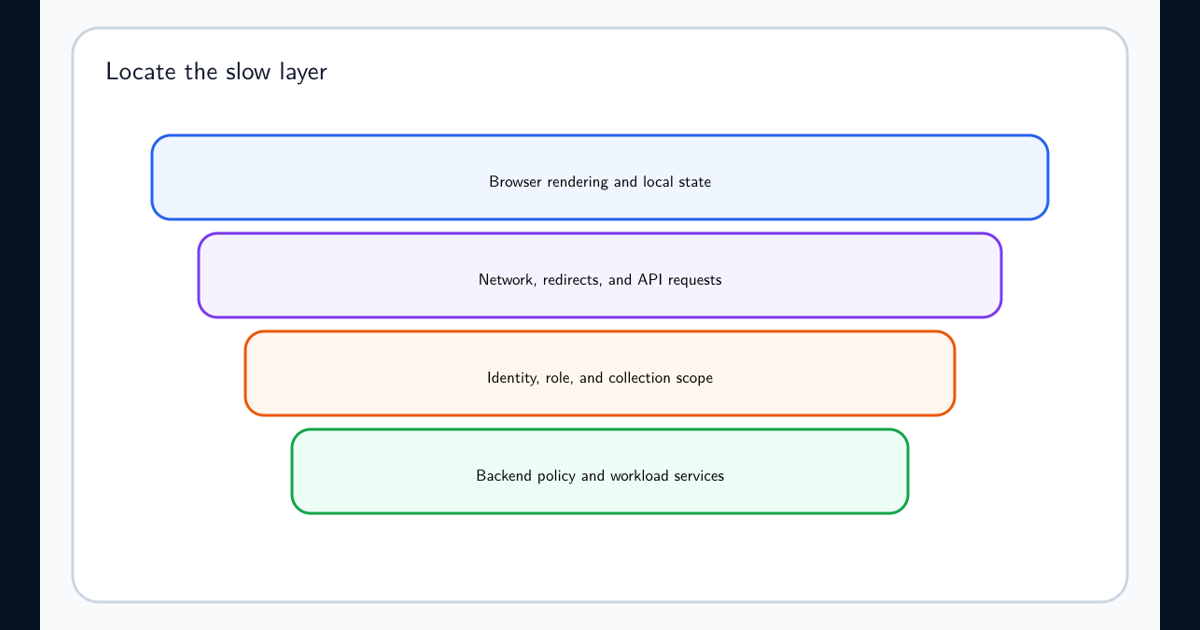
If the portal is slow, redirects, or fails while saving the approved change, use the Purview portal troubleshooting guide and verify the actual policy state before submitting the edit again.
Respond Correctly to the Situation You Find
If the site is covered by a broad seven-year policy that applies to every site, do not delete the policy. Obtain approval and add this exact site to the exclusion list. That preserves the organization’s retention baseline everywhere else.
If the site belongs to an active legal case, stop the retirement. The case manager decides when the hold can be released, and a retention-policy exclusion does not cancel an eDiscovery hold.
If a selected-sites policy contains only this site, do not remove the final URL without reviewing the location toggle. Removing the last inclusion can revert the location to All and unintentionally expand the policy. Turn the location off only when approved and intended.
If Policy lookup is clear but deletion still fails, check the site deletion diagnostic, SharePoint lock state, associated Microsoft 365 group, and any recently released hold still distributing. If the site contains record or regulatory-record labels, involve records management rather than stripping labels for convenience.
Close the change with the final diagnostic result, policy state, deletion time, approvers, and evidence-retention location. The safe outcome is not simply that the URL disappeared; it is that the site was retired without bypassing a valid preservation duty.
Frequently asked questions
Should I remove or exclude the SharePoint site from the retention policy?
Exclude the site when the policy applies to all SharePoint sites. Remove the site when the policy uses a selected-sites inclusion list. Microsoft exposes only the valid action for each scope model.
How long after changing a retention policy can the SharePoint site be deleted?
Microsoft states that retention-policy changes can take up to 24 hours to take effect. Confirm policy status and rerun the site-deletion diagnostic before retrying.
Can an administrator bypass Preservation Lock to delete a site?
No. Preservation Lock prevents everyone, including administrators, from disabling, deleting, or making the policy less restrictive. Follow the organization legal and regulatory process instead of attempting a technical bypass.
Can I delete the Preservation Hold library to unblock site deletion?
No. Microsoft does not support editing, moving, or deleting the automatically retained content in that system library. Correct the governing policy or hold.